
Appearance
Purchase orders
A purchase order (PO) is the list of goods you're ordering from a supplier: the items, how many, and the agreed prices. You raise it, send it to the supplier, then receive it when the delivery lands.
🔷 For managers & admins
You need
purchases.orders.read to view POs, and purchases.orders.create / .update / .delete to manage them. Requires the purchasing module. 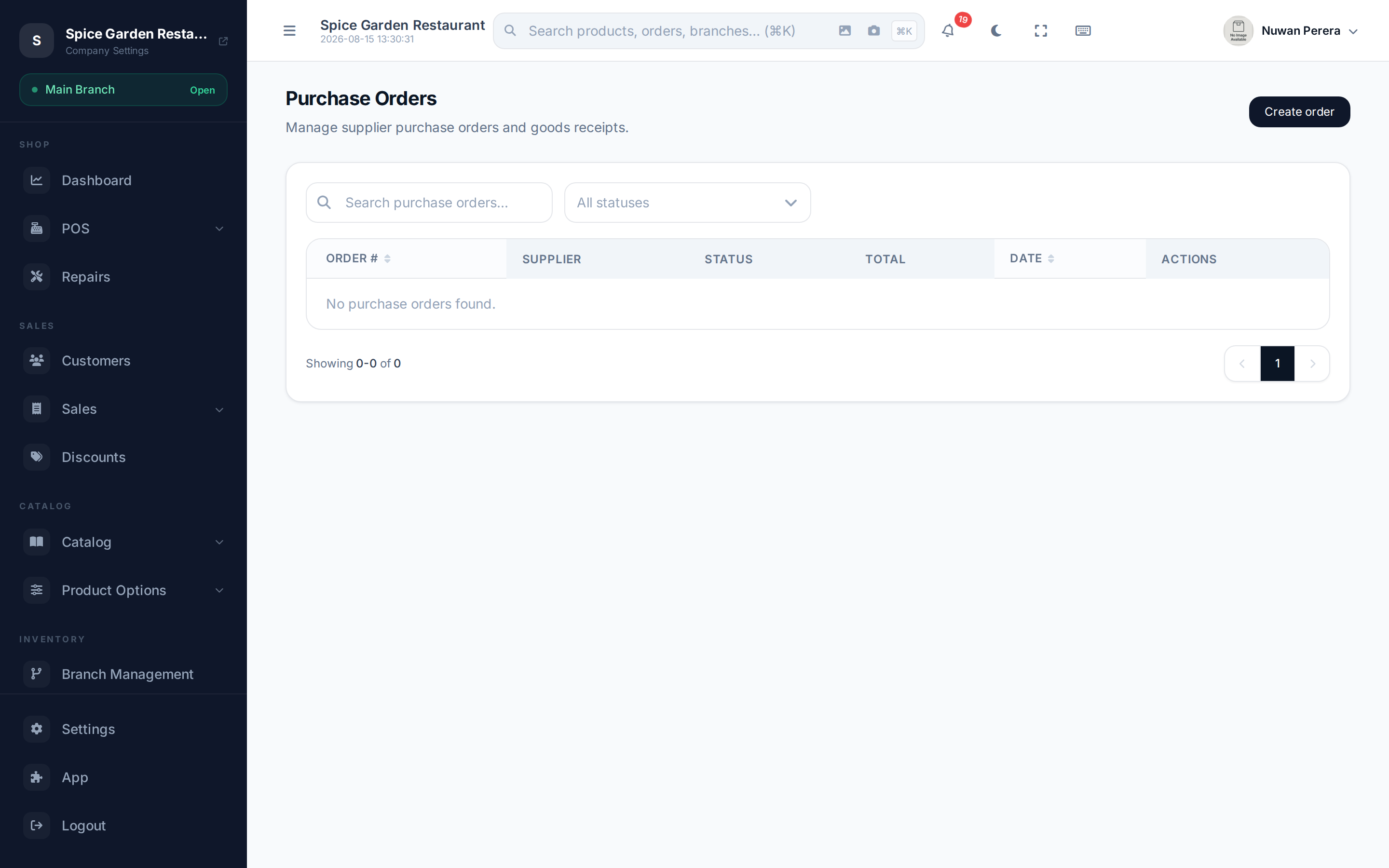
Screenshot pendingRoute /purchase-orders with several POs
Create a purchase order
- On the Purchase Orders screen select Create order.
- Set the Date and, if relevant, a Due Date.
- Choose the Supplier. Their address, email, phone and VAT fill into the supplier panel automatically.
- Choose the Branch the stock is being bought for.
- Add a Reference (optional) — e.g. the supplier's own quote number.
- Add lines — one per product you're buying (see below).
- Set the Status to Draft while you're still editing, or Ordered once you've sent it to the supplier.
- Select Save. The order number is assigned on save.
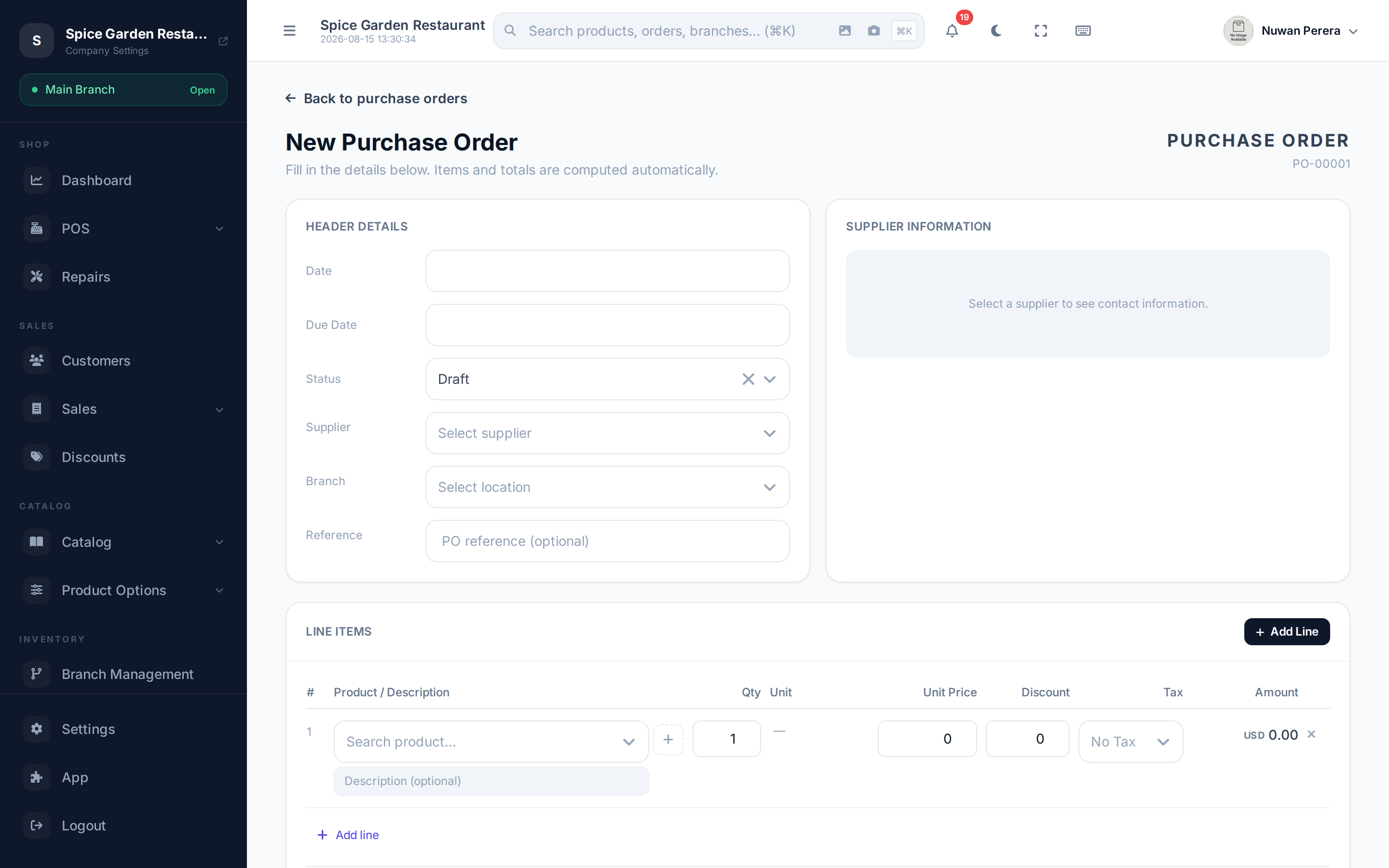
Screenshot pendingRoute /purchase-orders/create with a supplier selected and 2 lines
Adding line items
Each line is one product you're ordering:
| Column | What it's for |
|---|---|
| Product / Description | Search and pick the product |
| Qty | How many you're ordering |
| Unit | Choose the buying unit when the product has more than one (e.g. box vs each) |
| Unit Price | The price you're paying per unit |
| Discount | Any per-line discount |
| Tax | Pick the tax — the line tax is worked out for you |
| Amount | The line total, calculated automatically |
The Subtotal, Discount, Tax and Total at the bottom update as you type.
Don't have the product yet? Quick-create it
If you're ordering something that isn't in your catalog, you don't have to leave the PO. On a line row, select the + (Create new product) button to open a small New Product form:
- Enter the Product name (required).
- Optionally set a Purchase price, Sale price and SKU.
- Select Create & Select.
The product is added to your catalog and dropped straight onto the line you were editing. You can flesh out its full details later in Products.
Statuses
| Status | Meaning |
|---|---|
| Draft | Still being edited; not yet sent |
| Ordered | Sent to the supplier, awaiting delivery |
| Received | Goods arrived and added to stock (see Receiving) |
| Partial | Part-received (set by the system) |
| Cancelled | Order called off |
When creating or editing, you set Draft or Ordered yourself. Received, Partial and Cancelled come from receiving or cancelling the order.
Edit, track and delete
- Edit — available while a PO is Draft or Ordered. Open the order and select Edit.
- Track — the list shows each order's status and total; sort by order number or date, and use the filters to narrow by status.
- Delete — only allowed while a PO is still Draft. Once it's ordered or received, cancel it instead of deleting so history stays intact.
A supplier and at least one line are required to order
You can't move a PO into Ordered (or receive it) without a supplier and at least one line item — the form will ask you to add them.