
Appearance
Suppliers
A supplier is a business you buy stock from. Adding your suppliers here means you can pick them by name when you raise a purchase order, and their contact details fill in automatically.
🔷 For managers & admins
You need
purchases.suppliers.read to see suppliers and purchases.suppliers.create / .update / .delete to manage them. Requires the purchasing module. 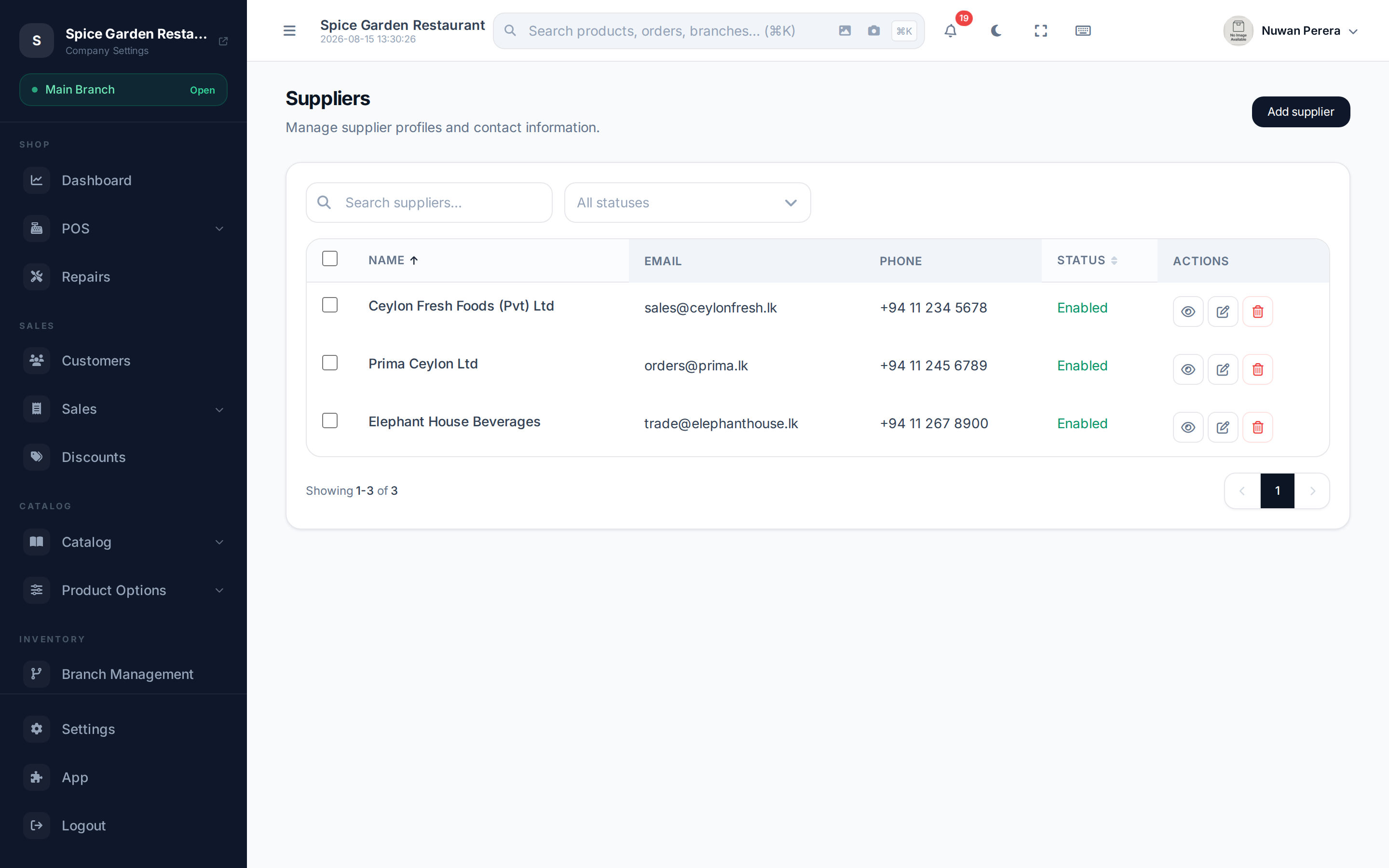
Screenshot pendingRoute /suppliers with a few suppliers
Add a supplier
- Go to Suppliers and select Create (or Add).
- Fill in the Name — this is the only required field.
- Add Email, Phone and Address if you have them.
- Leave Enabled on so the supplier appears in purchase order forms.
- Select Save.
Fields
| Field | Notes |
|---|---|
| Name | Required. The business name, e.g. "ABC Trading Co." |
| Optional contact email | |
| Phone | Optional phone number |
| Address | Optional — shows on the purchase order's supplier panel |
| Enabled | Turn off to hide a supplier from purchase order forms without deleting it |
Disable instead of delete
If you stop using a supplier but have past purchase orders with them, switch Enabled off rather than deleting. Their history stays intact and they simply drop out of the supplier picker.
Edit or remove a supplier
- Edit — open a supplier and change any field, then Save.
- Delete — remove a supplier you never used. Deleting is best avoided once a supplier is tied to purchase orders; disable them instead.
Next steps
- Create a purchase order
- Purchases overview
- Customers — the buying-side equivalent