
Appearance
Reports overview
The Reports area is where you turn your day-to-day activity into answers: how much you sold, what's selling, who owes you money, and how the books look. Open it from Reports in the sidebar, or go to /reports.
🟢 For everyone
Anyone can open the reports they have permission for. Some financial reports are for managers, admins and accountants only, and a few advanced reports depend on your [subscription plan](/administration/subscription).
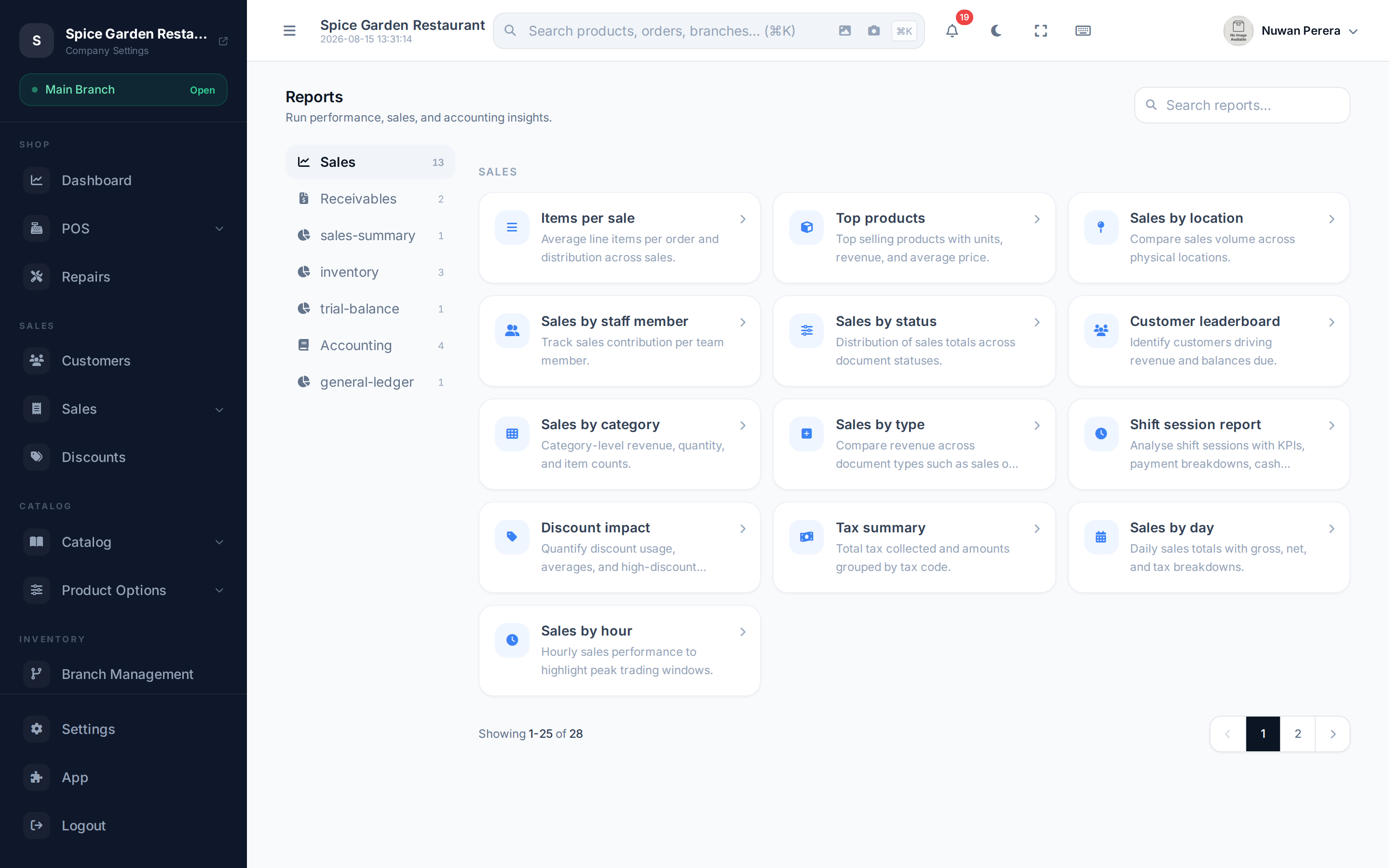
Screenshot pendingRoute /reports, logged in with reports permission
How the hub is organised
Reports are grouped into panels down the left (a tab strip on mobile). Each panel shows a count, and each report is a card with a name and a short description. The main panels are:
| Panel | What's in it |
|---|---|
| Sales | Everyday sales analysis — by day, hour, product, staff, category and more. See Sales reports. |
| Accounting | Financial statements — P&L, balance sheet, aging, cash flow, ratios. See Accounting reports. |
| Receivables | Who owes you — unpaid invoices and receivables aging. |
| General | General ledger and trial balance. |
You may also see an Inventory group for stock reports — see Inventory reports.
The list is dynamic
Reports are served from the system, not hard-coded into the screen, so the exact cards you see depend on your role, your modules and your plan. New reports can appear here without an app update.
Open a report
- Pick a panel on the left (or use the Search reports… box to find one by name).
- Select the report card. It opens on its own page.
- Set the filters on the left (dates, branch, and so on) and select Run report.
- Read the result — and Export it if you need a copy.
See Filtering & exporting for the full detail on filters, drill-down and downloads.
Locked reports
A report shown as a greyed-out card with an "Upgrade" badge isn't included in your current plan. Opening it prompts you to upgrade. Ask an admin, or see Subscription & billing.
Reports vs the dashboard
The dashboard gives you a live, at-a-glance picture that refreshes on its own. Reports are for pulling a specific figure for a specific period, filtering it and exporting it. Use the dashboard to watch the day; use reports to answer a question.