
Appearance
Products
A product is anything you sell. The Products page lists them all; from here you create new ones, edit existing ones, and print barcode labels.
🟢 For everyone
Creating and editing products needs catalog permissions (
catalog.products.create, catalog.products.update). Cashiers usually just sell them; managers and admins maintain them. 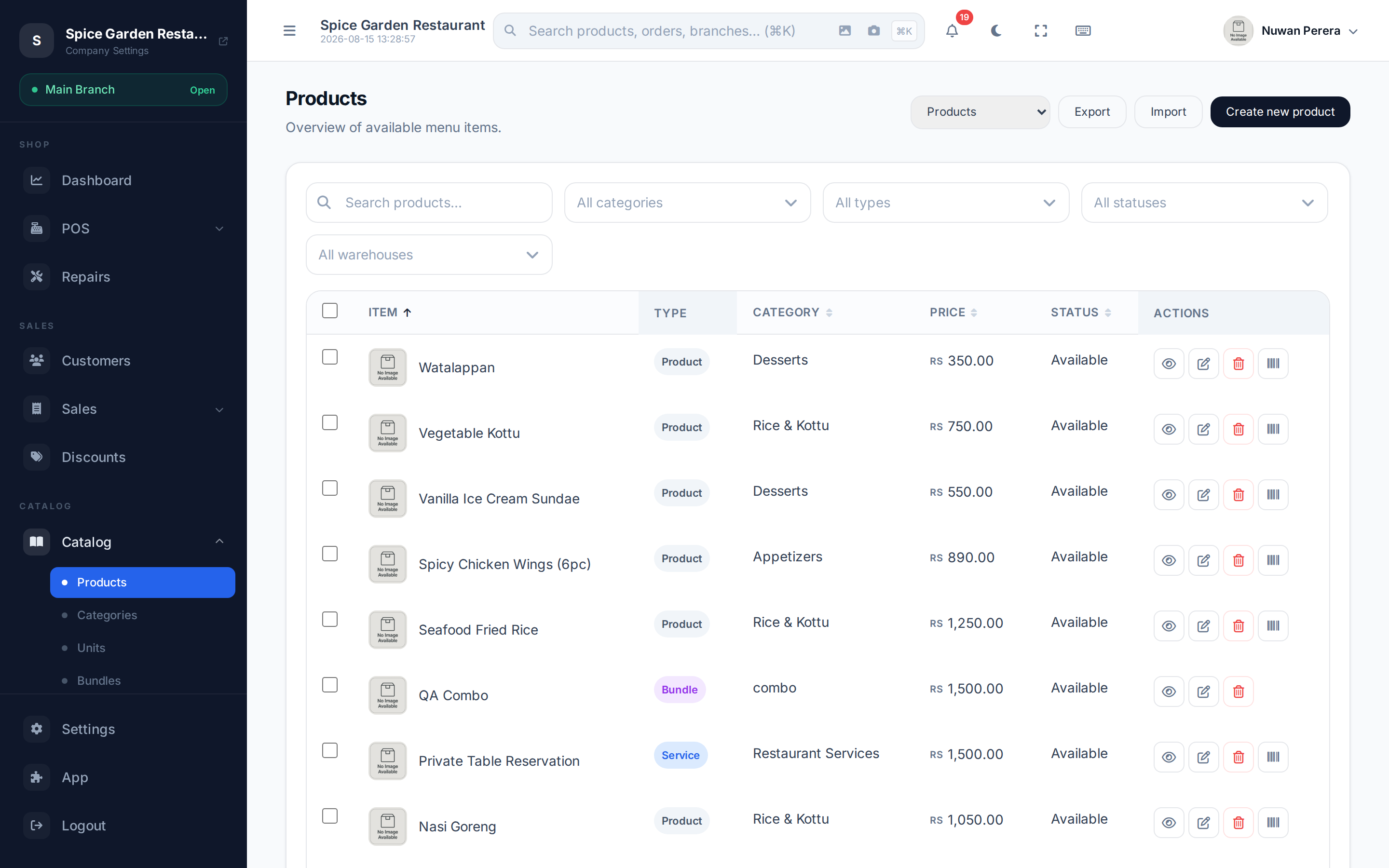
Screenshot pendingRoute /products, fully loaded list
The three product types
When you create a product you first choose a Product Template — the type decides how it behaves in stock and pricing:
| Type | Use it for | Stock tracked? |
|---|---|---|
| Standard product | A physical item with one price and one stock level | Yes |
| Service | Labour, bookings, fees — anything with no stock | No |
| Variable product | An item sold in variations (size, colour) | Per variant |
INFO
The Variable product option only appears when the Product Variations module (catalog_variations) is switched on. See Product variants.
Step by step: create a standard product
On the Products page, select New product (or Add product).
Under Product Template, choose Standard product.
Enter the Product name (and description). The name field has language tabs so you can translate it.
In Product Details, pick a Category, optionally a Brand, a Base unit, and optionally a SKU and Barcode — the small refresh icon next to each generates one for you from your numbering settings.
More than one barcode
A product can carry additional barcodes beyond the primary one — handy for pack/case codes or legacy EANs. Every barcode (primary or additional) must be unique across your products, and scanning any of them finds the product.
In Pricing, set the Cost price (what you pay) and Retail price (what you charge), and choose any Tax rates. The panel shows the retail price including tax.
Set the opening stock — see Stock below.
Set the Status toggles: Published to show it for sale, Returnable, and (for physical items) Sold by Weight.
Select Save.
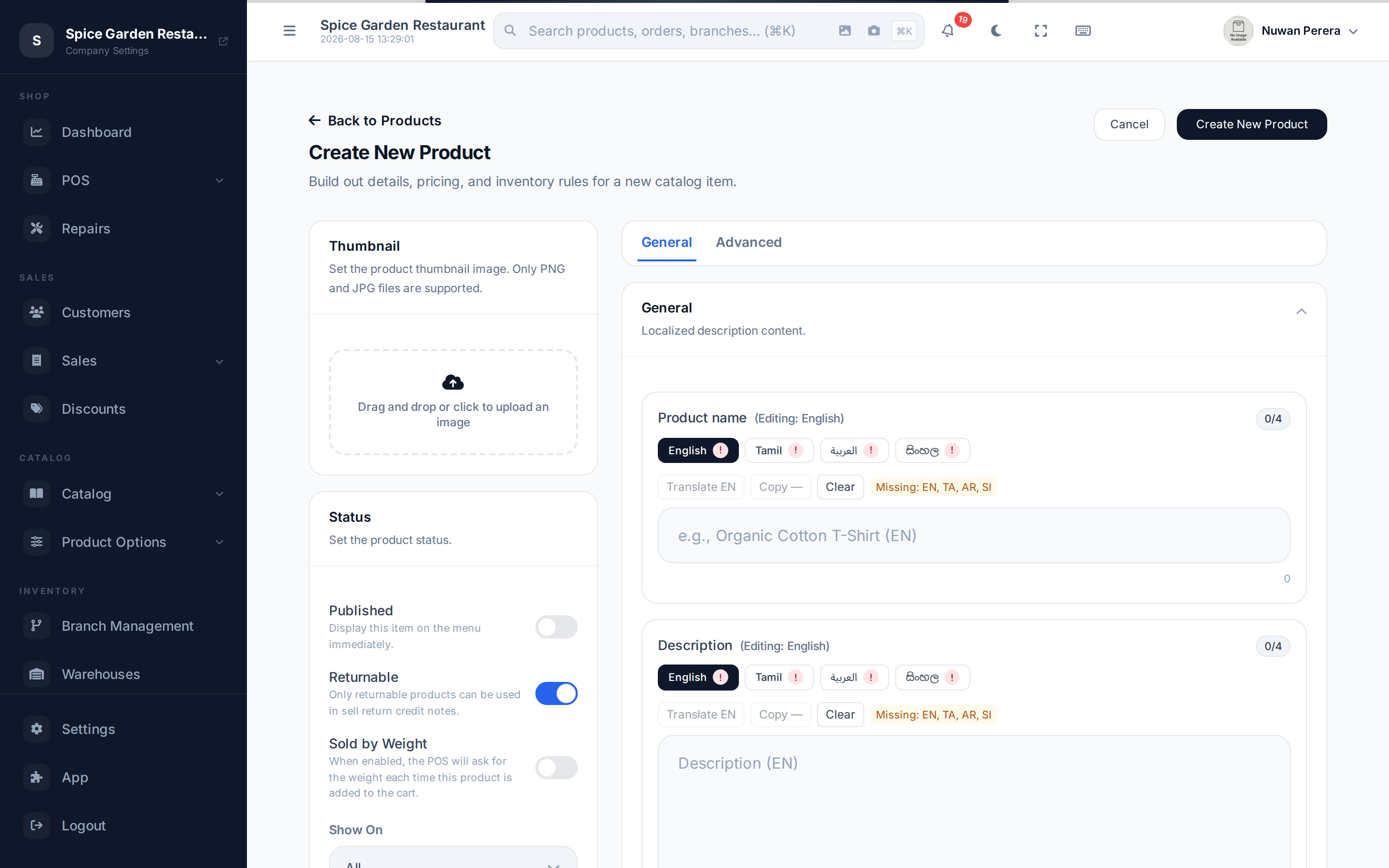
Screenshot pendingRoute /products/create, Standard product selected
Pricing
| Field | Meaning |
|---|---|
| Cost price | What the item costs you — drives profit and COGS |
| Retail price | The selling price before tax |
| Tax rates | One or more tax rates applied at sale |
| Retail price (inc. tax) | Calculated for you from the retail price + selected taxes |
For a variable product you don't set a single price here — cost and retail price are set per variant, and the product-level price syncs from the first variant.
Stock and inventory
Only standard products track stock. Stock is held per warehouse, so one product can have different quantities in different locations.
- On the product form, add a row per warehouse under Inventory by warehouse (in the Advanced tab) and set:
- On hand — the opening stock for a newly added warehouse row.
- Available stock — sellable now, after any reservations/holds.
- Once a row is saved, its stock is read-only on the form. Change it with Adjust stock on the product page, which records a stock movement. A warehouse row can only be removed when it holds no stock.
- Reorder point and Reorder qty — for reorder alerts.
- Stock Tracking mode (in the Status card) chooses how units are tracked:
- None — ordinary stock.
- Batch / Expiry (FEFO) — sell from expiry lots first (pharmacy). See Lots & FEFO.
- Serial / IMEI — track each unit individually (electronics). See Serials & IMEI.
Show On
The Show On setting controls where a product appears: All, POS Only, or Raw Material (used inside recipes/inventory, not sold directly).
The product detail tabs
The right side of the editor is split into General and Advanced panels:
| Panel / tab | What's there |
|---|---|
| General | Name & description, Pricing, and Unit conversions (sell in multiple units with per-unit price and barcode) |
| Advanced → Inventory by warehouse | Per-warehouse stock, reorder levels |
| Advanced → Variants | Option groups & generated variants (variable products) — Variants |
| Advanced → Recipe | Build the item from ingredients — Recipes |
| Advanced → Product specs | Definition-based attributes — Specifications |
Other options in the left column: attach Modifier groups (add-ons at the till), mark the product Sold by Weight with a weight unit, and set its Category and Base unit.
Services
Choose Service for anything with no stock — a repair fee, a delivery charge, a consultation. You still set a price and tax; there's no stock, warehouse or base-unit section.
Editing, disabling and deleting
- Edit from the row action or by opening the product.
- To stop selling something without removing its history, turn Published off rather than deleting it.
- Bulk enable/disable and bulk delete are available from the list's selection bar.
- After you delete a product, its SKU can be used again on a new product. The same goes for the codes of deleted categories, units, taxes and other catalog records.
Image files
Product and catalog images must be real JPEG, PNG, GIF, WebP or AVIF files. Anything else is refused with "The file must be a JPEG, PNG, GIF, WebP or AVIF image."