
Appearance
Accounting overview
ZeylonPOS keeps a full set of double-entry books for you. Most of the time you don't have to touch them: as you sell, the system posts the right entries to the right accounts in the background. This section explains what's happening and the tools you use when you do need to step in.
🔷 For managers & admins
Accounting is an add-on module and is aimed at admins and accountants. If the Accounting menus are missing, the module isn't enabled on your plan — see Modules. Reading reports needs the accounting module at read level; posting journals, closing periods and reconciling need it at full level. Permissions all start with
accounts.. 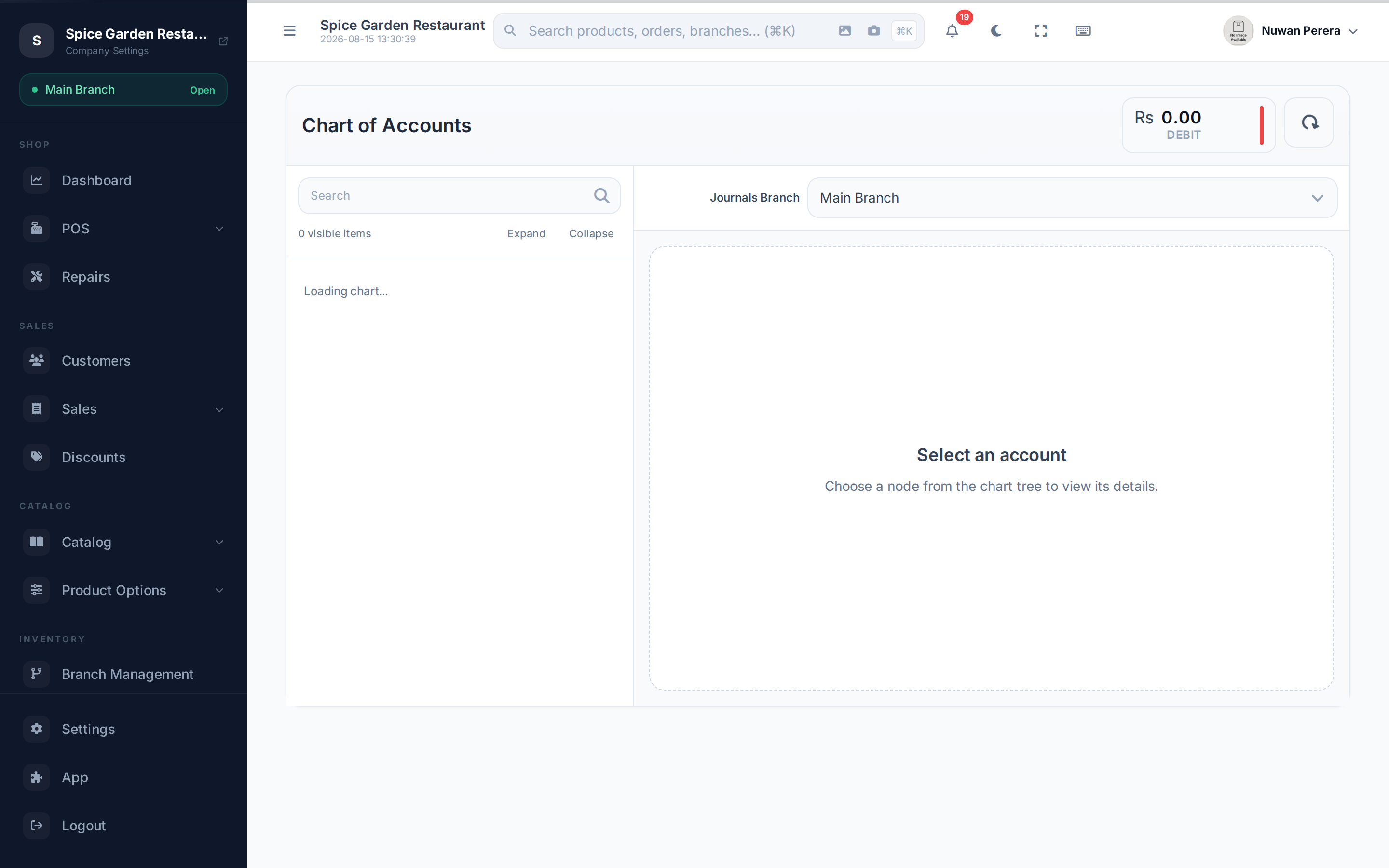
Screenshot pendingRoute /chart-of-accounts with the tree expanded
What "double-entry" means
Every transaction touches two sides so the books always balance. Money coming into one account (a debit) is matched by money leaving another (a credit). The totals must be equal — that's the rule that keeps everything honest.
You rarely write these by hand. The system builds them automatically from your sales.
What posts automatically — a sale
When a sale is completed, ZeylonPOS posts a journal entry roughly like this:
| Line | Debit | Credit |
|---|---|---|
| Cash / Card / Bank received | ✔ | |
| Accounts Receivable (if paid on credit) | ✔ | |
| Sales Tax Payable | ✔ | |
| Sales Revenue (net of tax) | ✔ | |
| Cost of Goods Sold | ✔ | |
| Inventory Asset | ✔ |
So one sale records the money in, the tax you owe, the income you earned, and the cost of the stock that left the shelf — all at once.
When a sale changes, is cancelled or returned
Posted entries are never edited or deleted — the history always shows what happened:
- Held or open orders post nothing. The entry is created when the sale is completed or paid.
- Editing a completed sale posts a reversal of the old entry and a new entry for the corrected sale.
- Cancelling, voiding or deleting a sale posts a reversal, so the sale nets to zero.
- Returns and credit notes post a reversal of the revenue and tax. Anything you haven't refunded yet is recorded as owed to the customer (Accounts Receivable).
Closed periods are never changed
If a sale or change is dated in a closed or locked period, its entry is posted on the next open date instead (today, if the current period is open), and the entry's memo notes the original date. If no open period exists, the action is refused until you open one — see Fiscal periods.
Account settings must be complete
Every automatic entry must balance. Differences of up to 1.00 (rounding) go to the Rounding account. Anything larger means an account setting is missing or wrong (for example a payment method, revenue or tax payable account), and the sale is refused with a message pointing to the accounting settings — fix the setting and try again.
What you do by hand
| Task | When | Guide |
|---|---|---|
| Look up your accounts | Anytime | Chart of accounts |
| Record something the system can't (owner drawings, adjustments, purchases) | Occasionally | Manual journals |
| Open and close accounting periods | Month/year end | Fiscal periods |
| Tie your ledger to the bank statement | Monthly | Bank reconciliation |
| See if you made money | Anytime | Profit & Loss |
| See what you own and owe | Anytime | Balance sheet |
| Chase who owes you / who you owe | Anytime | Aging reports |
Purchases post when received
Receiving a purchase order adds the stock and posts a purchase entry (inventory against accounts payable). See Receiving stock.
Reading the books on the phone
The mobile app can read the accounting module under More → Accounting (viewing needs accounts.reports.read; the chart of accounts needs accounts.coas.read):
- Chart of accounts — every account grouped by class, searchable.
- Reports — trial balance, profit & loss, balance sheet, cash flow, comparative P&L, general ledger, receivables and payables aging, financial ratios and the contact ledger.
Each report opens on a sensible default period; tap the date chips to change it. The general ledger can be narrowed to a single account and the contact ledger asks for a customer or supplier first. Tables are drawn one row per card so nothing needs panning sideways, and a report your plan does not include shows an upgrade prompt.
Manual journals can also be written from the phone: list and search entries, open one to see its lines and totals, reverse a posted entry, or write a new one. The entry form keeps a running debit and credit total and will not let you save until they balance — the same check the server makes, so you find out while you are typing rather than on submit. A posted entry can only be reversed; a draft can be edited.
Fiscal periods are there too — see which periods still accept entries, and close, reopen or lock them.
Bank reconciliation stays in the browser.