
Appearance
Administration overview
Administration is where you set up and run the back office of ZeylonPOS: your company profile, how documents are numbered, tax and currency rules, who can log in and what they're allowed to do, which modules are switched on, and your subscription.
🔷 For managers & admins
Most of this section needs a manager or admin role. Individual screens name the exact permission they require. A cashier or viewer will not see most administration menus.
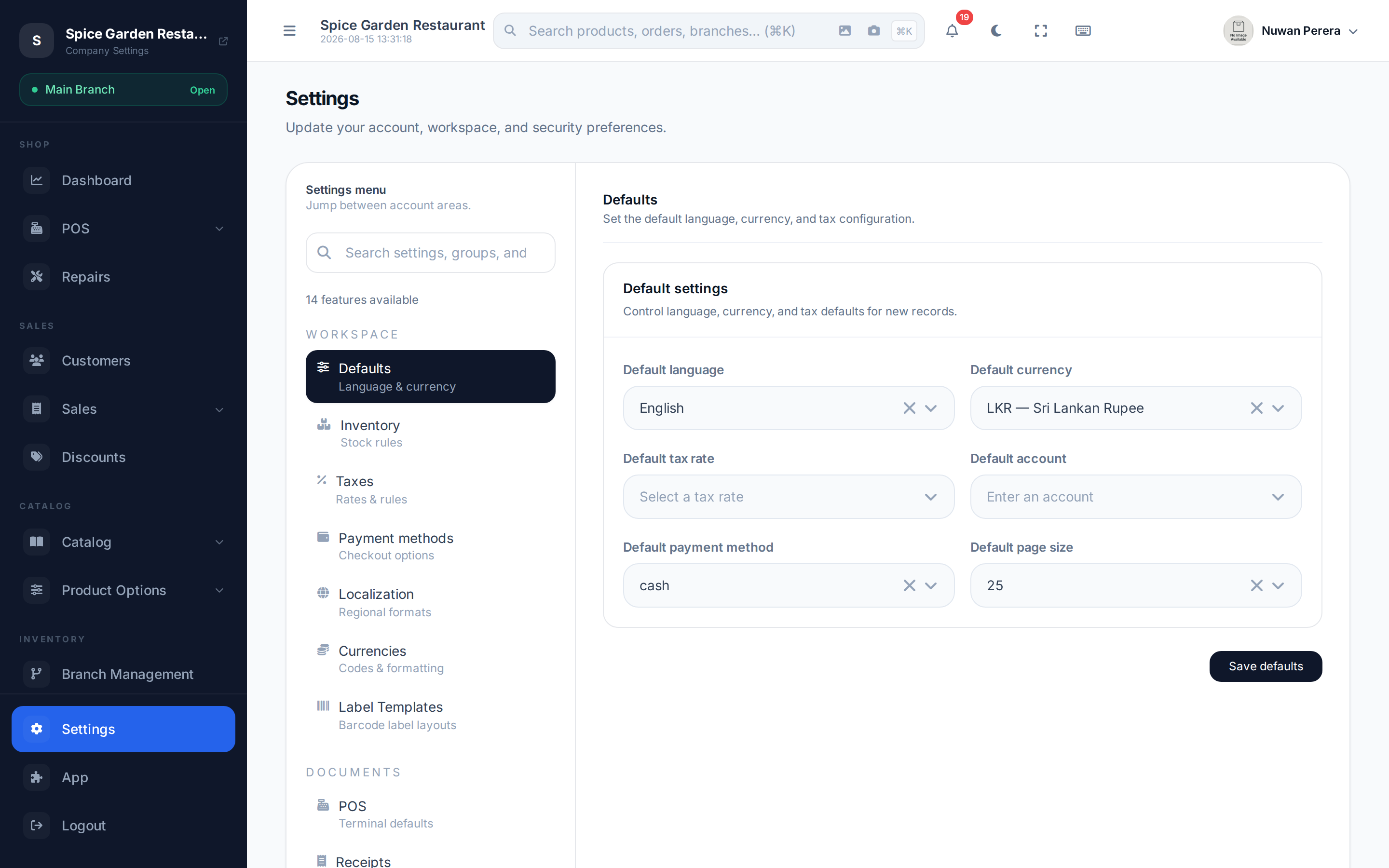
Screenshot pendingRoute /settings, logged in as an admin
What an admin configures
| Area | What it covers | Article |
|---|---|---|
| Company profile | Business name, logo, address, tax ID | Company settings |
| General settings | Defaults, POS behaviour, inventory codes | General settings |
| Document numbering | Invoice, credit/debit note, exchange & PO number formats | Document numbering |
| Receipts & printers | Receipt layout, the print bridge | Receipts & printers |
| Currencies | Currencies, exchange rates, rounding | Currencies |
| Taxes | VAT/tax rates, inclusive vs exclusive | Taxes |
| Payment methods | Cash, card, bank, split tenders | Payment methods |
| Localisation | Languages, date format, timezone, financial year | Localisation |
| Barcode labels | Label sheet templates | Label templates |
| Floors & tables | Restaurant seating plans | Floors & tables |
| Users | Staff accounts, role & branch assignment | Users |
| Roles & authority | Roles, permissions, ABAC rules, overrides | Roles & the Authority Matrix |
| Modules | Turn features on/off from the App marketplace | Modules |
| Subscription | Plan, add-ons, usage limits, invoices | Subscription & billing |
| Support | Raise tickets with the ZeylonPOS team | Support tickets |
| Notifications | The alerts centre | Notifications |
A sensible setup order
If you're setting up a brand-new company, work top to bottom:
- Fill in your company profile — name, logo, address and tax ID (these appear on every receipt and invoice).
- Set your localisation — language, timezone and financial-year start.
- Add your taxes and currencies, then pick the defaults in General settings.
- Configure payment methods and document numbering.
- Enable the modules you need.
- Create your users and assign roles.
TIP
The setup wizard walks new companies through the essentials the first time you sign in. You can always return here to adjust anything.