
Appearance
Customers
A customer is anyone you sell to and want to remember: a regular shopper, a business you invoice, or someone with a repair booked in. Attaching a customer to a sale gives you history, a running balance, and — for businesses — the tax identity a proper invoice needs.
🟢 For everyone
You can attach an existing customer to any sale from the register. Creating and editing customer accounts here needs the customer permissions (usually a manager or admin).
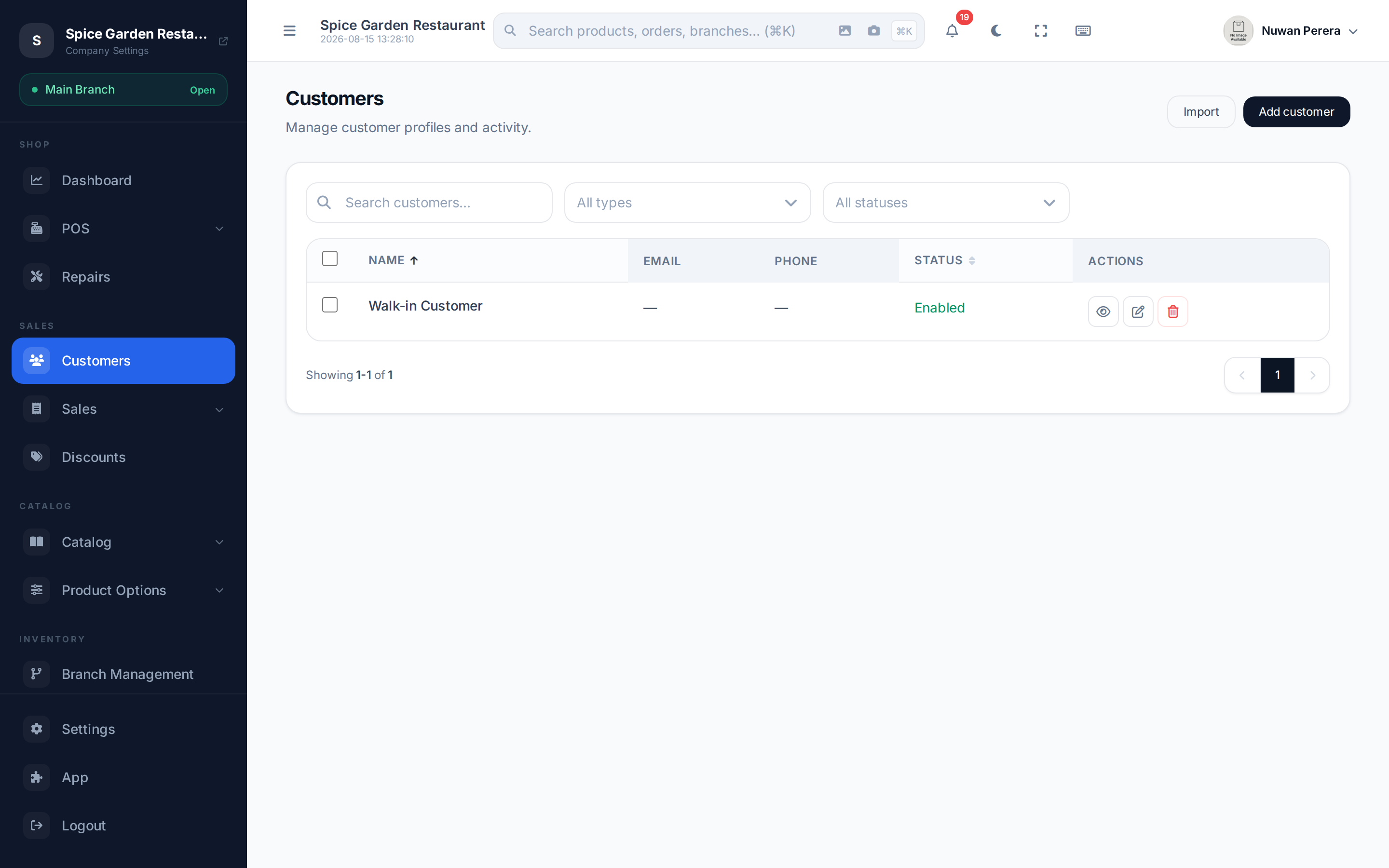
Screenshot pendingRoute /customers, retail SA demo
Adding a customer
- Go to Customers and select Add customer.
- Choose the Customer type — Individual or Business. Businesses must be identified for tax invoices.
- Enter the name, and any email and phone.
- Set the identification (see the table below). Businesses, and anyone with a VAT identity, must fill in an identification number.
- Add the address. You can drop a pin on the map to fill the fields, or type them in. Tax invoices need the building number, street, district, city, postal code and country.
- Leave Enabled on so staff can pick the customer at checkout.
- Select Save.
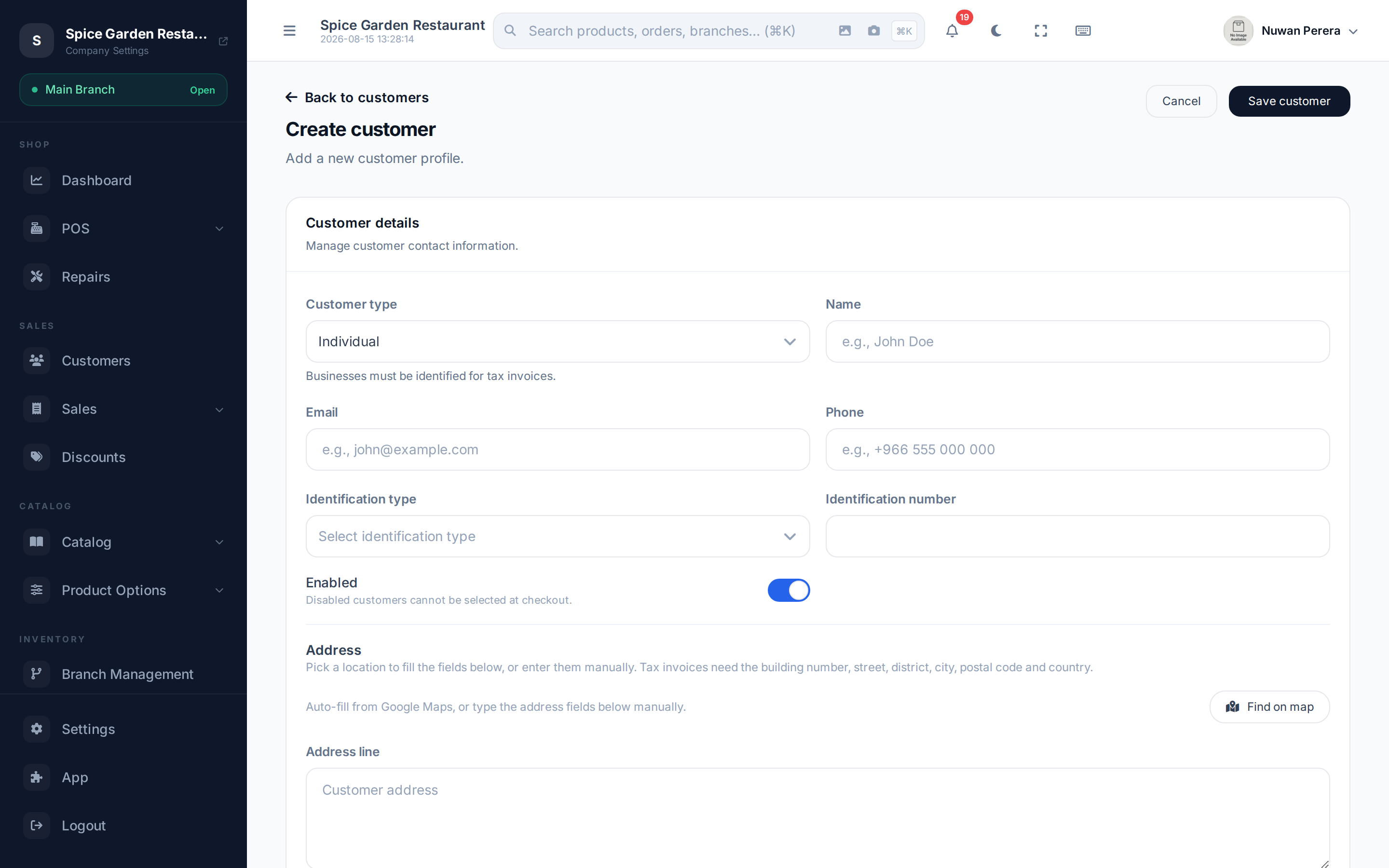
Screenshot pendingRoute /customers/create, retail SA demo
Fields explained
| Field | Notes |
|---|---|
| Customer type | Individual or Business. A business must carry an identification for tax invoices. |
| Name | Person's name, or the registered business name. |
| Email / Phone | Optional contact details; used for e-mailed invoices and receipts. |
| Identification type | VAT, or another scheme (national ID, commercial registration, etc.). |
| Identification number | Required for businesses and for any VAT identity. Saudi VAT numbers are 15 digits starting and ending with 3. |
| Address | Free-text line plus the structured parts (building number, street, district, city, postal code, province, country) a tax invoice requires. |
| Enabled | Turn off to hide a customer from checkout without deleting their history. |
TIP
For walk-in sales you don't need a customer at all — leave it blank at the register. Only create accounts for customers you want to track, bill or give credit to.
The customer profile
Open any customer to see their profile: a header with contact and tax details, a row of stats (orders and their total, average order value, balance due, credit notes, and the last order date), and tabbed history below.
| Tab | What it shows |
|---|---|
| Overview | Contact and address details at a glance. |
| Orders | Every sale and invoice for this customer. |
| Credit Notes | Refunds and credits issued to them. |
| Repair Jobs | Repairs booked for this customer (only when the Repairs module is on). |
Balance due and credit
The Balance due stat is what the customer still owes you across their unpaid invoices — this is how you sell "on account". Raise an invoice, let them pay some now and the rest later, and the outstanding amount shows here and in the receivables aging report. A credit note reduces what they owe (or refunds cash).
Editing and removing
Open a customer and select Edit customer to change any detail, or Delete customer to remove them. Deleting is blocked from removing real financial history — prefer switching Enabled off if a customer just shouldn't appear at checkout any more.
You can also import customers in bulk from an .xlsx file — use Import on the customers list and download the sample template first.
Customer privacy requests
Privacy laws — Sri Lanka's Personal Data Protection Act and Saudi Arabia's Personal Data Protection Law — give your customers the right to see the personal data you hold about them and to have it erased. Two actions on the customer profile answer those requests.
🔷 For managers & admins
Export data needs the Export Customer Data permission (admins and managers have it by default; the read-only Viewer role does not). Anonymize needs the Anonymize Customer permission, which only admins have by default because it cannot be undone. Grant either to another role from Roles & permissions.

Screenshot pendingRoute /customers/:id, retail LK demo, signed in as admin
Giving a customer a copy of their data
- Open the customer from Customers.
- Select Export data.
- A
.jsonfile downloads with their contact and tax details, the list of their sales and invoices (number, date, status and total), and their repair jobs. - Send the file to the customer through a channel you trust.
The file holds only this customer's data. Device passcodes recorded on repair jobs are left out on purpose.
Erasing a customer (anonymize)
- Open the customer and select Anonymize.
- Read the confirmation and select Anonymize again.
- The customer is renamed Anonymized customer #<number>, their contact and address details are cleared, and they are switched off so they no longer appear at checkout.
What happens to their information:
| Information | After anonymizing |
|---|---|
| Name | Replaced with Anonymized customer #<number> |
| Email, phone, address | Cleared |
| Identification / VAT number | Cleared for an Individual; kept for a Business (it is company data) |
| Name, phone and email copied onto past sales | Removed — except on invoices reported to ZATCA |
| Invoices reported to ZATCA | Kept unchanged, including the buyer details |
| Sales history, totals and payments | Kept — your accounts and tax records still add up |
| Device passcodes on repair jobs | Cleared |
| Notes typed on their sales, and the issue / technician notes on their repair jobs | Replaced with [redacted] — except on invoices reported to ZATCA |
Anonymizing cannot be undone
An anonymized customer can't be edited back — Edit customer disappears from their profile. Export their data first if they asked for a copy too.
Why some invoices keep the buyer details
Tax law requires e-invoices reported to ZATCA to be kept unaltered for years (at least six in Saudi Arabia). Those invoices therefore keep the buyer's details even after you anonymize the customer; everything else is erased. If one of the customer's invoices is still waiting for ZATCA to accept it, anonymizing is refused until its submission is resolved — see ZATCA e-invoicing.