
Appearance
Filtering & exporting
Every report opens with a filter panel on the left and a result on the right. This page covers the three things you'll do on every report: set filters, drill into detail, and export.
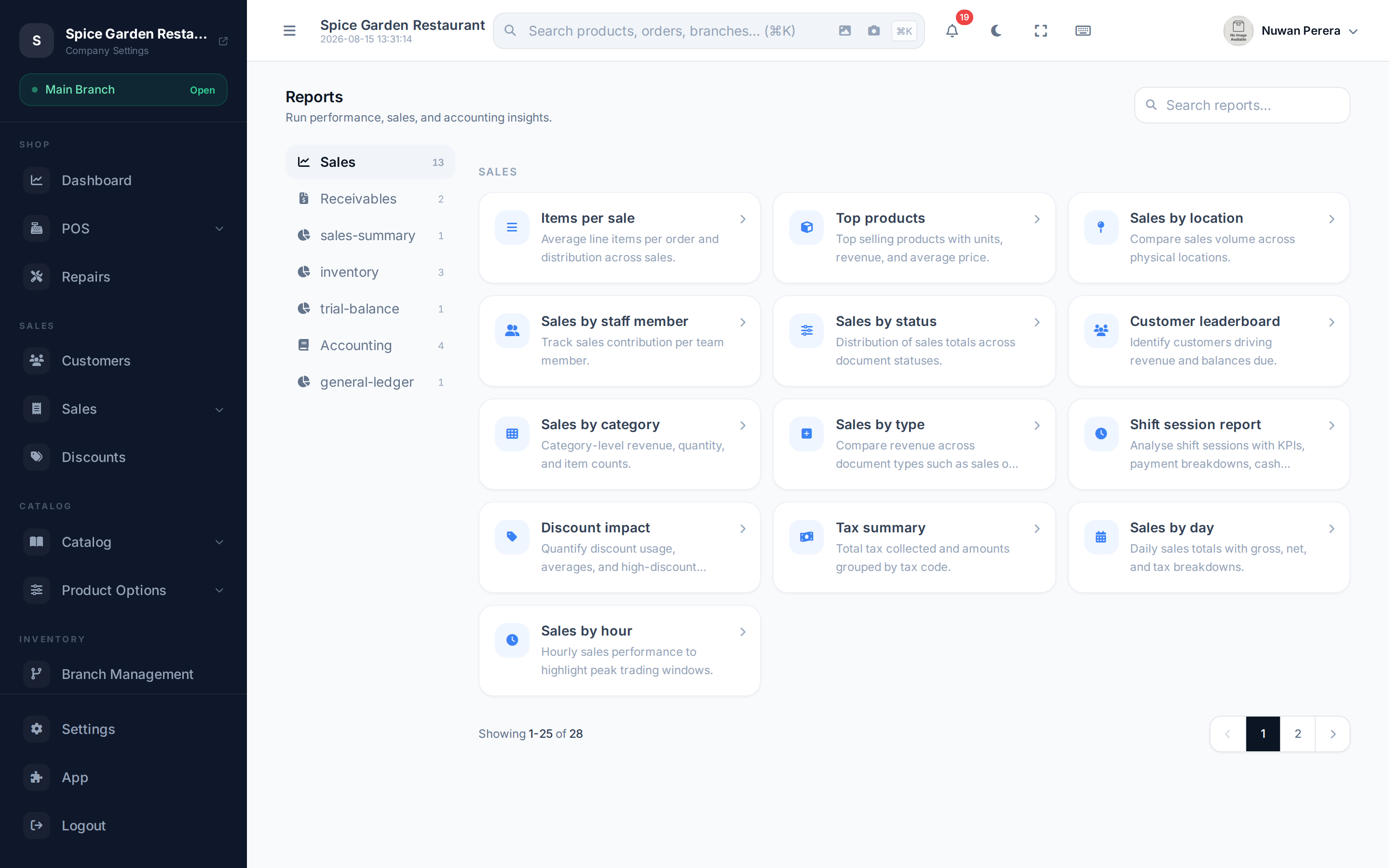
Screenshot pendingRoute /reports/<id> with the filter panel visible
Filtering
Each report defines its own filters, so you'll only see the ones that make sense for it. Common ones are:
| Filter | What it does |
|---|---|
| Start / end date | The period to cover. Point-in-time reports use a single As-of date instead. |
| Date preset | A shortcut — This month, Last month, This quarter, Year to date, and so on. |
| Branch / Location | Limit to one branch or warehouse. Leave blank for all. |
| Category | Limit to a product category. |
| Statuses | Include only certain order statuses (multi-select). |
| Toggles | Options like "Low stock only" or "Include opening balances". |
- Fill in the filters you need.
- Select Run report.
- To start over, select Reset filters.
Searchable pickers
Branch, category and account pickers search as you type, so you don't have to scroll long lists — just start typing the name.
Dates and amounts follow your store settings
Every date and time in a report is shown in your store's timezone. Day-by-day and hour-by-hour reports also group sales by your local calendar day and hour — a late-night sale counts on the day it happened for you, not in UTC. All money is shown in your store's default currency.
Drilling into the detail
Some reports let you dig deeper without leaving the page:
- General Ledger — expand an account group, then select an account to open a side panel of its transactions.
- Aging reports — select a customer or supplier row to open their detail in the same side panel.
Changing a value inside a drill-down re-runs the report automatically.
Exporting
To keep a copy or open the figures in a spreadsheet, use the Export menu at the top right of the report and choose Export as CSV.
- The file downloads to your device, named after the report and today's date (for example
sales_summary_2026-08-15.csv). - A CSV opens directly in Excel, Google Sheets, Numbers or any spreadsheet app.
- Export uses the report as currently filtered — set your filters and run the report first, then export.
CSV is the export format
Reports export as CSV. To turn a report into a formatted PDF, open the CSV in your spreadsheet app and print or save it as PDF from there. Formal financial documents like invoices and receipts have their own PDF output elsewhere in ZeylonPOS.
The Export menu is hidden when a report has no results yet, or when the report isn't included in your plan.