
Appearance
The dashboard
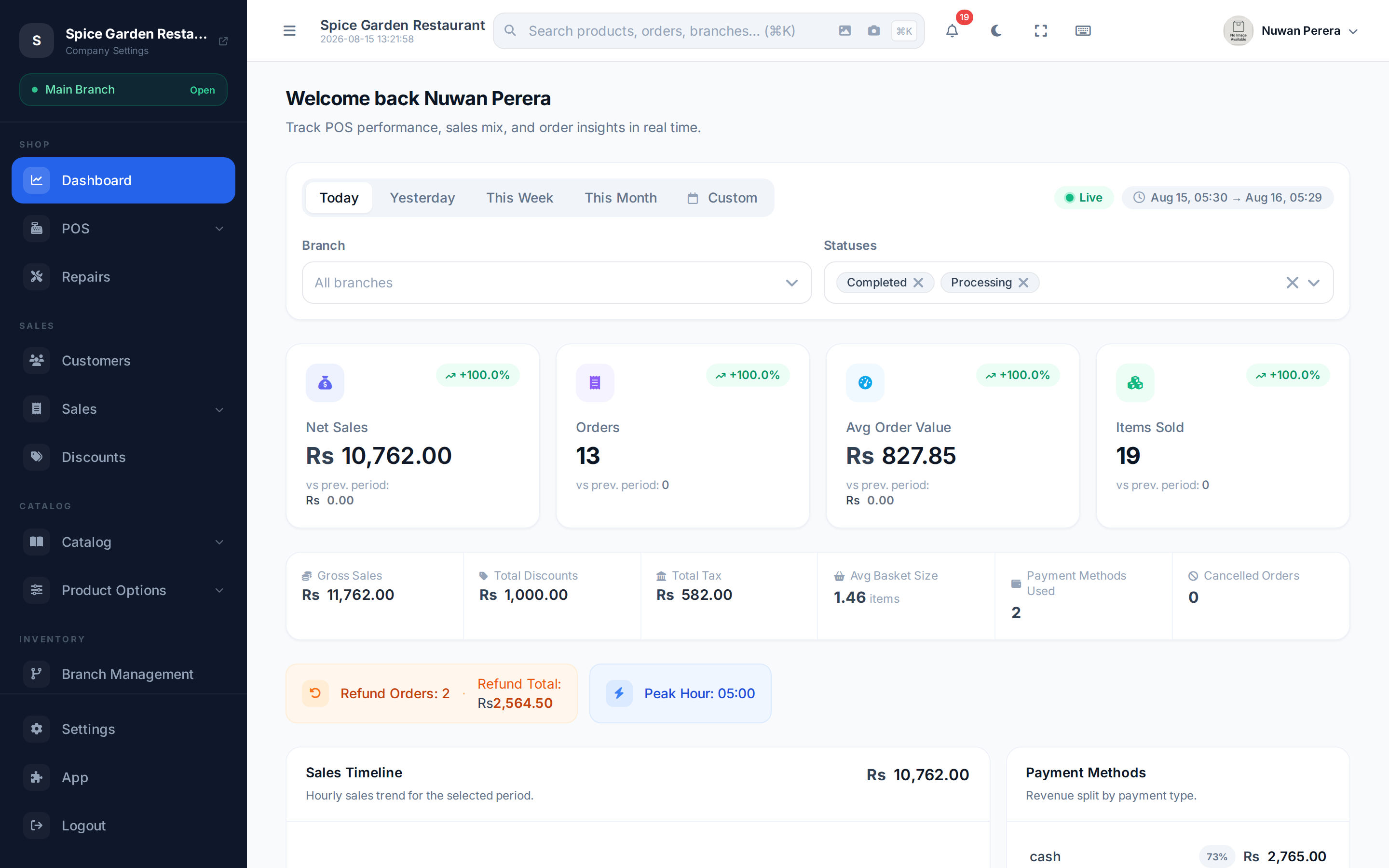
The dashboard is the first thing you see after signing in — a live overview of how the business is doing right now. It updates on its own, so you can leave it open on a screen and watch the day unfold. Open it from Dashboard in the sidebar, or go to /dashboard.
Screenshot pendingRoute /dashboard, logged in as the restaurant demo
Choosing what you see
A toolbar at the top controls the whole page:
- Range — Today, Yesterday, This Week, This Month, or a Custom date range.
- Branch — one branch, or all branches.
- Statuses — which order statuses to count (defaults to completed and processing).
It refreshes itself
When the range is Today, the dashboard shows a green "Live" pulse and refreshes automatically about once a minute, so the numbers stay current without you reloading.
The headline numbers
Four KPI cards sit at the top, each with a trend arrow comparing it to the previous period:
- Net Sales
- Orders
- Average Order Value
- Items Sold
Below them, a strip of quick figures: Gross Sales, Total Discounts, Total Tax, Average Basket Size, Payment Methods Used and Cancelled Orders. If there were refunds, a Refund Orders / Refund Total pill appears, along with a Peak Hour highlight.
Net sales and refunds
Net Sales is what you sold after discounts, including tax. Refunds and returns are counted separately in the Refund Total pill, so subtract that figure for the money kept. The shift close screen nets returns already, because it reconciles the cash drawer.
The charts
| Widget | What it shows |
|---|---|
| Sales Timeline | An area chart of sales across the period, with a running total |
| Payment Methods | The revenue split across cash, card and other methods |
| Sales by Hour | A bar chart of revenue per hour, with the busiest hour highlighted |
| Orders Timeline | A bar chart of order counts over the period |
| Status Breakdown | A donut of orders by status |
| Top Categories | Best-selling categories by revenue |
| Top Products | Best-selling products by quantity, with medals for the top three |
The sales heatmap
Under the Sales by Hour chart is a sales heatmap — a strip of coloured cells, one per hour. The darker the cell, the busier that hour was relative to your peak, so busy windows jump out at a glance. It labels your busiest hour ("Busiest around…") and flags the peak with a dot. Use it to plan staffing and opening hours.
Dashboard vs reports
The dashboard is for watching — a live, self-refreshing snapshot. When you need an exact figure for a specific period, filtered and downloadable, use the reports hub instead.