
Appearance
Inventory reports
Inventory reports tell you what's on your shelves, how it got there, and what it's worth. Find them in the Inventory panel of the reports hub.
🟢 For everyone
Warehouse and stock staff live in these reports. The `warehouse_manager` role is scoped to exactly this area and its assigned warehouse.
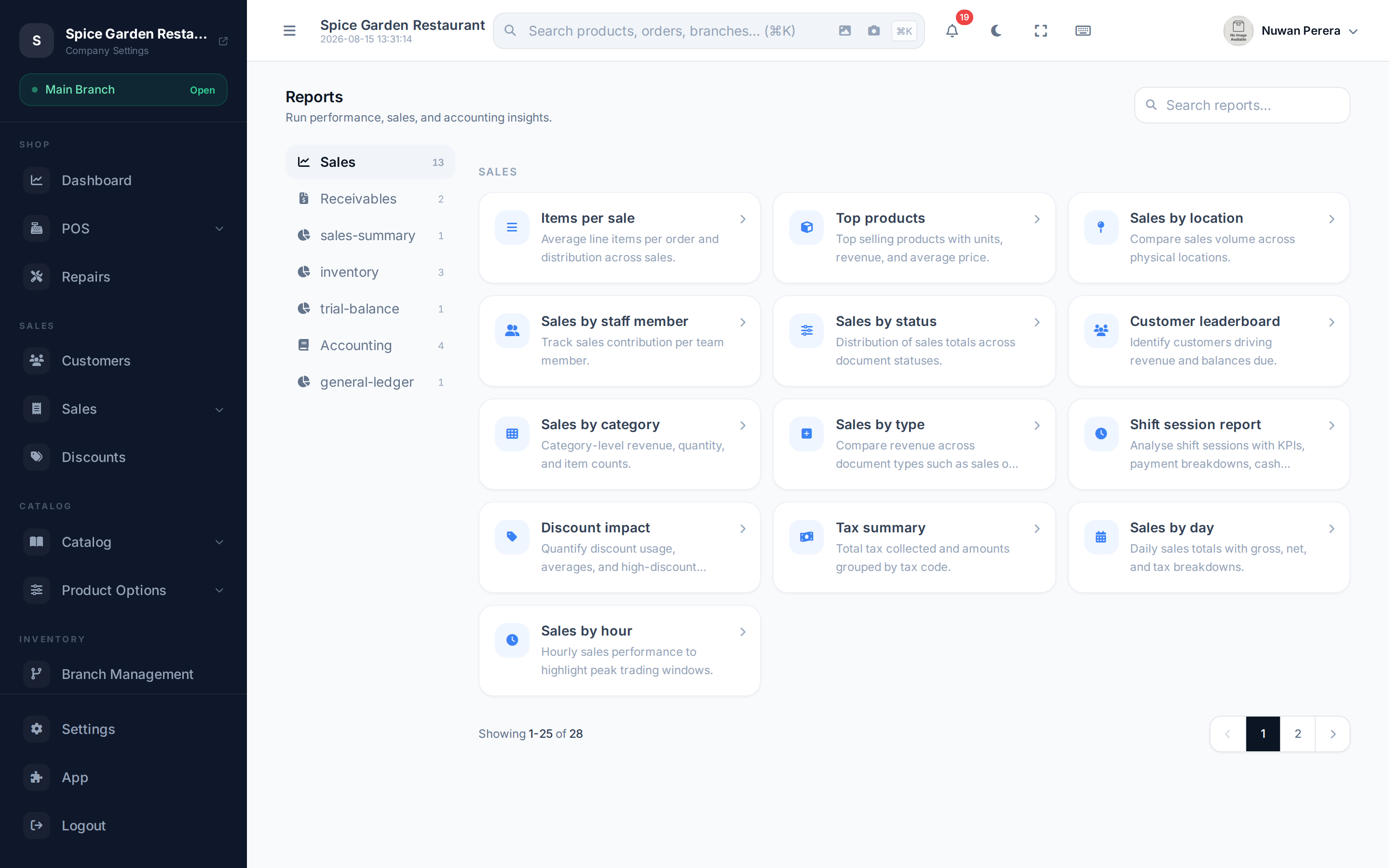
Screenshot pendingRoute /reports with an inventory report selected
The three core reports
| Report | Answers | Key filters |
|---|---|---|
| Stock Level | How much of each item is on hand right now, with low-stock flags | Location, category, low-stock only |
| Stock Movement | Every in and out over a period — sales, purchases, transfers, adjustments | Date range, location, movement type |
| Inventory Valuation | What your stock is worth at average cost, broken down by category | Location |
Stock Level
The starting point: current quantities per item, per location, with a low-stock only toggle so you can jump straight to what needs reordering.
Stock Movement
Follow the trail. Pick a date range and (optionally) a movement type to see exactly how a product's quantity changed — what came in from purchases, what went out in sales, and every transfer or adjustment in between.
Inventory Valuation
The money view. It totals your on-hand stock at average cost and groups it by category, so you can see where your capital is tied up.
Deep dives in the Inventory section
Each of these reports has its own full walkthrough, and there are more advanced stock tools beyond them:
- Stock level report
- Stock movement report
- Inventory valuation
- Reorder alerts and Cycle counts
- Inventory Pro: Lots & FEFO, Serials & IMEI, Landed costs
Which warehouse am I seeing?
Stock lives in warehouses, so inventory reports are scoped to the warehouses linked to your assigned branches. If figures look partial, you're likely scoped to specific warehouses — an admin with no branch assignment sees them all. See Warehouses.