
Appearance
Sales reports
Sales reports answer the everyday questions: How much did we take? What's selling? Which cashier, hour or branch did best? Find them in the Sales panel of the reports hub.
🟢 For everyone
Cashiers and sales staff can usually see their own sales figures. Company-wide sales analysis is for managers and admins.
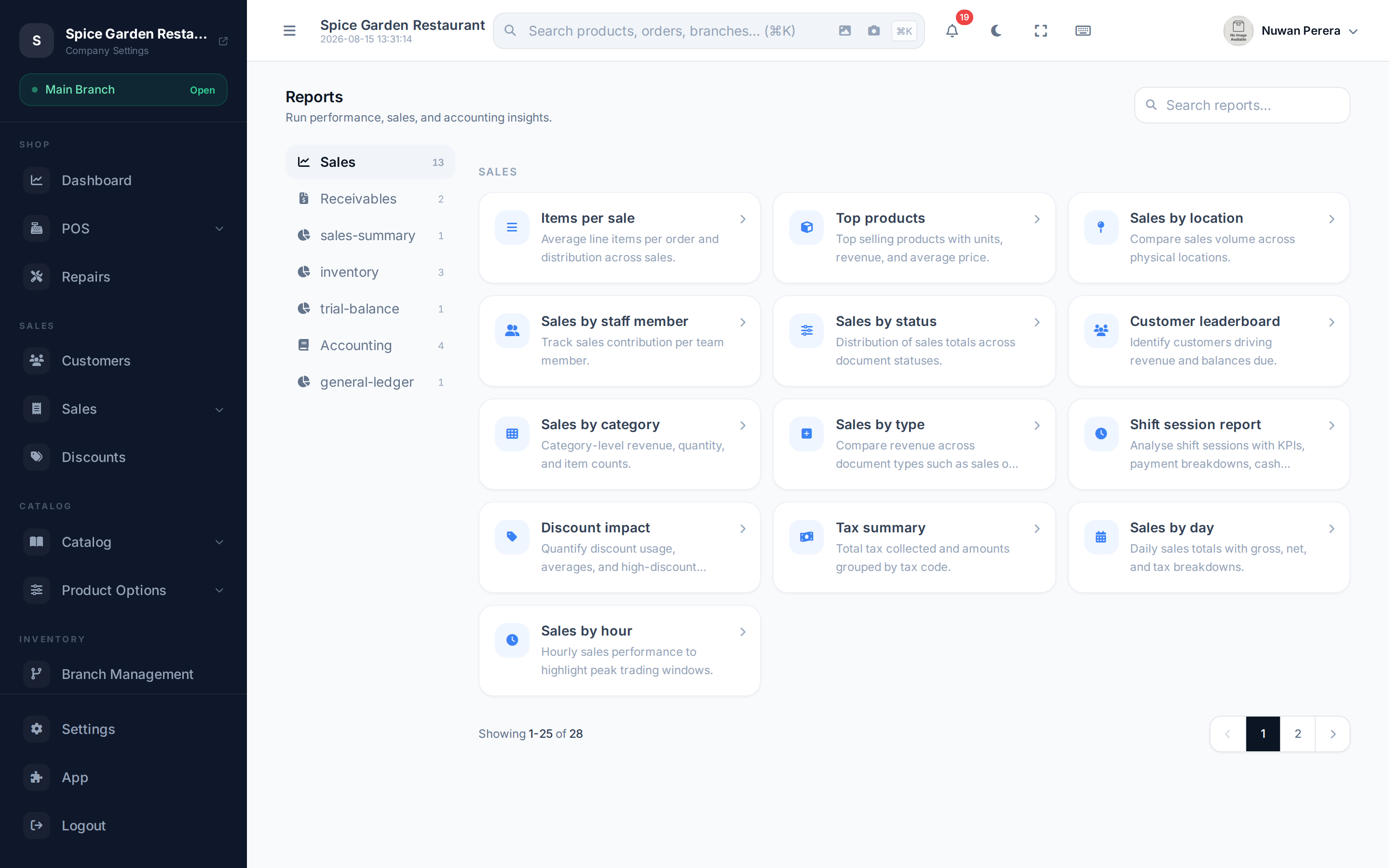
Screenshot pendingRoute /reports with the Sales panel selected
The headline report: Sales Summary
Sales Summary is the one most people start with. Set a date range (and optionally a branch, order statuses and a top-items limit), then Run report to see:
- Totals — orders, gross and net sales, subtotal, tax, discount, average order value, amount paid and unique customers. Net sales is after discounts and before refunds; returns are reported separately.
- Sales by day — the trend across your date range.
- Status breakdown — orders by status.
- Top products — your best sellers for the period.
The full sales catalogue
| Report | Answers |
|---|---|
| Sales by day | Daily totals and trend over a period |
| Sales by hour | Which hours of the day are busiest |
| Sales by location | How each branch compares |
| Sales by category | Which product categories drive revenue |
| Top products | Best sellers by quantity and revenue |
| Customer leaderboard | Your highest-spending customers |
| Sales by staff member | Sales rung up per user |
| Sales by status | The split across completed, refunded, cancelled, etc. |
| Sales by type | Sales vs refunds vs exchanges |
| Discount impact | How much discounting is costing you |
| Tax summary | Tax collected, broken down by rate |
| Items per sale | Average basket size |
| Shift session report | Per-shift KPIs, payment breakdowns and cash variance |
Days and hours use your store timezone
Sales by day and Sales by hour group sales by your store's local calendar day and hour, so a sale made just before midnight counts on the right day for you — not on the previous or next UTC day.
Shift session report
Worth calling out on its own: the Shift session report ties sales back to who was on the till. Pick a period (Today, Yesterday, This week, This month, Last month or a custom range), and optionally a status (open/closed) or a cashier. You get KPI cards, payment-method breakdowns and cash variance (expected vs counted), with a drill-down per shift. It pairs with POS sessions & Z-report.
Reading and exporting
Most sales reports show a summary row of key figures followed by one or more tables. You can export any report to CSV from the Export menu. See Filtering & exporting for filters and downloads.