
Appearance
Subscription & billing
Your subscription is the plan your company runs on. This screen shows your current plan and status, how much of your limits you've used, your billing history, and the controls to cancel, resume or upgrade.
🔷 For managers & admins
Billing is an admin task. Viewing your plan, usage and invoices is open to any signed-in user, but changing the subscription — upgrading, swapping, cancelling, resuming, toggling auto-renew, and buying or removing add-ons — needs the
settings.update permission (owners, admins and managers). Cashiers and viewers can see the plan but not change it. Add-on purchases also use the modules.addons.* permissions. 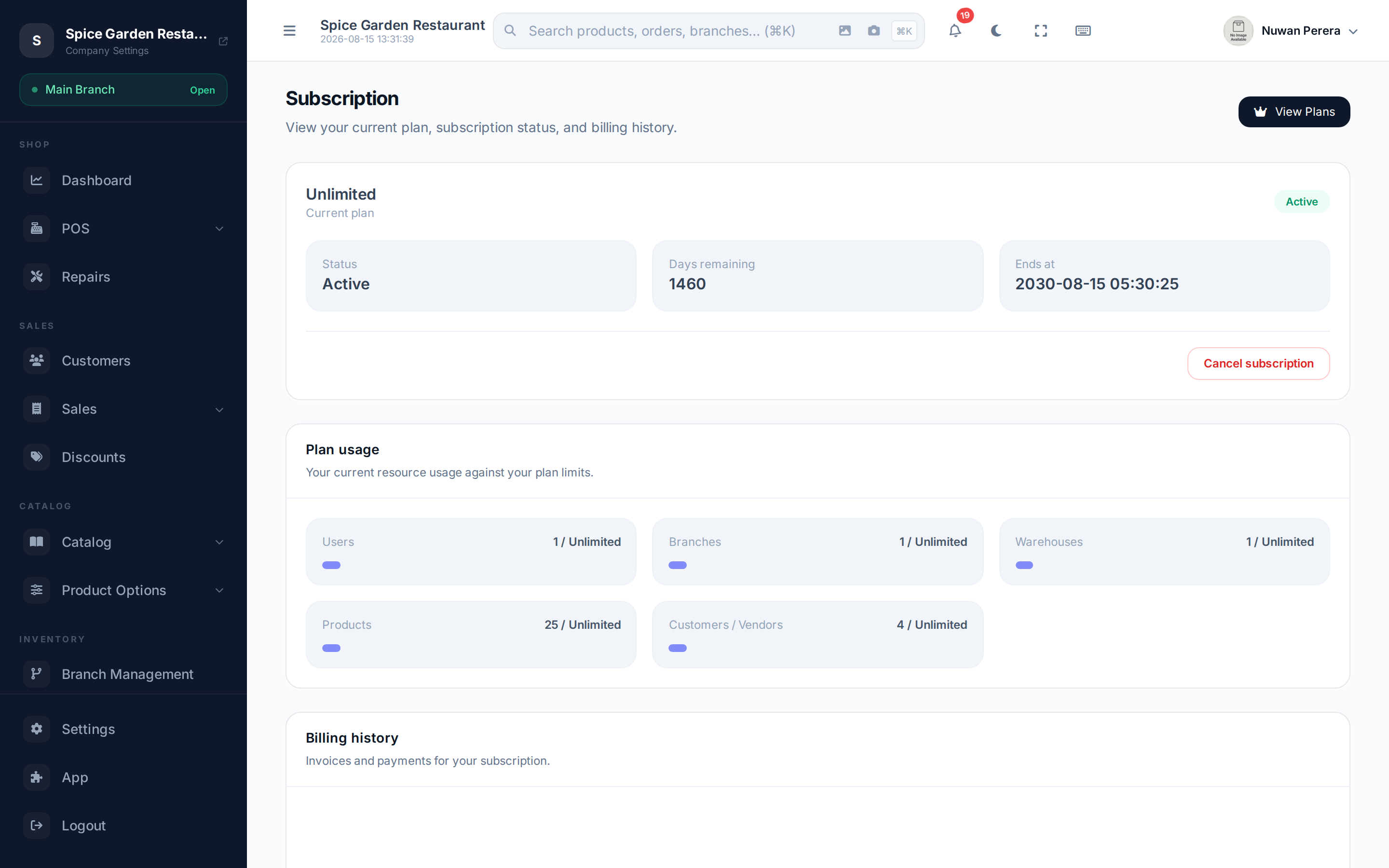
Screenshot pendingRoute /subscription, logged in as an admin
Your plan and status
The top card shows your plan name and a status badge — Active, Trial, Expired or None — plus tiles for status, days remaining and the end date. Depending on your state you'll see:
- A trial notice with when the trial ends.
- An expired notice if your plan has lapsed.
- A payment problem notice if a renewal payment has failed. Your account goes read-only — you can keep viewing everything, but saving changes and taking payments is blocked until you settle it, so update your payment before the plan is suspended.
- A pending cancellation notice with a Resume subscription button if you've scheduled a cancellation.
These notices also appear as a banner across the top of the app, so you're reminded wherever you are. Select View Plans to compare plans and upgrade.
Usage vs limits
The usage card shows a progress bar for each limited resource, so you can see how close you are to your plan's ceiling:
| Meter | Counts |
|---|---|
| Products | Catalog items |
| Users | Staff accounts |
| Warehouses | Warehouses |
| Branches | Branches |
| Customers | Customer records |
A bar turns amber past 80% and red at 100%. An Unlimited limit shows no cap. The same meter also appears on the matching list screen — for example a Products meter sits beside Create new product — so you see how much room is left before you run out.
When a limit is full, creating another record is blocked: you'll get a "reached your plan limit" message and a prompt to upgrade or add capacity instead of the usual create form. Spreadsheet imports count too. Rows that would add a new product, customer, branch or warehouse beyond the limit are rejected one by one and listed in the import results. Rows that update existing records still go through.
TIP
If you're hitting a limit, either upgrade your plan or buy a matching add-on from the App marketplace.
When your plan changes
| What happens | Effect |
|---|---|
| Upgrade or new add-on (once paid) | The new modules and reports appear straight away |
| Downgrade | Modules and reports the new plan doesn't include disappear straight away. Their data is kept |
| Trial ends | Saving changes stops at the end of the trial, even before the plan's status is updated |
| Expired, cancelled or suspended | Paid modules disappear and the account becomes read-only. Free modules stay visible |
| No plan at all | Only the free modules are available, and the account is read-only |
Changes your service provider makes to a plan apply to every store on that plan immediately.
Cancelling and resuming
- Cancel subscription schedules cancellation at the end of your current billing period (you keep access until then). You'll be asked to confirm.
- If a cancellation is pending, Resume subscription calls it off.
On the mobile app
Open More → Subscription to review the current plan, renewal or trial date, usage limits, and recent invoices. You can turn automatic renewal on or off, schedule cancellation at the end of the billing period, or resume a pending cancellation. Plan changes and checkout remain in the web app so you can review the full plan and payment details before submitting them.
The app also warns you across the top of every screen when your subscription needs attention — a trial counting down, a renewal date approaching, payment failing, or a lapsed subscription. A trial or renewal reminder can be dismissed for the day and returns tomorrow; a payment problem or an expired subscription stays up, because it describes what the app is about to stop letting you do.
Add-ons
Paid modules and extra capacity are sold as add-ons, purchased from the module cards in the App marketplace. You submit a request for manual approval — see Modules & the App marketplace. An add-on is billed on your plan's own billing cycle and currency — the price shown when you subscribe is the one you'll be charged.
Invoices & payments
The billing history card lists your invoices — number, date, billing cycle, status (paid, open, draft, void, refunded…) and total, with any discount shown. Older invoices page below.
How checkout works
When you buy or upgrade, checkout opens a pending invoice for the ZeylonPOS team to review and mark paid; your plan activates once they approve it.