
Appearance
POS sessions & Z-report
Every time someone opens and closes the register, that run is recorded as a session. The sessions list is your history of who was on the till, when, how much they took and how the drawer reconciled — the equivalent of a Z-report.
🟢 For everyone
Viewing sessions needs the View Shifts permission. Cashiers see their own sessions. Managers and admins (anyone with Close Any Shift) see every session in the branches they are assigned to.
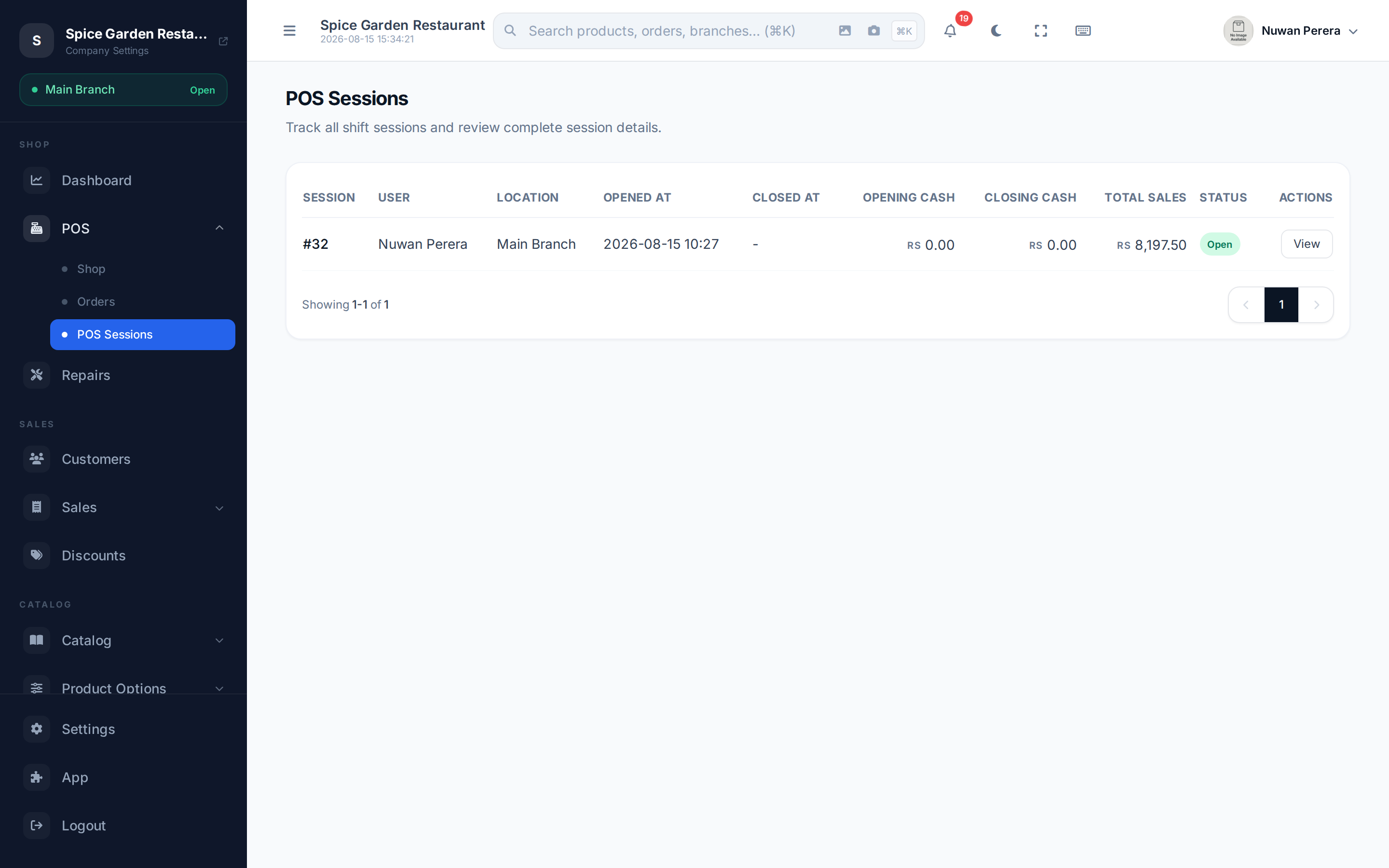
Screenshot pendingRoute /pos/sessions with a few closed sessions
The sessions list
| Column | Meaning |
|---|---|
| Session | The session number (#id) |
| User | Who ran the till |
| Location | Which branch |
| Opened / Closed At | When the shift started and ended |
| Opening Cash | The float entered at open |
| Closing Cash | The counted cash entered at close |
| Total Sales | Net sales for the shift |
| Status | Open (still running) or Closed |
Select View on any row to open its detail.
Session detail (the Z-report)
The detail page for a session is effectively its Z-report. It shows the same cash and sales figures as cards, the closing note, and a Sales Transactions table listing every order in the shift with its customer, time, status and total. The per-payment-method breakdown captured at close is part of this record.
For a closed shift, the detail also shows:
- Expected cash — what the drawer should have held at close.
- Variance — counted cash minus expected cash. A negative figure means the drawer was short. A shift closed automatically has no count, so it has no variance.
- Cash in / out — every pay-in and drop, with its time and reason.
- Closed by a manager — shown when someone other than the cashier closed the shift.
Closing a cashier's shift (manager close)
If a cashier went home without closing their shift, a manager can close it for them.
- Open the session from the POS sessions list.
- Select Close this shift.
- Count the drawer and enter the Counted cash. Add a Note if you need to.
- Enter your own password and select Close shift.
The shift closes as normal, with the sales snapshot and the accounting entry, and it records that a manager closed it.
🔷 For managers & admins
Closing someone else's shift needs the Close Any Shift permission (
sales.shifts.close_any). Managers and admins have it by default. Managers can only close shifts in the branches they are assigned to. Open sessions show live totals
A session that's still open shows a live sales snapshot, so its totals aren't stuck at zero while the cashier is mid-shift.