
Appearance
Bank reconciliation
Reconciling a bank account means checking that the cash movements in your books match what the bank actually recorded. You enter the statement's closing balance, tick off each transaction that appears on both sides, and when the difference is zero you finalize — proof your books and the bank agree.
🔷 For managers & admins
Viewing reconciliations needs
accounts.reconciliation.read; starting one and matching transactions need accounts.reconciliation.create / .update and the accounting module at full level. 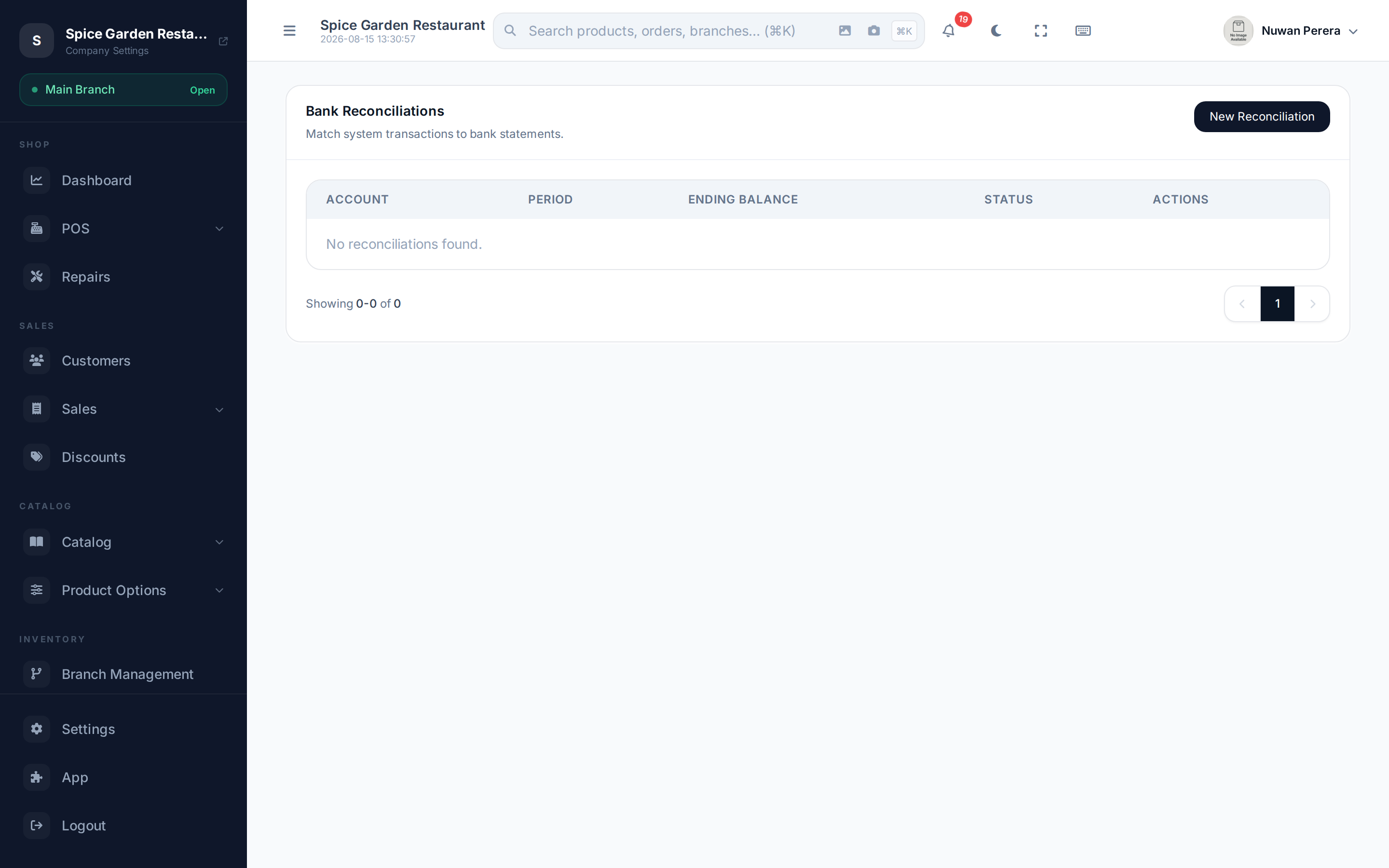
Screenshot pendingRoute /accounting/reconciliations with one draft and one reconciled
Start a reconciliation
- On the Bank Reconciliations screen select New Reconciliation.
- Choose the Bank / Cash Account you're reconciling.
- Set the Period Start and Period End the statement covers.
- Enter the Statement Ending Balance — the closing figure on the bank statement.
- Add Notes if useful, then Save.
Match the transactions
Open the reconciliation to work through it:
- In Unmatched Transactions, find each line that also appears on your bank statement and select Match. It moves to Matched Items.
- Matched something in error? Select Unmatch to send it back.
- Watch the Difference at the top. As you match, it moves toward zero.
- When the Difference is zero, select Finalize.
Finalize needs a zero difference
The Finalize button stays disabled until the difference is zero — "the difference must be zero to finalize". Finalizing can't be undone, and a reconciled record becomes read-only.
Matching and finalizing rules
- You can only match transactions from the reconciliation's own account and statement period.
- A transaction already matched on another reconciliation can't be matched again.
- When you finalize, the system balance is recalculated. If the ledger changed since you started and the difference is no longer zero, finalizing is refused and the updated difference is shown — match the new items, then finalize again.
- Once reconciled, transactions can't be edited or deleted. A payment that belongs to a sale or invoice must be changed from that document, not here.
Reading the screen
| Element | What it tells you |
|---|---|
| Statement Ending Balance | The closing balance you entered from the bank |
| Difference | Gap between your matched ledger figures and the statement — aim for 0 |
| Unmatched Transactions | Ledger movements not yet ticked off |
| Matched Items | Movements confirmed against the statement |
| Status | Draft while you work; Reconciled once finalized |