
Appearance
Chart of accounts
The chart of accounts is the master list of every account your business posts to — cash, sales, inventory, tax, and so on. Every journal entry, automatic or manual, lands in one of these accounts. It's organised as a tree you can browse, search and extend.
🔷 For managers & admins
Viewing the chart needs
accounts.coas.read. Adding, editing and deleting accounts need accounts.coas.create / .update / .delete and the accounting module at full level. 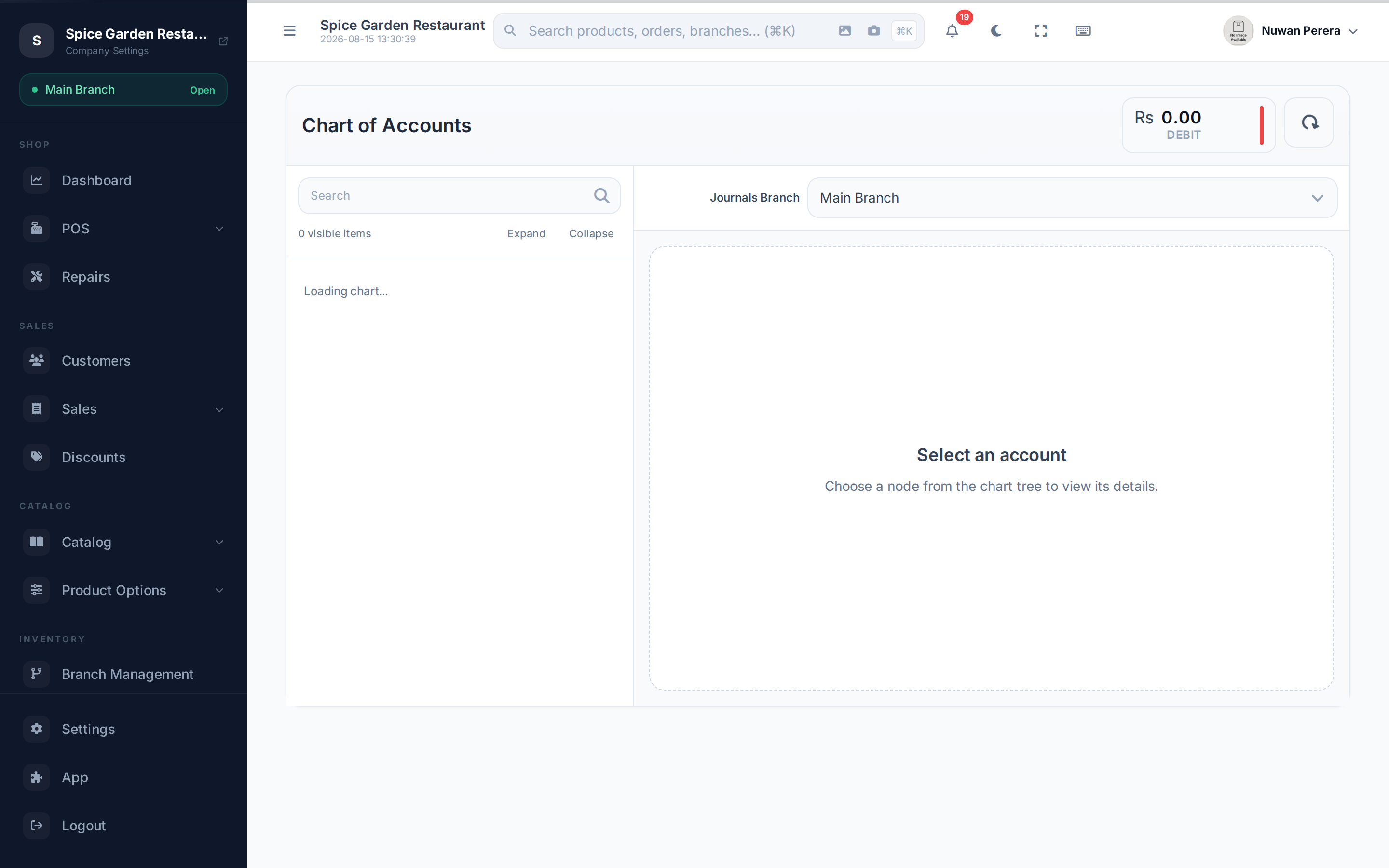
Screenshot pendingRoute /chart-of-accounts with a class expanded and an account selected
How it's structured
The tree has three levels:
- Class — the top grouping (see the five below).
- Type — a category within a class (Bank & Cash, Fixed Asset, Revenue…).
- Account — the actual account you post to. Accounts can also nest under a parent account.
The five classes
Every account belongs to one of five classes. ZeylonPOS orders them in this specific sequence (which is not the traditional textbook order) — remember it when you read the chart or a report:
| Order | Class | Normal balance | Examples |
|---|---|---|---|
| 1 | Assets | Debit | Cash, bank, inventory, receivables |
| 2 | Liabilities | Credit | Payables, tax owed, loans |
| 3 | Expenses | Debit | Cost of goods sold, rent, wages |
| 4 | Income | Credit | Sales revenue, other income |
| 5 | Equity | Credit | Owner's capital, retained earnings |
Why this order?
ZeylonPOS deliberately lists Expenses (3) and Income (4) between Liabilities and Equity, rather than the classic Assets / Liabilities / Equity / Income / Expenses. Reports bucket accounts by this same order, so the sequence above is what you'll see throughout the app.
Browse and read balances
- Search the tree by name or code, and Expand / Collapse all.
- Select an account to see its Account Type, Branch, Normal Balance, and a live Account Summary: Total Debit, Total Credit and the Net balance (with its side).
- Use the Journals Branch selector to view the chart and balances for a particular branch.
Add or edit an account
- Select a class, type or account in the tree.
- Select Add Child to nest a new account under it, or Add Root to start a new top-level account under a type.
- Fill in the form:
| Field | Notes |
|---|---|
| Code | The account number, e.g. 1110 |
| Name | The account name (translatable) |
| Type | Which class/type it belongs to |
| Parent Account | Optional — nest it under another account |
| Description | Optional notes (translatable) |
| Enabled | Disabled accounts can't be used on new journals |
To change an account, select it and choose Edit; to remove one, choose Delete.
Disable, don't delete, used accounts
An account that already has entries shouldn't be deleted. Turn Enabled off to stop it being used going forward while keeping its history.