
Appearance
Mobile app preview
The native Android and iOS app is under development. It is not yet ready to replace your existing register. Your administrator must provide a configured preview build before you can try it.
🟢 For everyone
Use your existing account. Your access still depends on the permissions and branches assigned by your administrator.
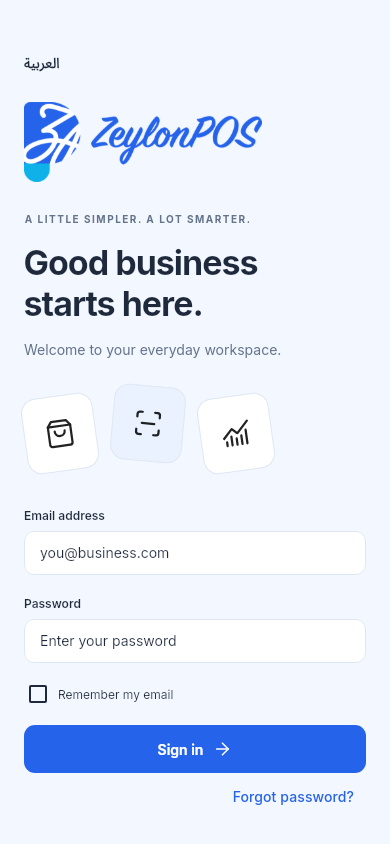
Screenshot pendingRender the native LoginPage at 390 × 844 using the Flutter design test.
Trying the workspace
The app keeps its custom Zeylon POS loading screen while opening your workspace. A brief plain system launch background may appear before it, without a second branded splash.
Your profile photo appears in the header, More, and your profile. If no photo is available, or it is still loading, your name's first letter appears instead of a blank placeholder.
The refreshed workspace uses a compact header and page titles to leave more room for your work. More shows full-width menu rows on phones and multiple columns on wider screens. The bottom navigation provides access to POS, Sales, Customers, and More.
- Sign in with your email address and password. Select Remember my email to save the address on this device.
- Open More → My shift, select a branch and enter the opening cash.
- On POS, tap a product to add it. Regular products add immediately. Products with variants, modifiers or bundle contents open an options sheet: choose the options, quantity and optional item note, then select Add to cart.
- Open the cart, review quantities and notes, then select Charge. For an external payment method, record it only after the external service confirms that payment.
- View the recorded transaction under Sales.
Finding products and held sales
Product cards and list rows show a blue cart badge when the item is in your current sale. The number totals its quantities across variants, modifiers and separate notes; bundles have their own count. The badge updates as the cart changes and disappears when the item is removed.
Select the − button on the badge to decrease the quantity by one (or remove the remaining amount when less than one). If the product has multiple cart entries, choose the variant, modifier selection or note to decrease. The last unit removes that entry from the cart.
The POS screen opens directly with shift shortcuts, search and categories, leaving more room for products. On a phone, the screen shows a compact sale prompt and a touch-friendly view switcher; on a tablet in landscape, the product workspace expands beside the cart. Use the category buttons or product search to find an item. Switch between grid and list views with the view buttons beside Products. Product cards show corner labels when an item is a bundle, has modifiers, has variants or uses a recipe. Select the barcode button to scan with the device camera; allow camera access when prompted. You can also type a barcode or use a connected barcode reader.
An open shift is required before adding products. The cart bar updates after each addition. Items with the same options and note combine; different notes remain separate. In tablet landscape, the cart stays visible in a wider side panel: its items scroll independently, each item can show its product image, and the order totals and Charge action remain fixed at the bottom. Select Add note to open the sale note editor when you need to attach a note.
Select Held sales to view orders saved on hold. Resuming a held order is still being implemented.
If a sale is awaiting confirmation
The Sales list uses compact rows with the order number, total, customer/date and status. Search stays at the top while you scroll. Search by order number, pull down to refresh, or use the refresh icon. More records load as you scroll; Load more sales also lets you request the next page.
Sales details now group order information, customer details, line items and a payment summary like the web POS. Phones use stacked item details; wider tablets use a line-item table. View receipt continues to open the web receipt. Some web order-management actions are not yet available in the mobile preview.
Open More → Offline sync and select Reconcile sale. The app checks the saved submission using the same sale identity. Do not collect the payment again. The original cart remains locked while confirmation is pending.
This preview does not yet support complete offline selling, integrated payment terminals, receipt printers or all workflows in the web application.
Notification sounds
The app plays a short chime alongside on-screen alerts — a bright tone for a successful action (such as adding to the cart or saving) and a lower tone for an error — so you get audible confirmation without watching the screen. Sounds are on by default.
To turn them off or on, open More → Settings → Preferences and toggle Notification sounds. Your choice is saved on the device.
Searching everything
The magnifying glass in the header searches the whole workspace at once: products, bundles, categories, modifier groups, sales and branches. Type at least two characters; results arrive grouped, and a group that has more matches than it shows says so (for example "5 of 12"). Select a result to open it.
Finishing store setup
If your store has not finished its setup, the Dashboard shows a prompt with shortcuts to Taxes and Currencies and a Mark setup complete action. Unlike the browser, the app does not lock you out of the till while setup is pending — a store is usually set up on the web first.
Moving an order along
Open a sale from Sales and its detail screen shows where the order stands — Placed → In progress → Ready → Completed — with the stages it has passed ticked off.
If you may update orders, the stages ahead that the order can actually reach become one-tap actions: Start moves a held order into processing, and Complete finishes an order from any stage before completed. An order that was cancelled, refunded or voided says so and offers nothing. Only transitions the server accepts are offered, so a tap never fails for a reason the screen could have shown you.
The same screen still carries View receipt, Return / refund and Void, and a held sale can be recalled into the cart to edit.
Features & modules
Open More → Settings → Features & modules to see every optional module and this store's standing with it. Search the list or filter by type, then:
- A module you can switch has a toggle — turning it on makes its screens reachable straight away, without restarting the app.
- A paid module your plan does not include reads Locked and offers View plans instead of a toggle.
- A module that is not offered on the platform reads Unavailable.
- Restaurant and ZATCA carry a Configure link to their own screens.
Switching a module needs the settings permission; without it the screen shows each module's state (On / Off) but no toggles. See Modules.
Reports on the phone
Open More → Reports for the same report catalogue the browser register shows, grouped into Overview, Sales, Receivables and Inventory. Search the list, then tap a report to run it.
A report opens on the current month and shows:
- Headline figures first — orders, gross and net sales, averages — two to a row.
- Tables as cards, one card per row, so nothing has to be scrolled sideways.
Tap the period chip (or the filter button) to pick a range — Today, Yesterday, This week, This month, Last 30 days, Last month or your own From / To dates — and, if you work across more than one branch, which branches to include. Leaving branches empty covers every branch you can see. Select Run report to apply.
Inventory reports (stock level, movement and valuation) open in the dedicated Inventory reports screen. A report your subscription plan does not include shows an upgrade prompt instead of figures.
Closing your shift
Open More → My shift, enter the actual cash counted and your password, then select Close shift. The server validates the request and your permissions.