
Appearance
Making a sale
This is the core of every day at the counter. It takes under a minute once you know the flow.
🟢 For everyone
You need an open shift to sell. If the register sends you to the "Open shift" screen first, see Opening a shift.
Step by step
- Find the item. Tap it in the product grid, or use the search bar at the top of the screen — type a name, SKU or barcode, or scan a barcode. Typing filters the grid as you go; the found item is added to the order (the cart) on the right.
- Set the quantity if you need more than one — use the + / − buttons or tap the quantity and type it.
- Add more items the same way. The running total updates as you go.
- Choose the customer (optional). Tap Customer to attach a customer for loyalty, credit or an invoice. Leave it blank for a quick walk-in sale.
- Select Pay / Checkout.
- Take payment — pick cash, card or another method, enter the amount tendered, and the screen shows any change due. You can split across methods.
- Select Complete. The sale is saved and the receipt prints (or e-mails).
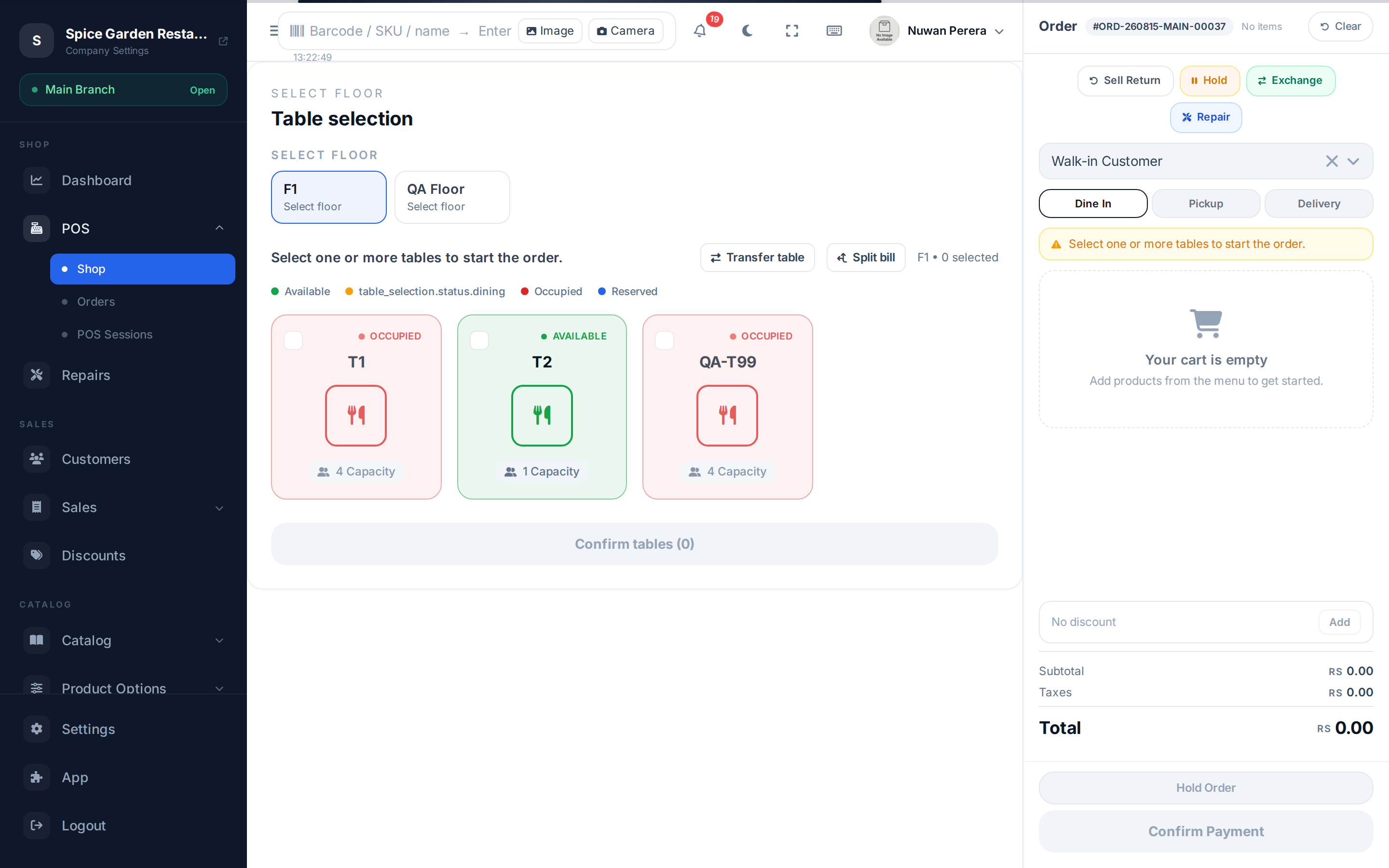
Screenshot pendingRoute / with 2–3 items added to the cart
Handy shortcuts
| Action | How |
|---|---|
| Search a product | Start typing in the search bar at the top of the screen, or scan a barcode |
| Change quantity fast | Tap the quantity number and type |
| Remove a line | Swipe the line or tap its ✕ |
| Hold an order | Save it and start a new one — find it again in Recent orders |
| Apply a discount | See Discounts at the register |
| Add a note | Tap the order options menu |
Items that need a choice
Some products ask you a question when you add them:
- Variants (size, colour, storage) — pick the exact one.
- Weight items (loose produce, meat) — enter the weight.
- Modifiers (extra cheese, no onions) — choose the add-ons.
- Bundles (meal deals) — the components are added together.
See Variants, weight & modifiers and Selling bundles.
Selling on account (credit sales)
A sale is normally completed only when it is fully paid. To let a known customer pay later, attach the customer to the sale and use an on-account payment method (for example in the mobile app). The sale completes with a balance due, which is recorded against the customer in accounts receivable. Without a customer, the sale is refused with "Select a customer to sell on account."
🔷 For managers & admins
Selling on account needs the Sell On Account permission (
sales.orders.on_account). Admins, managers, cashiers and sales executives have it by default; remove it from a role to require full payment. After the sale
- The receipt prints automatically (configurable). Reprint or e-mail it from Recent orders.
- Stock for every item sold is deducted immediately.
- Need to undo it? Use a refund or exchange — never delete a completed sale, so your books stay correct.