
Appearance
Your profile & PIN
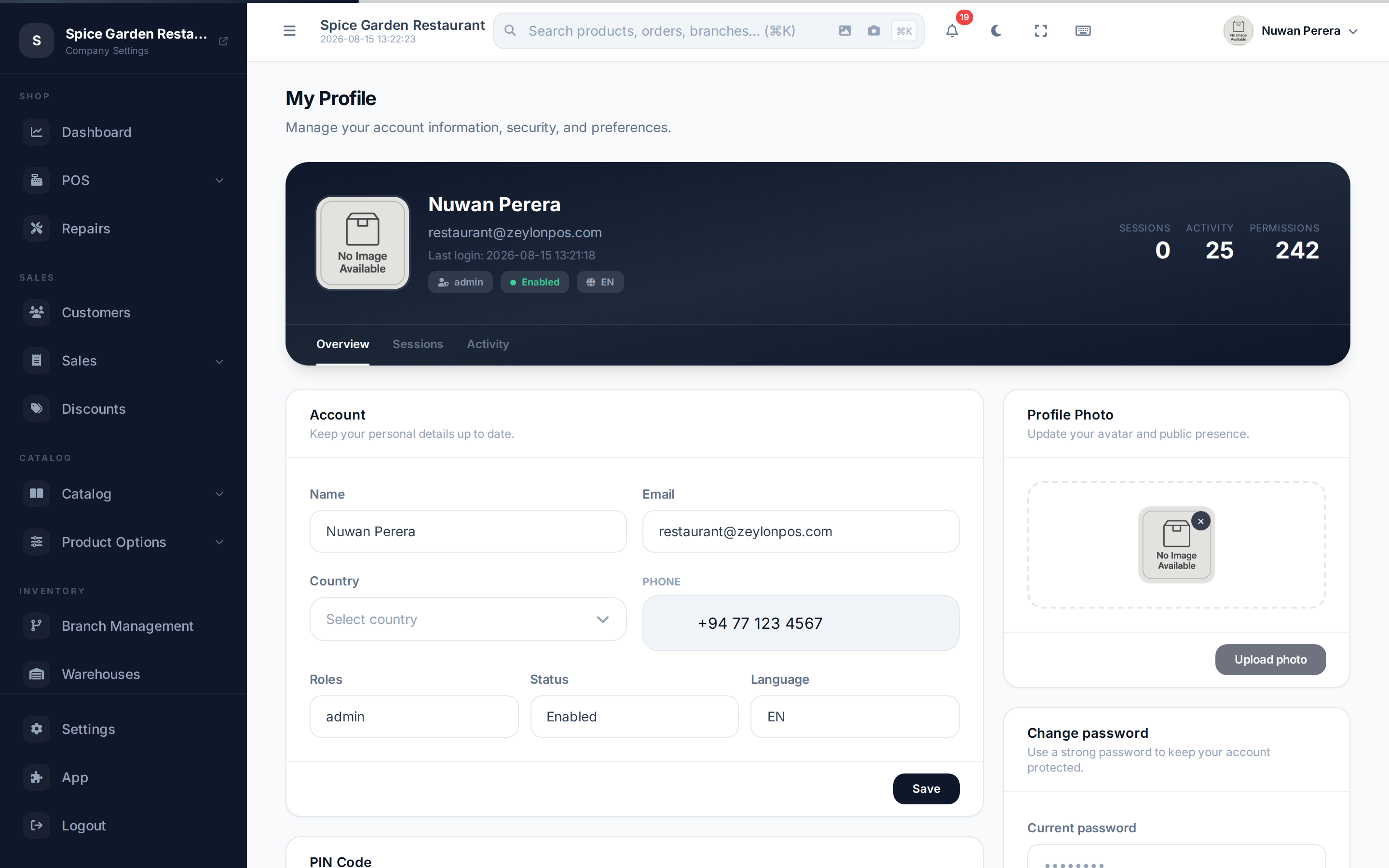
Your profile is where you keep your own details up to date, secure your account, and set the PIN you use to lock and unlock the register during a shift. Open it from your avatar in the top bar → Profile, or go to /profile.
Screenshot pendingRoute /profile, logged in
At the top you'll see your avatar, name and email, your role, status and language, and counters for your sessions, activity and permissions. Below that are three tabs: Overview, Sessions and Activity.
Overview — edit your details
The Overview tab has four cards.
Account
Edit your Name, Email, Country and Phone. Your role, status and language are shown here but are read-only — only an admin can change your role. Select Save to keep your changes.
If you change your email, we send a verification link to the new address. Open it before you next sign in — until the new email is verified you can't log in with it.
PIN code
Your PIN is a short 4-digit code used to lock the register and to unlock it again during a busy shift, without typing your full password.
- Enter a 4-digit PIN.
- Enter your current password to confirm it's you.
- Select Save.
TIP
Leave the PIN field blank to keep your current PIN. If you've never set one, a "PIN setup required" notice appears here — and right after first-time setup ZeylonPOS brings you straight to this card.
Profile photo
Drag and drop an image (or browse) to set your avatar. You can also remove an existing photo.
Change password
Enter your current password, then a new password twice, and select Update password.
Changing your password signs you out everywhere else — every other browser, till and phone needs the new password. The device you changed it on stays signed in.
Sessions — where you're signed in
The Sessions tab lists every device where your account is currently signed in, with its IP address, location and last used time. Your current device is marked Current. If you see a session you don't recognise, select Sign out next to it to end it.
POS devices
At the top of the Sessions tab is POS devices. A POS device is a till you've registered — your plan sets how many registered devices your business can run at once.
- On the device you want to use as a till, select Register this device. It's then counted as one of your POS devices and shows a This device is registered badge.
- The list shows your business's registered devices and how many of your plan's slots are used. Select Deregister on one of your own devices to free a slot.
🔷 For managers & admins
If registering is blocked with *"you've reached your plan's POS device limit"*, either deregister a device you no longer use or raise the limit by upgrading on Subscription. The limit is only applied when device enforcement is turned on for your account.
Activity — your recent actions
The Activity tab shows a timeline of recent events on your account, each with a timestamp — useful for checking what happened and when.
Changing your language
Your profile shows your language, but you switch it from the user menu in the top bar (your avatar → language switcher). ZeylonPOS is available in English, Arabic, Sinhala and Tamil. See Localisation & languages.