
Appearance
Signing in
🟢 For everyone
Anyone with an account can follow this. If you don't have login details yet, ask your manager to create a user for you — see Users.
Log in
- Open ZeylonPOS in your browser and go to the Sign in page.
- Enter the email and password your manager gave you.
- Select Sign in.
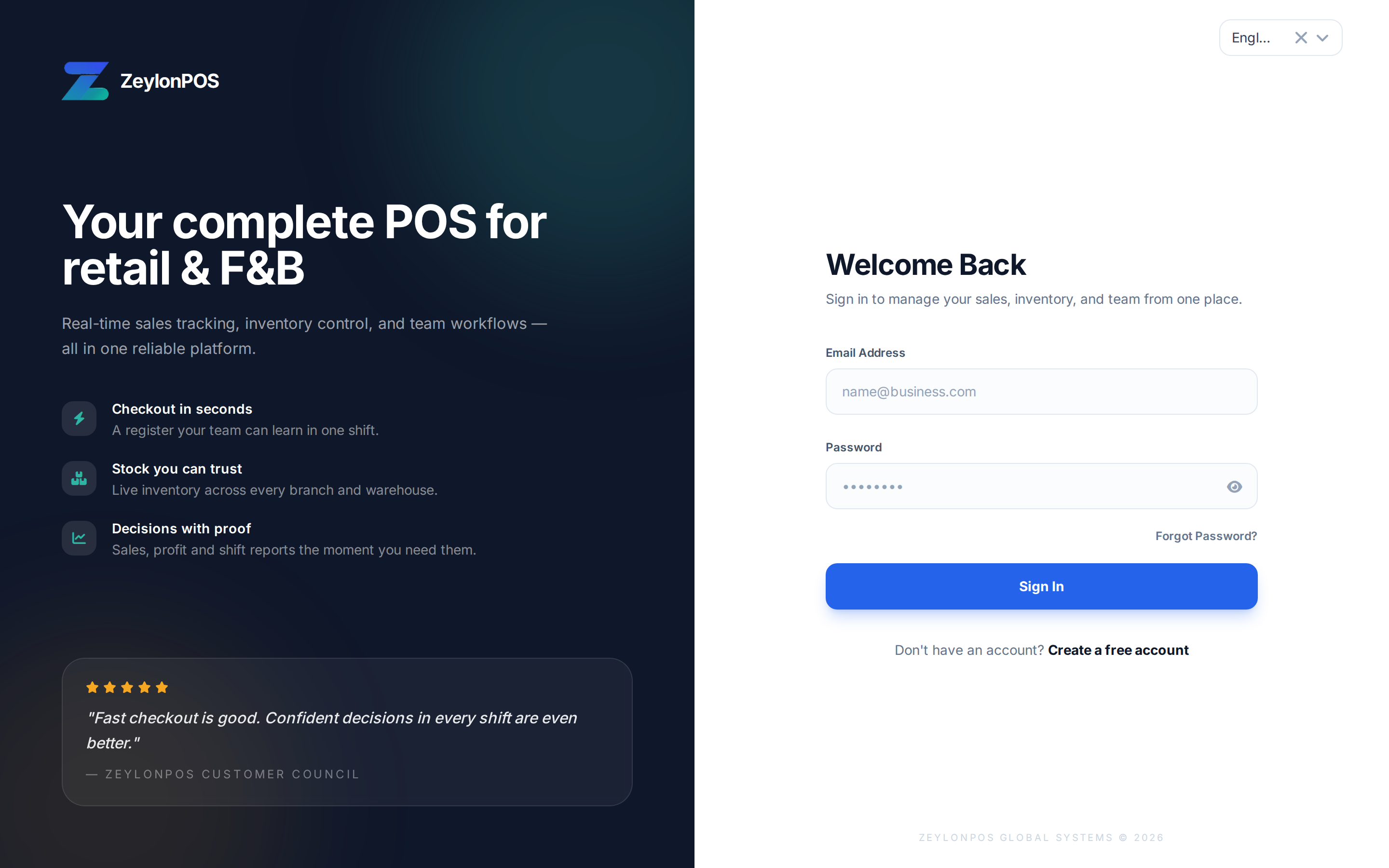
Screenshot pendingRoute /login, logged out
After signing in you land on the Dashboard. If your account is brand new, you may be guided through the setup wizard first.
Signing in on mobile
The mobile app uses a white form panel on a light background for sign-in, account creation, and password recovery. On wide screens, a branded panel appears alongside the form. Use the language picker above the form to choose your language. When the keyboard is open, scroll the form to reach the remaining fields and buttons. Dragging the form dismisses the keyboard.
Select Forgot password? to request a reset link, or Create an account to register. Remember my email saves your email address for your next visit.
If ZeylonPOS set up your store for you, look for a Welcome to ZeylonPOS — set your password email. Open its link, choose your password, then sign in here.
Set your security PIN
The first time you sign in, ZeylonPOS asks you to create a short PIN. This PIN lets you quickly lock and unlock the register during a busy shift without typing your full password every time.
- When prompted, choose a 4–6 digit PIN.
- Confirm it.
- Select Save.
TIP
You can change your PIN any time from Your profile.
Trouble signing in?
| Problem | What to do |
|---|---|
| Forgot your password | Use Reset password on the sign-in screen; a reset link is e-mailed to you. |
| "Please check your credentials." | The email or password is wrong. For your security the message doesn't say which. After five failed tries you must wait a few minutes. |
| "Please verify your email address" | Open the verification link we e-mailed you (check spam), or ask an admin to resend it from Users. |
| Signed out on another device | Your password was changed, your session was ended for safety, or you signed in on too many devices (the oldest session closes). Sign in again with your current password. |
| "Account inactive" | Your account has been disabled. Ask an admin to re-enable it in Users. |
| Wrong company / no data | You may belong to a different company. Contact your admin. |
| Can't reach the page | Check your internet connection. The POS can still sell offline once loaded — see Working offline. |