
Appearance
Modules & the App marketplace
ZeylonPOS is built from modules — self-contained features like Restaurant Management, Accounting, KDS or ZATCA e-invoicing. The App marketplace is where you see every module, switch the ones you want on, and configure them.
🔷 For managers & admins
The marketplace needs
settings.apps.read to view and settings.apps.update to enable, disable or configure a module. Some paid modules also involve the subscription. 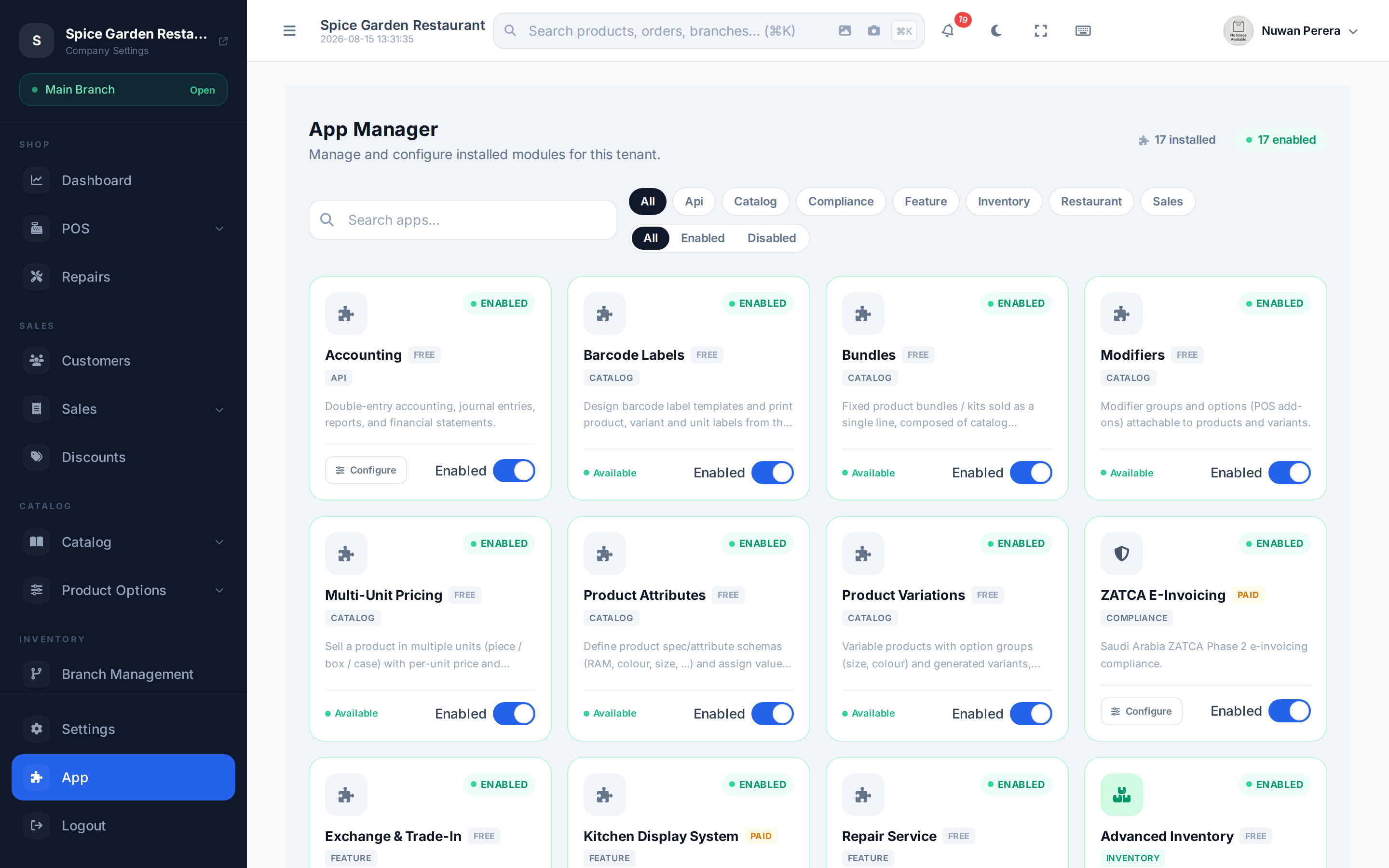
Screenshot pendingRoute /app, logged in as an admin
Browsing modules
Open the App marketplace at /app. Each module is a card showing its name, description, type and whether it's Free or Paid. At the top you'll see how many modules are installed and how many are enabled.
To find one:
- Search by name, description or code.
- Filter by type — accounting, POS, inventory, payment, report or compliance.
- Filter by status — All, Enabled or Disabled.
Free modules vs paid add-ons
There are two ways a feature gets switched on, and the card tells you which:
- Free module — just flip its toggle on. It's included in your plan.
- Paid add-on — you must Subscribe to it first. Its enable toggle stays greyed out until the subscription is active, so you can't turn it on until you've subscribed (see Paid modules).
Whether a given module is free or paid depends on your plan — a paid add-on shows a price on its card; a free one doesn't.
As a rule of thumb on the current plans:
- Included on every plan (just toggle on): Discounts, Bundles, Modifier groups, Variant options, Specifications, Barcode labels, Multi-unit pricing, Purchasing, and Stock transfers.
- Paid / higher-tier (subscribe or upgrade first): Accounting, Restaurant, Kitchen Display, Repairs, Exchange, Advanced inventory, Inventory Pro and ZATCA. On the entry-level plan these show as Unavailable until you move to a plan that includes them.
Your operator sets the exact split per plan, so always trust the card's Free / Paid label and status over this list.
How to enable a feature
Most optional features are packaged as a module. The routine is always the same:
- Open the App marketplace at
/app. - Search for the module (or filter by type) — use the feature reference table below to find which module a feature belongs to.
- If the card shows Locked or Unavailable, it's a paid add-on or not on your plan — Subscribe (see Paid modules) or upgrade first.
- Flip the card's toggle on.
- If the module has settings, a Configure button appears — open it to finish setup (floors & tables, KDS stations, ZATCA onboarding, and so on).
The feature's screens and menus appear as soon as the module is on. A couple of features need a second switch beyond the module toggle — most notably Restaurant mode, which also has to be turned on per branch. The reference table flags these.
A card can show one of a few states:
| State | Meaning |
|---|---|
| Enabled | Switched on and in use |
| Disabled | Available (included or subscribed) but switched off |
| Locked | A paid module you haven't subscribed to yet — toggle disabled |
| Pending approval | Subscribed via manual payment, awaiting approval — still locked |
| Unavailable | Not offered on your current plan — upgrade to get it |
What happens if you open a locked feature directly
If you follow a link or bookmark to a feature that isn't switched on, ZeylonPOS shows a short "needs an upgrade" / "isn't enabled" screen instead of the page — with a button that takes you straight to View plans (when it's not on your plan) or to the App marketplace to enable it (when your plan includes it but it's off).
Configuring a module
Modules that need setup open a configuration screen when you select Configure. Some show a simple form of settings; a few have richer editors:
- Restaurant Management → Floors and Tables tabs (Setting up Restaurant mode)
- Accounting → accounting preferences
- KDS → kitchen display stations (Setting up kitchen stations)
- ZATCA → e-invoicing onboarding (Setting up ZATCA e-invoicing)
Fill in the fields and select Save. The header shows whether the module is Configured or Not configured.
How access is decided
A module's screens, menu items, reports and API are available only when all of these are true:
- Your plan includes it. Free modules are always included. Paid modules come from your plan, a paid add-on, or an arrangement with your service provider.
- It's switched on in the App marketplace.
- Every module it depends on is available too. For example, the Kitchen Display needs Restaurant: if Restaurant leaves your plan, paired kitchen screens stop working as well.
If any of these isn't true, the module disappears from the menus on the web app and the mobile app. Opening its page from a link, bookmark or typed address shows the "needs an upgrade" / "isn't enabled" screen, and the server refuses the request too. Switching a module on doesn't work unless your plan includes it.
Some plans include a module as view only. On the entry-level plan, for example, Accounting is read-only: you can open the chart of accounts, journals and the contact ledger, but creating or editing entries is refused until you move to a plan with full accounting.
Changes apply straight away
Upgrades, downgrades, add-ons and changes your service provider makes to your plan take effect immediately on every device. A module that leaves your plan keeps its data, but you can't open or export it until the module is back.
Feature → required module (and plan)
Not sure which switch turns on the feature you want? Find it here. Most modules are route-gated — enable the module and its screens unlock. A few are UI-gated: they depend on more than a single toggle (a branch setting, or an active shift), so they don't simply appear on a route.
Route-gated modules
Enable the module in the marketplace and the feature's pages become reachable.
| Feature | Module code | Plan / notes |
|---|---|---|
| Exchanges | exchange | — |
| Debit notes | zatca | KSA e-invoicing |
| Advance payments | zatca | KSA e-invoicing |
| ZATCA e-invoicing | zatca | KSA e-invoicing |
| Stock transfers | stock_transfers | — |
| Reorder alerts | advanced_inventory | — |
| Cycle counts | advanced_inventory | — |
| Lots / batches | inventory_pro | — |
| Serial numbers | inventory_pro | — |
| Landed costs | inventory_pro | — |
| Bundles | catalog_bundles | — |
| Modifier groups | catalog_modifiers | — |
| Variant options | catalog_variations | — |
| Specifications | catalog_attributes | — |
| Discounts | discounts | — |
| Suppliers & purchase orders | purchasing | — |
| Repairs | repairs | — |
| Accounting — chart of accounts, journals, contact ledger | accounting | viewing works with any accounting grant (including view-only); creating and editing entries needs full accounting |
| Accounting — fiscal periods, reconciliation, manual journal editing | accounting | needs full accounting |
| Profit & loss · Balance sheet | accounting | report_profit_loss plan feature |
| AR / AP aging | accounting | report_receivables_aging plan feature |
| Inventory reports (stock level, movement, valuation) | — | report_inventory plan feature |
UI-gated features (more than a toggle)
| Feature | Module code | Extra switch |
|---|---|---|
| Restaurant tables, split & transfer | restaurant (alias tables) | Also turn restaurant mode on for the branch's POS config |
| Kitchen Display | kds | Requires the Restaurant module. Tickets only flow from restaurant-mode branches; pair a screen to a station |
Why two groups?
Route-gated modules hide their pages the instant the module is off. Restaurant mode and KDS depend on a branch being set to restaurant mode as well, so enabling the module alone isn't enough — see Setting up Restaurant mode.
Paid modules (add-ons)
A Paid module is unlocked by subscribing to it as an add-on. Its enable toggle is locked until the add-on is active — subscribe first, then turn it on.
On the card:
- Select Subscribe (or Renew if access has ended).
- Choose a monthly or yearly cycle and review the summary.
- Select Submit Request for manual approval.
- Once active, the card's toggle unlocks — flip it on and Configure.
After you submit, the card shows Pending approval and stays locked until the ZeylonPOS team approves the invoice — then you can enable it. A live add-on shows Active until its renewal date; you can Cancel it later, after which access drops to read-only and then off. Add-ons and their billing are covered in Subscription & billing.
INFO
Switching a module off hides its screens and blocks its routes. Data isn't deleted — turning it back on restores access.