
Appearance
Finding your way around
ZeylonPOS has two constant navigation areas: the sidebar on the left (where you jump between areas of the business) and the top bar across the top (search, notifications and your account). Learn these two and you can reach everything.
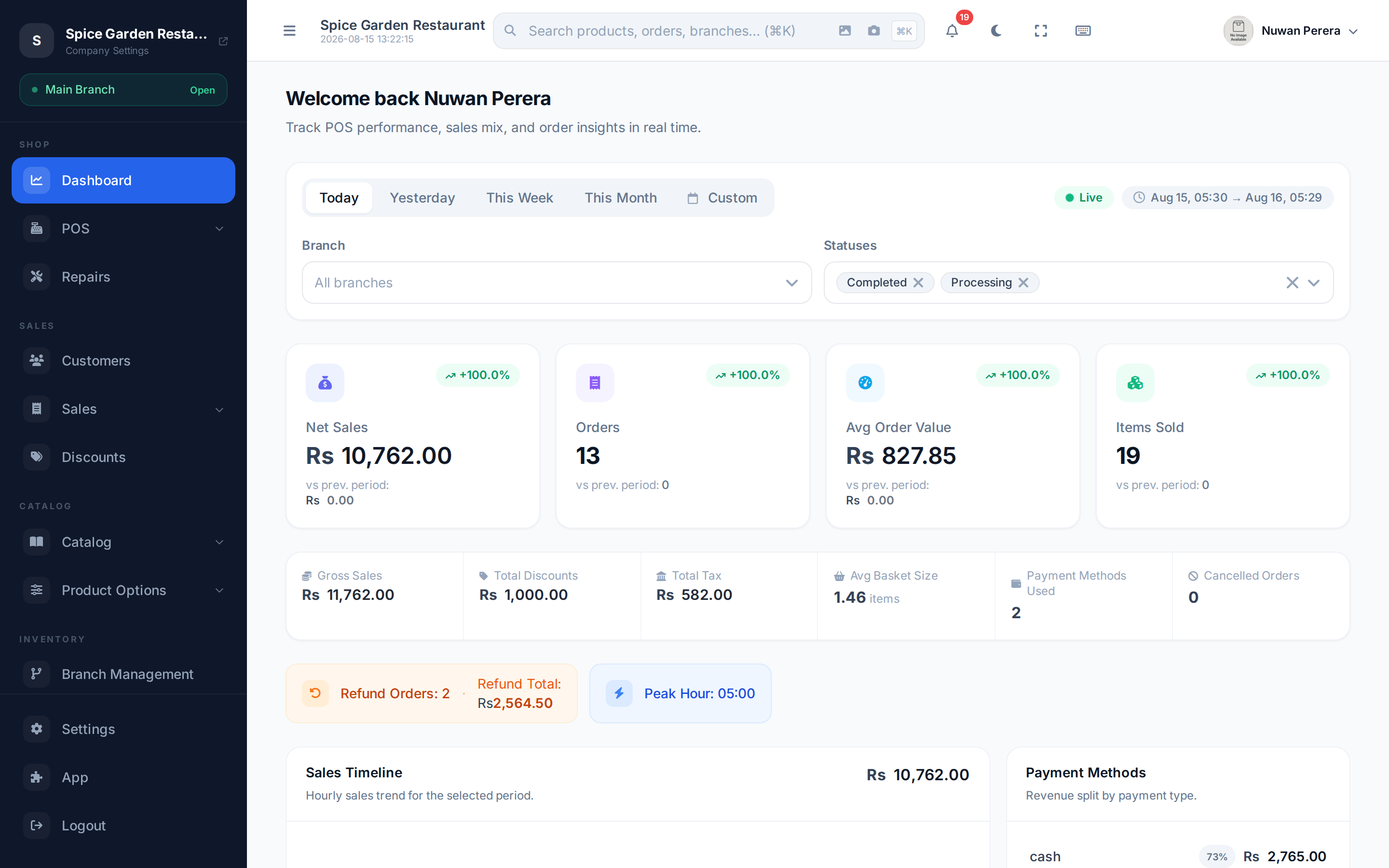
Screenshot pendingRoute /dashboard, logged in, sidebar expanded
The sidebar
The sidebar groups the app into labelled sections. You only see the sections your role and your company's active modules allow, so your sidebar may be shorter than the full list below.
| Section | What's inside |
|---|---|
| Shop | Dashboard, the POS register, Orders, POS Sessions, Repairs |
| Sales | Customers, Invoices, Credit & Debit notes, Exchanges, Advance payments, Discounts |
| Catalog | Products, Categories, Units, Bundles, Modifier groups, Variant options, Spec definitions |
| Inventory | Branches, Warehouses, Stock transfers |
| Procurement | Suppliers, Purchase orders |
| Accounting | Chart of accounts, Manual journals, Fiscal periods, Bank reconciliation |
| Reports | The reports hub |
| Support | Support tickets |
| Access Control | Users, the Authority Matrix, Subscription |
At the very bottom sit Settings, App (the module marketplace) and Logout. When a POS shift is open, the sidebar shows an "Open" badge near the top so you always know a shift is running.
Can't find a menu item?
If something you expect is missing, it's usually one of two things: your role doesn't have permission for it, or the module is switched off. See Roles & what you can do.
The top bar
From left to right:
- Menu button — collapse or expand the sidebar (handy on small screens).
- Global search — search products, customers, orders and more. Press ⌘K / Ctrl-K to jump to it from anywhere; results appear as you type, and Enter opens the full results. You can also search by scanning or uploading a barcode / QR image.
- Notifications — the bell shows a badge when you have unread alerts. Open it to read them, Mark all read, or View all notifications. New alerts arrive in real time.
- Theme toggle — switch between light and dark.
- Fullscreen — hide the browser chrome for a kiosk-like view.
- Keyboard shortcuts — a quick reference of shortcuts.
- Your account — your avatar opens the user menu (below).
On the POS screen, search becomes a scanner
When you're on the register, the search box turns into a barcode / SKU scanner bar — a USB scanner, camera or image upload all add the item straight to the cart, with a beep to confirm. See Making a sale.
Your account menu
Selecting your avatar opens a menu with:
- A link to Company settings
- Your open shift details (when one is running)
- Profile and Settings
- Open shift / Close shift and Lock screen
- A language switcher (English, Arabic, Sinhala, Tamil)
- Appearance (theme) controls — the app opens in light mode by default; switch to dark or follow system here and your choice is remembered
- Logout
Switching branch
ZeylonPOS doesn't have a separate "branch switcher" in the top bar. The branch you're working in is set by your assigned locations and your open shift. If you need to work in a different branch, an admin manages this under Users and Branch POS configuration.