
Appearance
Users
Every person who logs in needs a user account. Creating one sets their login details, the role that decides what they can do, and — optionally — the branches they're limited to.
🔷 For managers & admins
Viewing users needs
settings.users.read; creating and editing need settings.users.create / settings.users.update (or the broad settings.update). This is usually an admin or manager. 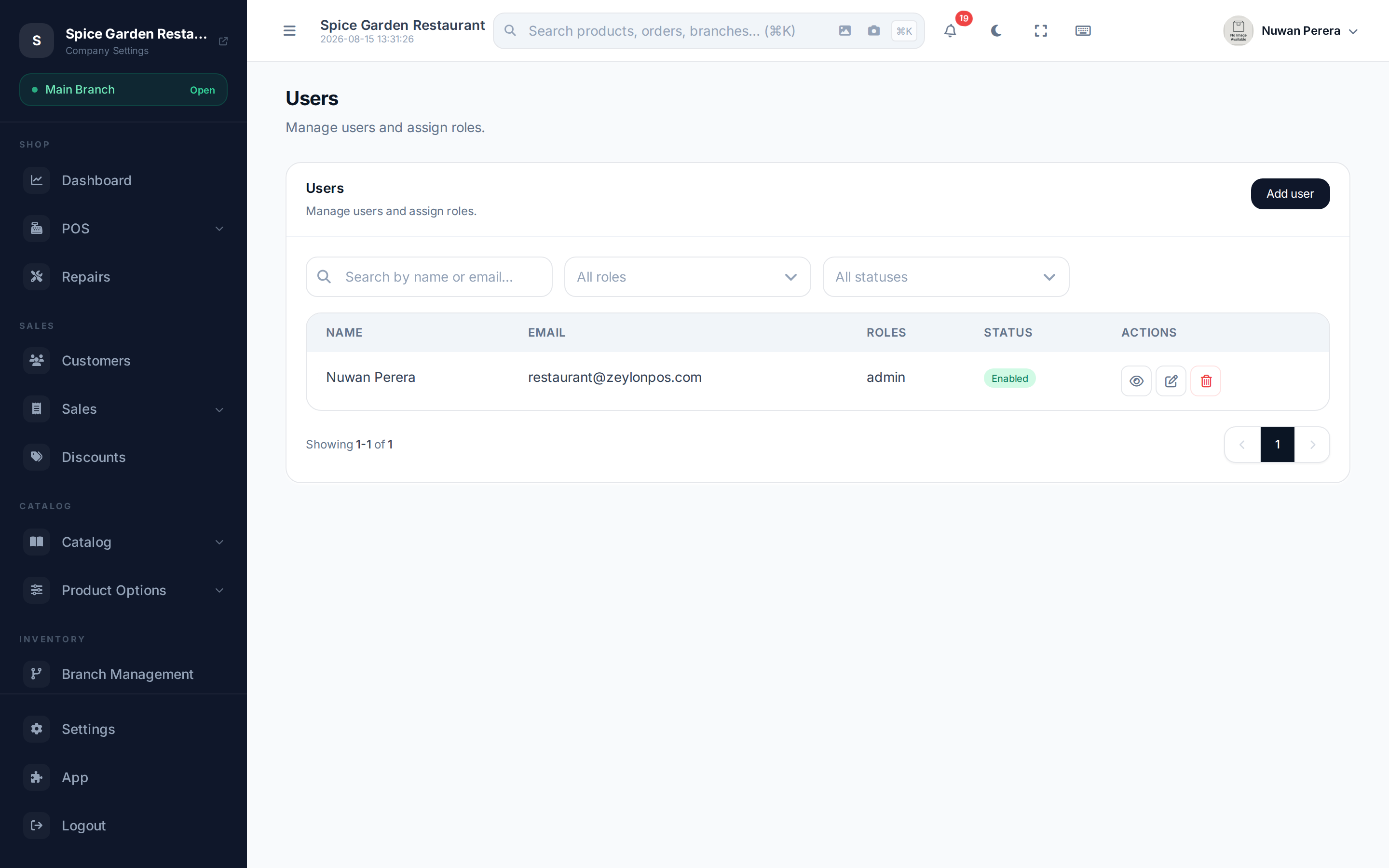
Screenshot pendingRoute /access-control/users, logged in as an admin
Creating a user
- Go to Users (
/access-control/users) and select Add. - Enter the person's name and email — the email is their login.
- Set a password (they can change it later).
- Optionally set their country, phone and display locale (English, Arabic, Sinhala or Tamil).
- Under Access, choose one or more roles (see Roles & the Authority Matrix).
- Optionally limit them to specific branches.
- Make sure Enabled is on, then Save.
Saving emails the new person a verification link. They can't sign in until they open it, so let them know to check their inbox (and spam folder). If the email went astray, use Resend verification on their row.
Fields
| Field | What it does |
|---|---|
| Name | Display name |
| Their login and where verification is sent | |
| Password | Initial password (leave blank when editing to keep the current one) |
| Country / Phone | Contact details; country sets phone formatting |
| Locale | The language their interface opens in |
| Enabled | Turn access on or off without deleting the account |
| Roles | One or more roles — the heart of what they can do |
| Branches | Restrict the user to these branches (blank = all) |
Roles decide what they can do
A user's role is what grants permissions. Assign at least one. The eight built-in roles range from cashier (POS only) to admin (full access) — see Roles & the Authority Matrix for the full list and what each can do.
Branch scoping
If you assign branches to a user, ZeylonPOS automatically limits everything they see — products, orders, shifts, transfers, reports — to those branches and their linked warehouses. Leave branches blank for a head-office user who should see everything.
INFO
Branch scoping is enforced on the server, not just hidden in the UI, so it can't be bypassed. A user with no assigned branches sees all data.
Managing existing users
From the list you can view, edit or delete a user. If someone hasn't confirmed their email yet, a Resend verification action appears on their row. To temporarily block access without deleting, edit the user and turn Enabled off.
When you edit a user:
- Setting a new password or turning Enabled off signs that person out of every device straight away.
- Changing their email sends a verification link to the new address; they can't sign in with it until they open the link.
A few protections apply to everyone who manages users:
- You can't edit or delete someone with a more senior role than yours — for example, an admin can't reset the business owner's password.
- People who also work for another business keep one sign-in for both. You can still change their roles and branches here, but not their password, email or Enabled switch, and deleting them only removes their access to your business — their account stays for the other one.
TIP
Deleting or disabling a user immediately clears their cached permissions, so access is revoked on their next request.
Erasing a former staff member's data
When someone leaves and asks for their personal data to be erased (their right under Sri Lanka's Personal Data Protection Act and Saudi Arabia's Personal Data Protection Law), use Anonymize instead of deleting them. Their sales stay on record; only their identity goes.
🔷 For managers & admins
Needs the Anonymize User permission (
settings.users.anonymize), which only the Admin role has by default. You can't anonymize yourself, and you can't anonymize the last enabled admin of the business — give someone else the admin role first. - Go to Users (
/access-control/users). - On the person's row, select the Anonymize action (the crossed-out person icon).
- Read the confirmation and select Anonymize again.
What happens depends on whether the person also works for another business that uses the system:
| The person… | What anonymizing does |
|---|---|
| Works only for your business | Their name becomes Anonymized user #<number>; their email, phone, PIN, password and photo are erased; they are switched off and signed out everywhere. |
| Also works for another business | Only their access to your business is removed (roles, branches, membership) and they are signed out. Their profile stays for the other business. |
Orders, shifts and other records they created stay linked to them and show the anonymized name, so your sales history and reports still add up.
Anonymizing cannot be undone
The person can't be restored. If they come back, create a new user for them.