
Appearance
Localisation & languages
ZeylonPOS ships in four languages and adapts dates, times and the financial year to your region. This is where you set those regional preferences.
🔷 For managers & admins
Editing localisation needs
settings.localization.update. Each user can also pick their own display language on their profile. 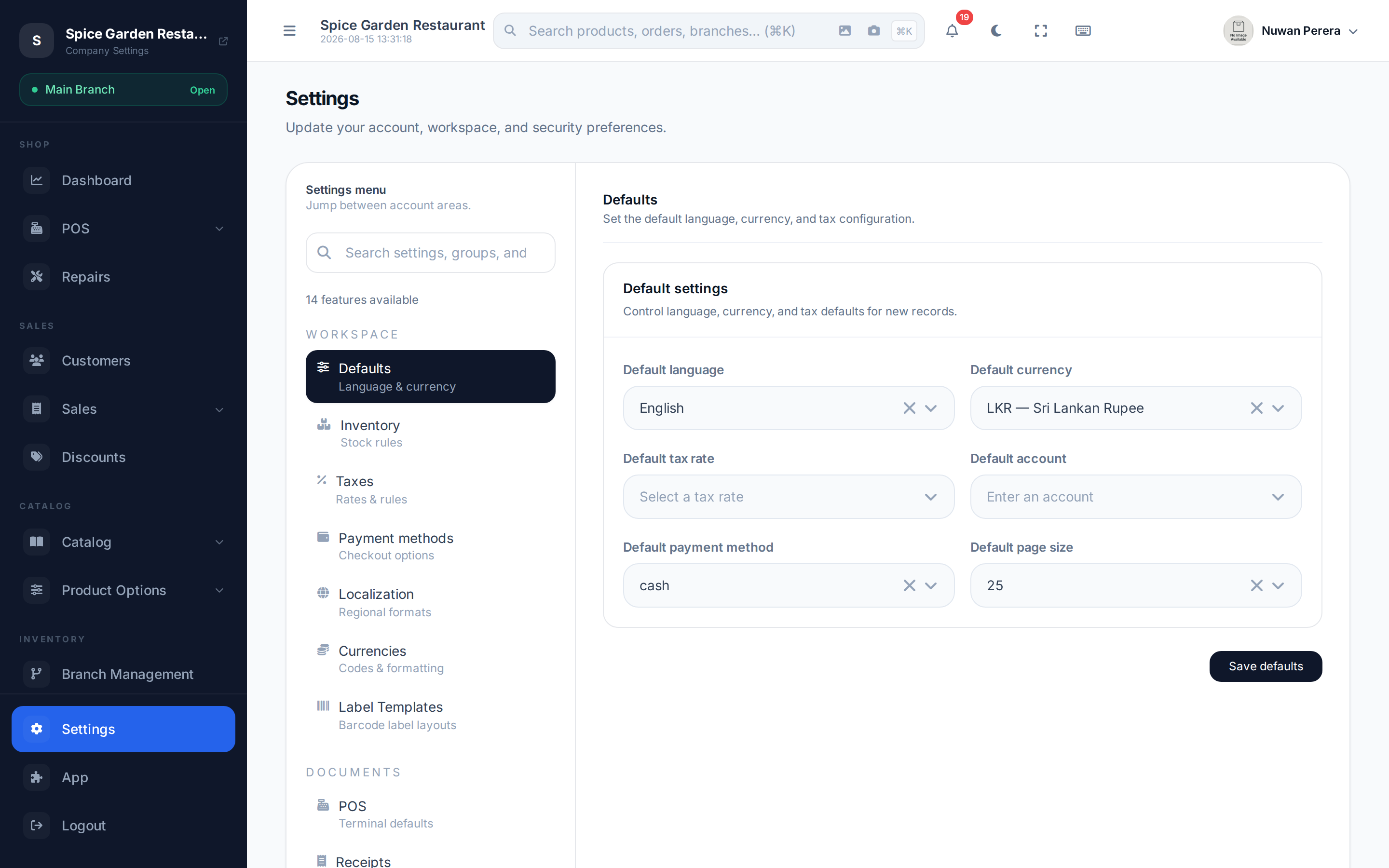
Screenshot pendingRoute /settings, Localisation tab selected
Languages
ZeylonPOS supports four languages:
| Language | Code | Script direction |
|---|---|---|
| English | en | Left-to-right |
| Arabic | ar | Right-to-left |
| Sinhala | si | Left-to-right |
| Tamil | ta | Left-to-right |
Translatable content — store name, receipt notes, product names — is entered per language using the language tabs on each form. When Arabic is selected the interface switches to right-to-left automatically.
- Set the default language for the whole company in General settings → Defaults.
- Each staff member sets their own display language on their profile (also chosen when you create the user).
Regional settings
On the Localisation tab:
| Setting | What it does |
|---|---|
| Financial year start | The day/month your accounting year begins (e.g. 01-01) |
| Financial year denotes | Whether the year is labelled by its start or its end |
| Date format | How dates display (e.g. d M Y) |
| Timezone | The timezone all dates and times are shown in |
| Percent position | Whether % sits before or after the number |
| Discount location | Where discounts apply — per line, on the total, or both |
- Open Settings → Localisation.
- Set your financial year start and whether it's denoted by start or end.
- Choose your date format and timezone.
- Set the percent position and discount location to taste.
- Select Save.
INFO
ZeylonPOS stores all timestamps in UTC and displays them in your chosen timezone. Changing the timezone updates every date/time on screen without needing a reload — see Datetime & timezones for the technical detail.