
Appearance
Locking the register
When you step away from the till, lock it so no one can use it under your name. Unlocking takes a quick PIN, so you're back to selling in seconds.
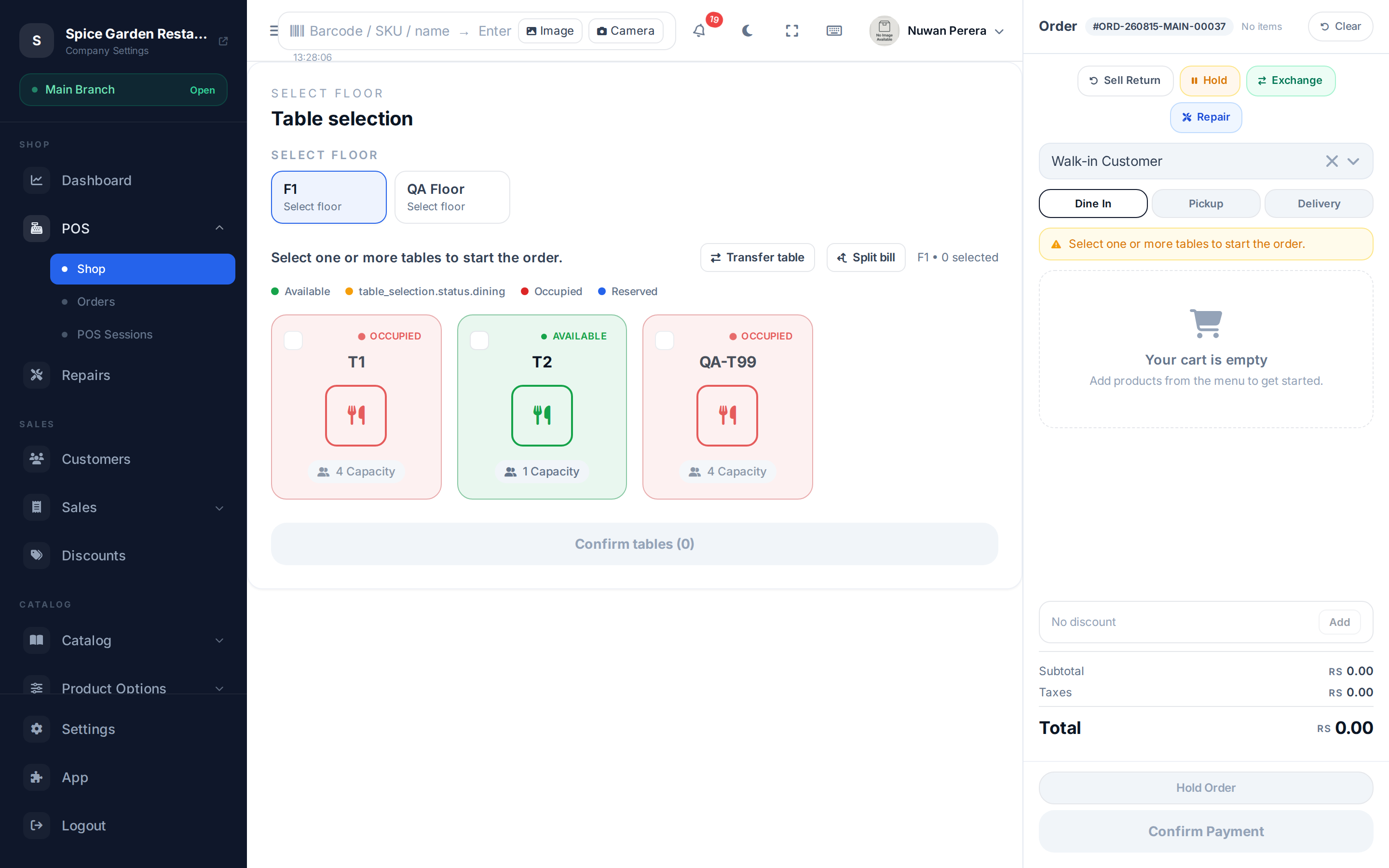
Screenshot pendingRoute / then lock the session from the profile menu
Locking
- Manually — open your profile menu and choose Lock Screen.
- Automatically — the register locks itself after a few minutes of no activity (default 5 minutes). The lock screen notes whether it was locked by idle timeout or manually.
Your shift stays open while the register is locked — locking is not the same as closing your shift.
Unlocking
- Enter your PIN on the keypad (up to 6 digits). It submits automatically when complete.
- Can't remember your PIN? Choose Use password instead and sign in with your username/email and password.
If two people at the branch happen to use the same PIN, the register can't tell who is unlocking it, so it refuses the PIN and asks you to unlock with your email and password instead. Afterwards, change your PIN from your profile so it's yours alone.
Too many wrong tries
After several failed attempts the screen offers a manager override (a manager enters their credentials to unlock). Keep failing and the register locks you out for a short cool-down before you can try again. After five wrong PINs or passwords the lock itself refuses every attempt for 15 minutes — including a manager's — so ask a manager before you keep guessing.
Only people who work at this branch (or who aren't tied to a branch, such as admins) can unlock its register.
Offline
While offline, the register warns that unlocking may be limited.