
Appearance
Closing a shift
Closing a shift ends your register run and reconciles the cash drawer. The screen shows what the till expects, you count what's actually there, and the difference is your over/short.
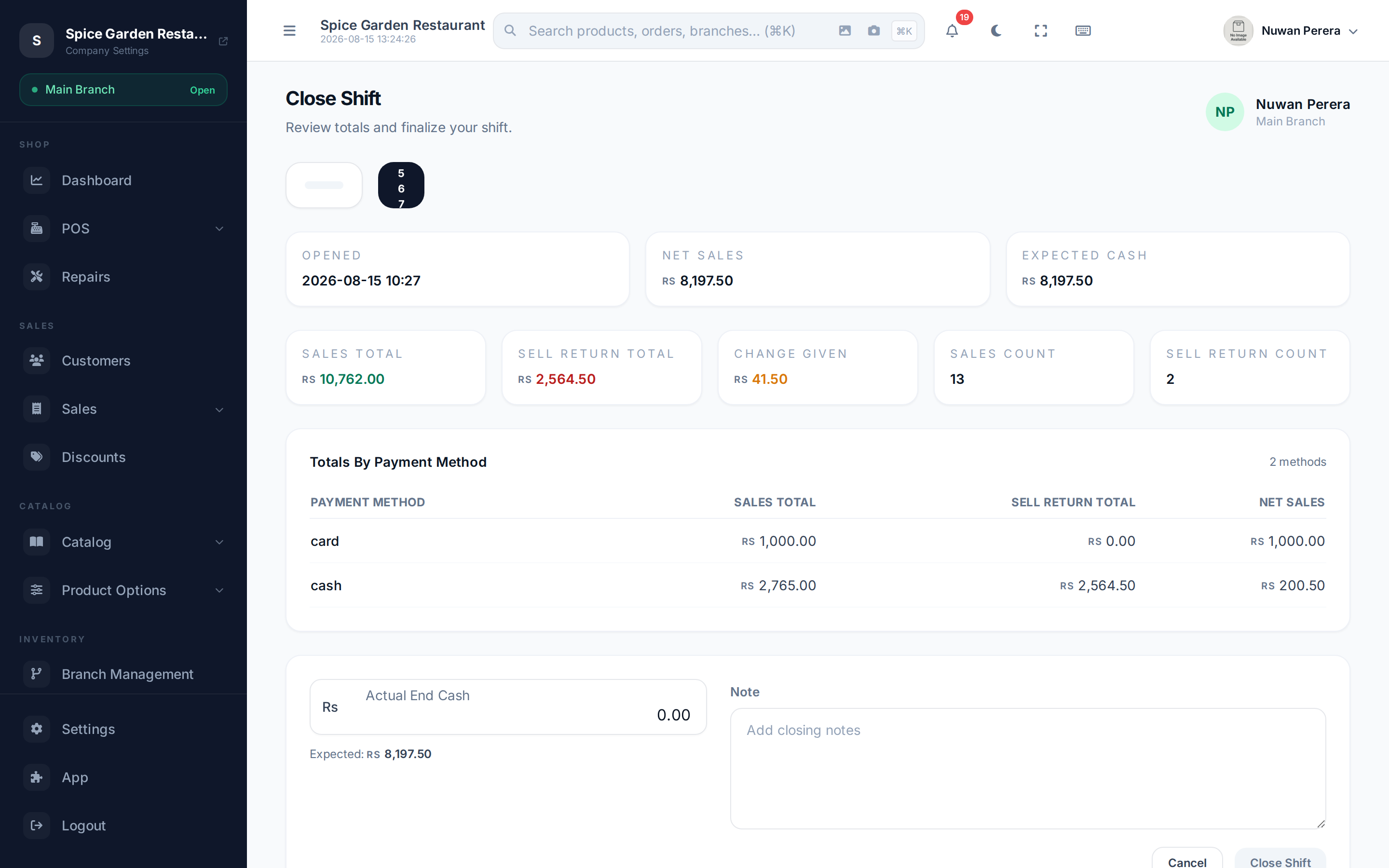
Screenshot pendingRoute /shift/close with an open shift that has some sales
What the screen shows
Before you close, the register summarises the shift for you:
| Panel | What it tells you |
|---|---|
| Opened | When the shift started |
| Net Sales | Total sales for the shift — only completed and paid orders. Cancelled, voided, draft, held and still-open (unpaid) orders are not counted; payments already taken on an open order still show in the payment totals and expected cash |
| Expected Cash | What the drawer should hold: opening cash + cash sales (net of cash refunds and change given) + pay-ins − drops. Card and other non-cash payments are not included |
| Pay-ins / Drops | Cash added to or taken out of the drawer during the shift |
| Sales / Sell-return totals & counts | How many sales and returns, and their values |
| Totals by payment method | Sales, returns and net per method (cash, card, …) |
| Sales transactions | Every order in the shift with its type, status and total |
Adding or removing cash during a shift
Use Cash in / out on the Close Shift screen when cash goes into or out of the drawer for a reason other than a sale. For example, a manager tops up the float (a pay-in), or you move surplus notes to the safe (a drop).
- Open Close Shift (you don't have to close the shift).
- Select Cash in / out.
- Choose Pay-in (add cash) or Drop (remove cash).
- Enter the Amount and a Reason, then select Save.
The Expected Cash figure updates straight away. A drop can't be more than the drawer is expected to hold. If your business uses accounting, each pay-in or drop also moves the amount between the cash drawer and safe accounts.
🔷 For managers & admins
Recording cash in or out needs the Shift Cash In / Out permission (
sales.shifts.cash_movement). Cashiers, managers and admins have it by default. Step by step
- Count the cash in the drawer.
- Open Close Shift.
- Enter your Actual End Cash. The Expected amount is shown right beside it as a reference — the gap between the two is your over/short.
- Add a Note if you need to explain a difference (optional).
- Select Close Shift.
- Confirm your password in the pop-up to finalize. The shift closes and you return to the Open Shift screen.
Signing out with a shift open
While your shift is open you can't sign out, on the web register or in the mobile app. Sign out takes you to (or tells you to use) Close Shift first, so the drawer is always counted. An admin can turn this off under Settings → POS.
One close per shift
A shift can only be closed once. If two devices try to close the same shift, the second is told there's no open shift — the first close already went through.
A manager can close your shift
If you leave without closing, a manager can close the shift from POS sessions after counting the drawer.
On the mobile app
My shift records pay-ins and drops the same way the web register does, and shows what the drawer should hold so the closing count has something to agree with.
More → Shift sessions lists past shifts for your branches. Opening one shows what it sold, the pay-ins and drops against it, and — once closed — the counted cash and variance. A manager with permission to close other people's shifts can close an abandoned one from there, confirming with their own password, without needing to find a web register.
Shifts left open are closed automatically
If a shift is still open 36 hours after it started, the system closes it for you. If the branch sets a longer maximum shift length, it waits for that instead. The automatic close records the sales snapshot and posts to the accounts like a normal close. No counted cash is entered, so the shift shows the note "Auto-closed: shift left open past the abandoned-shift limit." and a manager should check the drawer. Your service provider can change the 36-hour limit.
Why a password?
Closing writes the final cash figure and posts an accounting entry, so the register asks you to confirm your account password. An incorrect password stops the close.