
Appearance
Advance payments
An advance payment invoice records money a customer pays you before the goods or service are delivered — a deposit, a booking fee, or a stage payment. It's a proper tax document (ZATCA type 386, a prepayment invoice), and the amount is later deducted from the final invoice so the customer isn't taxed twice.
🔷 For managers & admins
Advance payments are part of the ZATCA e-invoicing feature and only appear when that module is enabled for your tenant. Creating one needs
sales.advance-payments.create. 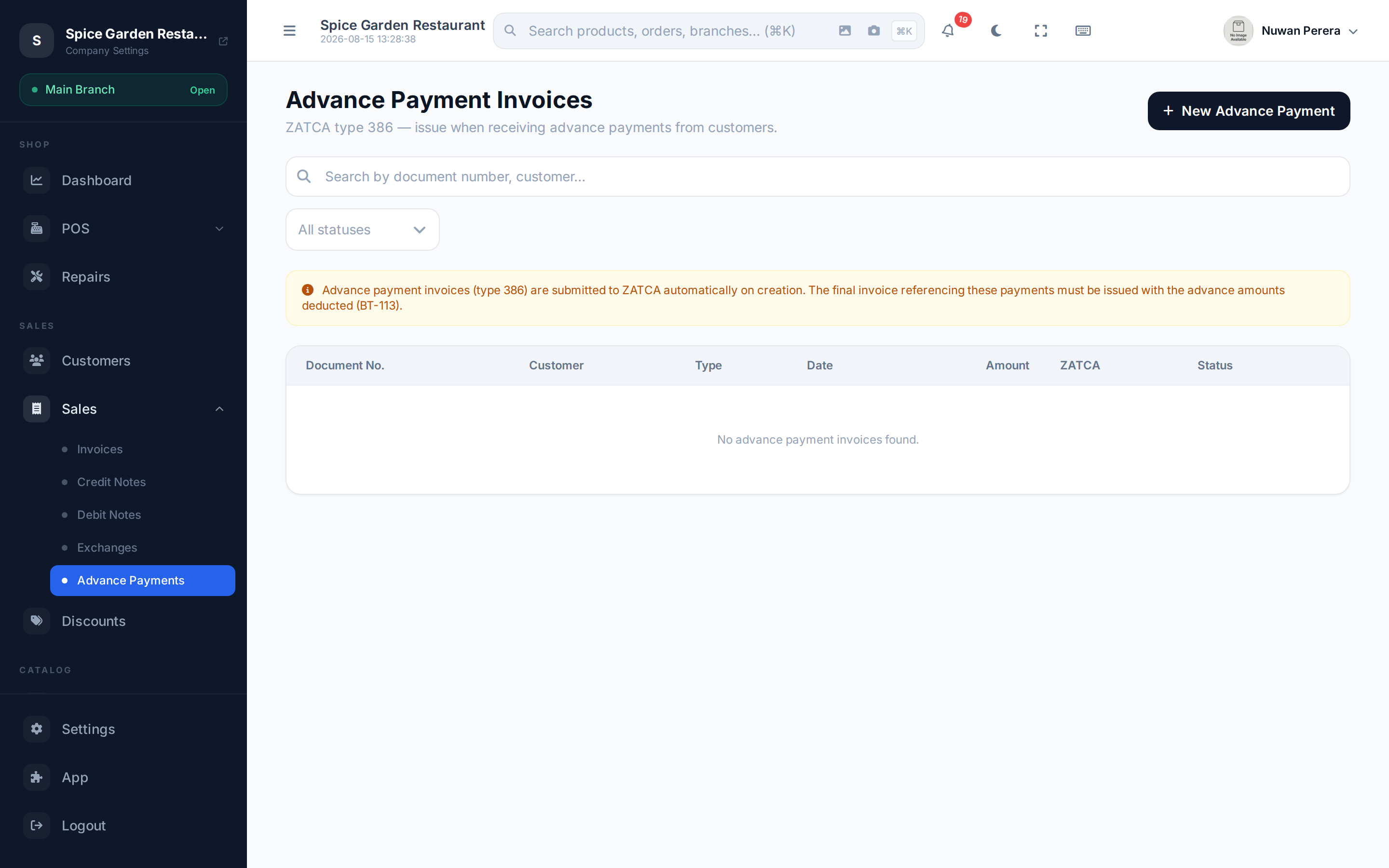
Screenshot pendingRoute /advance-payments, retail SA demo
Creating an advance payment invoice
- Go to Advance Payments and select New Advance Payment Invoice.
- Pick the Invoice Class:
- Simplified — for walk-in / B2C customers. No buyer VAT number needed.
- Standard — for B2B customers. The customer must have a registered VAT number and address.
- Set the Date, choose the Customer and the Branch.
- Add line items describing what the advance is for — product or free-text description, quantity, price, discount and tax. The total is the prepaid amount.
- Optionally switch on Record Payment Received to capture how the deposit was paid (amount, method, reference).
- Select Create Advance Payment Invoice. It is created and queued for ZATCA submission.
B2B needs a VAT number
Pick Standard for VAT-registered business customers. If the selected customer has no VAT number, the form warns you — switch the customer to a Simplified invoice or add their VAT details first (see Customers).
Adjusting it against the final invoice
When you raise the real invoice later, that customer's open advance payments appear in an Applied Advance Payments panel. Tick the ones to use and their total is deducted from the amount due — recorded as the ZATCA Prepaid Amount (BT-113). This closes the loop: the deposit was taxed once on the type-386 invoice, and netted off the final bill.
In your accounts
With the Accounting module on, advance payments post automatically:
| When | What's booked |
|---|---|
| The advance is received | Cash or bank (by payment method) in; the deposit held as Customer advances (a liability); its VAT as VAT payable — VAT is due when the advance is received |
| A final invoice applies it | Receivables only for what's still owed; the customer advance and its VAT are released against the sale, so the VAT isn't counted twice |
| The final invoice is cancelled or voided | The advance comes back and can be applied to another invoice |
Record the payment on the advance so it lands in cash or bank — without one, the advance is booked as owed by the customer. The Customer advances account is set under Settings → Accounting (it starts as Revenue Received in Advance).
Deleting an advance
An advance that is applied to an invoice can't be deleted — cancel or void that invoice first.
Next steps
- Invoices
- Debit notes
- ZATCA e-invoicing