
Appearance
Debit notes
A debit note is the opposite of a credit note: it increases what a customer owes on an invoice you've already issued. Use it when you undercharged — a missed item, an extra fee, or a price correction on a bill that's already gone out.
🔷 For managers & admins
Debit notes are part of the ZATCA e-invoicing feature and only appear when that module is enabled. Creating one needs
sales.debit-notes.create; posting it needs sales.debit-notes.post. 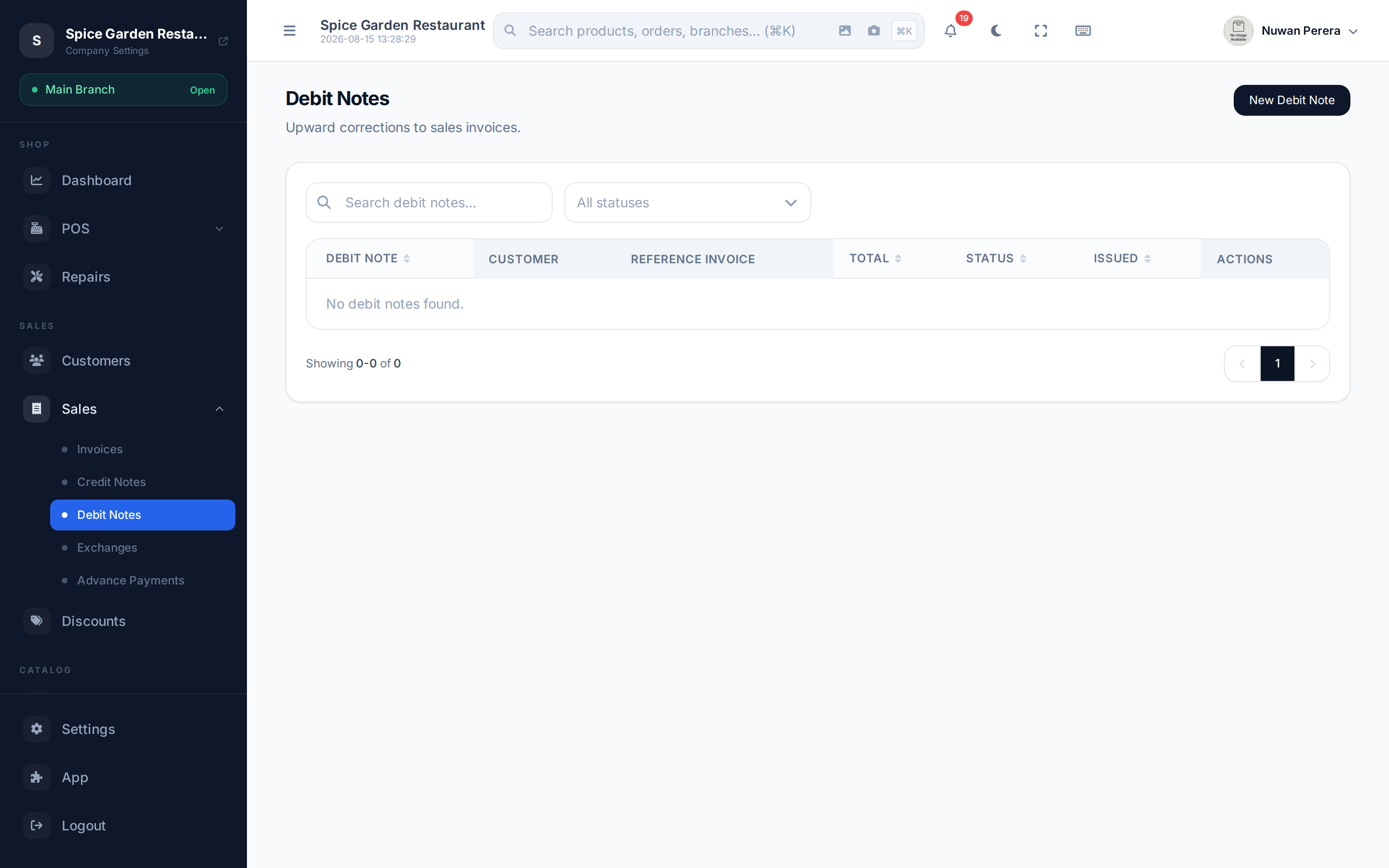
Screenshot pendingRoute /debit-notes, retail SA demo
Issuing a debit note
- Go to Debit Notes and select New Debit Note.
- Pick the Customer.
- Choose the Reference Invoice (required). A debit note must reference the invoice it corrects — it inherits that invoice's tax treatment and its standard/simplified class, and the branch fills in from it.
- Set the Issue Date, and a Due Date if relevant.
- Add the line items for the extra charge — the amounts you're adding to the original bill.
- Select Save to store it as a draft.
- When it's correct, Post the debit note. Posting finalises it and books the accounting entry.
A posted debit note can't be cancelled
Once a debit note is posted and accepted by ZATCA it's a legal document — you can't simply cancel it. To reverse it, raise a credit note against it instead.
Debit note vs credit note
| Credit note | Debit note | |
|---|---|---|
| Effect | Reduces what the customer owes (refund / return) | Increases what the customer owes (extra charge) |
| Typical use | Return, overcharge, goodwill | Undercharge, missed item, added fee |
| References | The original sale/invoice | The original invoice (required) |
On the mobile app
More → Debit notes lists them, and you can raise or edit one there. The row only appears when the ZATCA module is enabled, which is what the feature needs — see Modules.
Next steps
- Credit notes
- Invoices
- ZATCA e-invoicing