
Appearance
Invoices
An invoice is a formal bill you raise for a named customer — itemised, taxed, and payable now or later. Use it when a POS receipt isn't enough: for business customers, credit terms, or a proper tax invoice you e-mail or print.
🟢 For everyone
Creating and editing invoices needs the invoice permissions (
sales.invoices.create / .update). Recording a payment uses the same update permission. 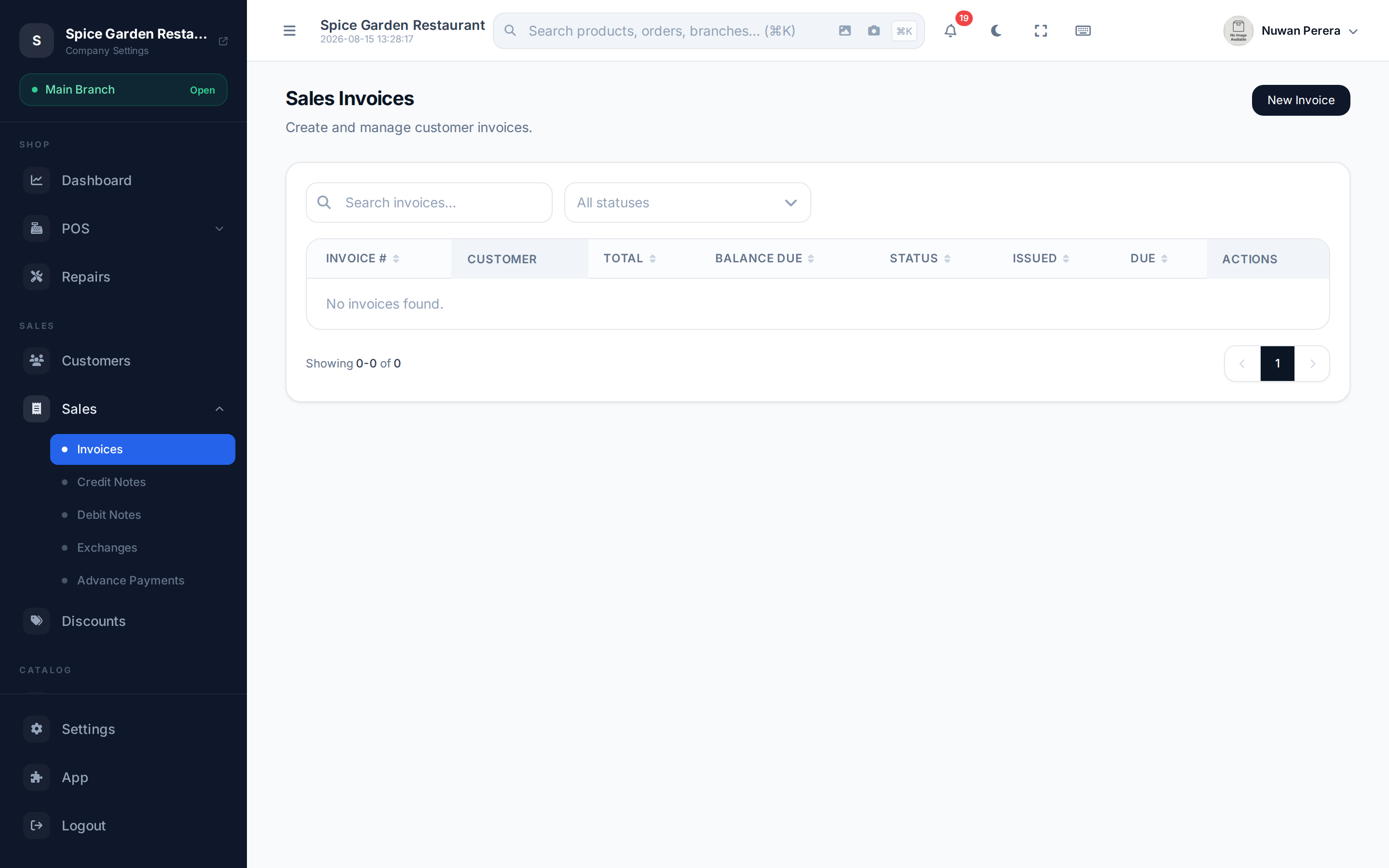
Screenshot pendingRoute /invoices, retail SA demo
Creating an invoice
- Go to Invoices and select New Invoice.
- Set the Date, and a Due Date if the customer pays later.
- Choose the Customer (required). Their address and tax details fill in on the right — the same details a tax invoice needs.
- Pick the Branch the invoice is raised from.
- Add line items: search a product (its name, price and tax fill in), set the quantity, adjust the unit price, add a per-line discount and tax, and pick the warehouse stock comes from. Totals compute as you type.
- Optionally add an Invoice Discount across the whole document, and any notes (payment terms, references).
- Select Create Invoice. A document number is assigned on save.
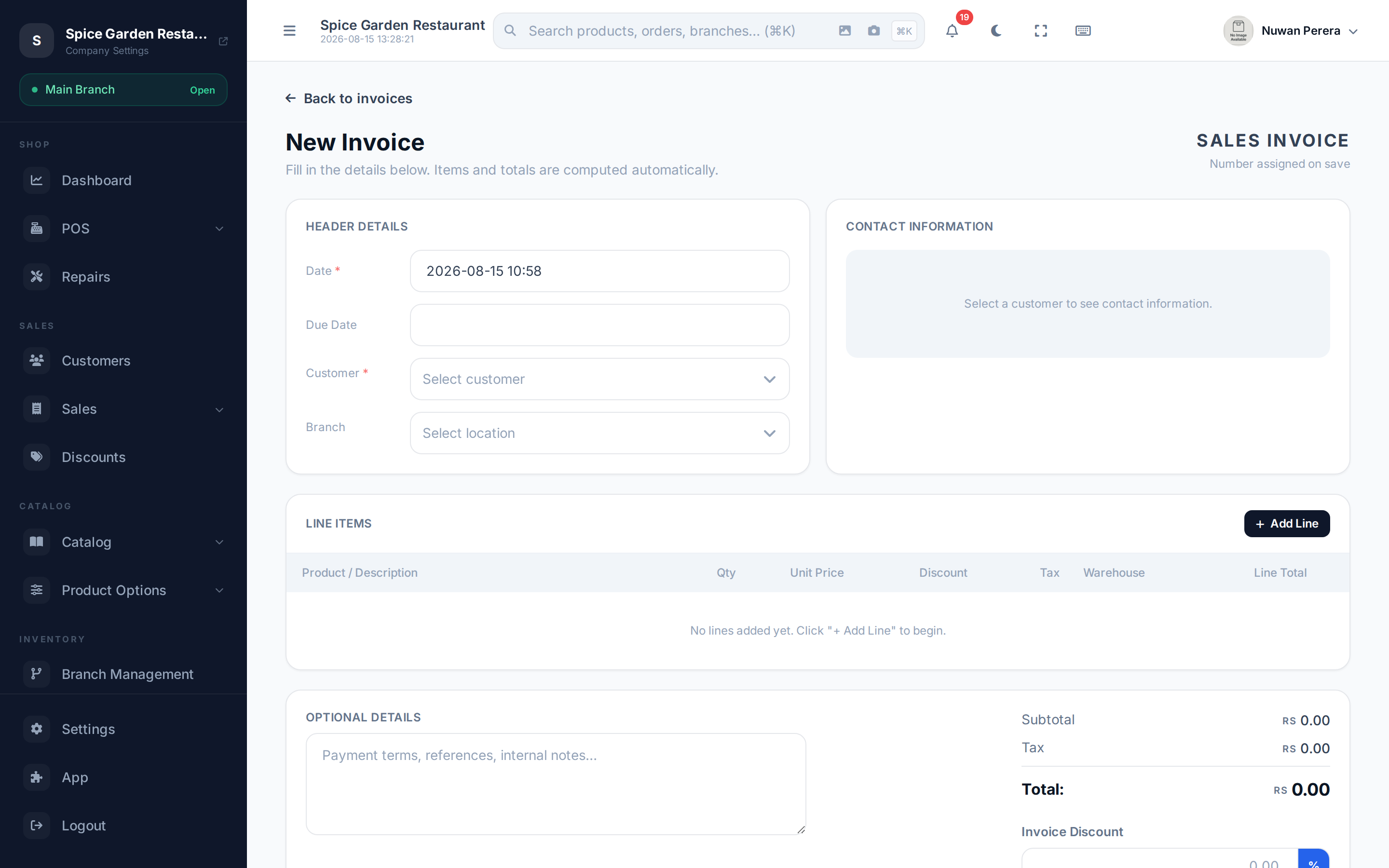
Screenshot pendingRoute /invoices/create with a customer and two lines
Stock and invoices
A draft invoice doesn't touch stock. When you send the invoice, its products leave stock, the same way a till sale does:
- Each line comes out of the warehouse picked on the line. A line with no warehouse comes out of the invoice branch's warehouse. With no branch on the invoice, it comes out of the store's warehouse if there's only one.
- Bundles take out their components and recipe items take out their ingredients. Services and products that don't track stock are skipped.
- Recording payments or marking the invoice paid doesn't move stock again.
- Cancelling a sent invoice puts its items back.
- If there isn't enough stock and the product can't be sold out of stock, the invoice isn't sent and the message shows what is available.
🔷 For managers & admins
Because the goods leave stock, the invoice journal also books their cost of goods sold (debit COGS, credit inventory), so gross profit includes back-office sales.
Descriptions and ad-hoc lines
Each line can carry a free-text description that overrides the product name, so you can bill for something that isn't a catalog product too.
Recording payments
Open an invoice and select the option to Record Payment. Invoices support part-payments, so a customer can pay some now and the rest later.
| Field | Notes |
|---|---|
| Amount | How much is being paid. "Pay full balance" fills in the outstanding amount. |
| Payment method | Cash, Card, Bank Transfer, Cheque, Online or Other. |
| Payment date | When the money was received. |
| Reference / note | Cheque number, transfer reference, etc. |
Each payment reduces the Balance Due shown on the invoice. An invoice is settled once the balance reaches zero; anything unpaid shows up in the receivables aging report and on the customer's profile.
You can't overpay an invoice
A payment can't be more than the invoice's balance due. If you try, the payment is refused and the message shows both the amount you entered and the balance still owed.
Mark as paid
Mark as paid settles the invoice in one step and keeps any payments you've already recorded:
- If you don't enter any payments, the outstanding balance is recorded as one payment — cash, unless you choose another method.
- If you do enter payments but they don't cover the total, the invoice isn't marked paid; the message shows the amount paid against the invoice total.
🔷 For managers & admins
In accounting, a sent invoice is booked to receivables (money the customer owes you). Each payment then posts its own receipt journal dated the day the money arrived, so cash appears in the period it was actually received. See Accounting overview.
Applying an advance payment
If the customer paid a deposit earlier, their open advance payments appear on the invoice form. Tick the ones to apply and their total is deducted from what's owed (recorded as the ZATCA prepaid amount, BT-113).
Downloading a PDF
From an invoice you can download a branded PDF in one of three templates — Classic, Modern or Minimal. Pick a template and select Download PDF.
Cancelling or voiding an invoice
Cancel an invoice that was never really owed (it reverses its accounting), or void a filed invoice by issuing a credit note against it (the lawful reversal of a reported e-invoice).
- An invoice that is paid or partially paid can't be cancelled — use Void instead, which issues a credit note.
- An invoice that has already been reported to ZATCA can't be cancelled either.
- An invoice that already has returns or credit notes against it can't be voided; return the remaining items instead.
🔷 For managers & admins
Both actions move money, so they're guarded by the authority matrix: a **manager** can cancel or void only invoices **in a branch they're assigned to**, and only when the invoice total is **within their approval limit** — larger ones must go to an admin, who has no such limit. Every cancel and void is written to the central audit trail. (Cancelling needs
sales.invoices.cancel; voiding needs sales.credit-notes.create.)