
Appearance
Discounts & coupons
Discounts are the promotions your shop runs — a percentage off, a fixed amount off, a coupon code, or a buy-one-get-one deal. You define them here once; staff then apply them at the register or on an invoice.
🟢 For everyone
Setting up discounts needs the discount permissions. Applying an existing discount at the till is a separate, everyday action — see Discounts at the register.
🔷 For managers & admins
Discounts are a plug-in module. If you don't see the Discounts screen, the module isn't enabled on your plan — turn it on from the App marketplace.
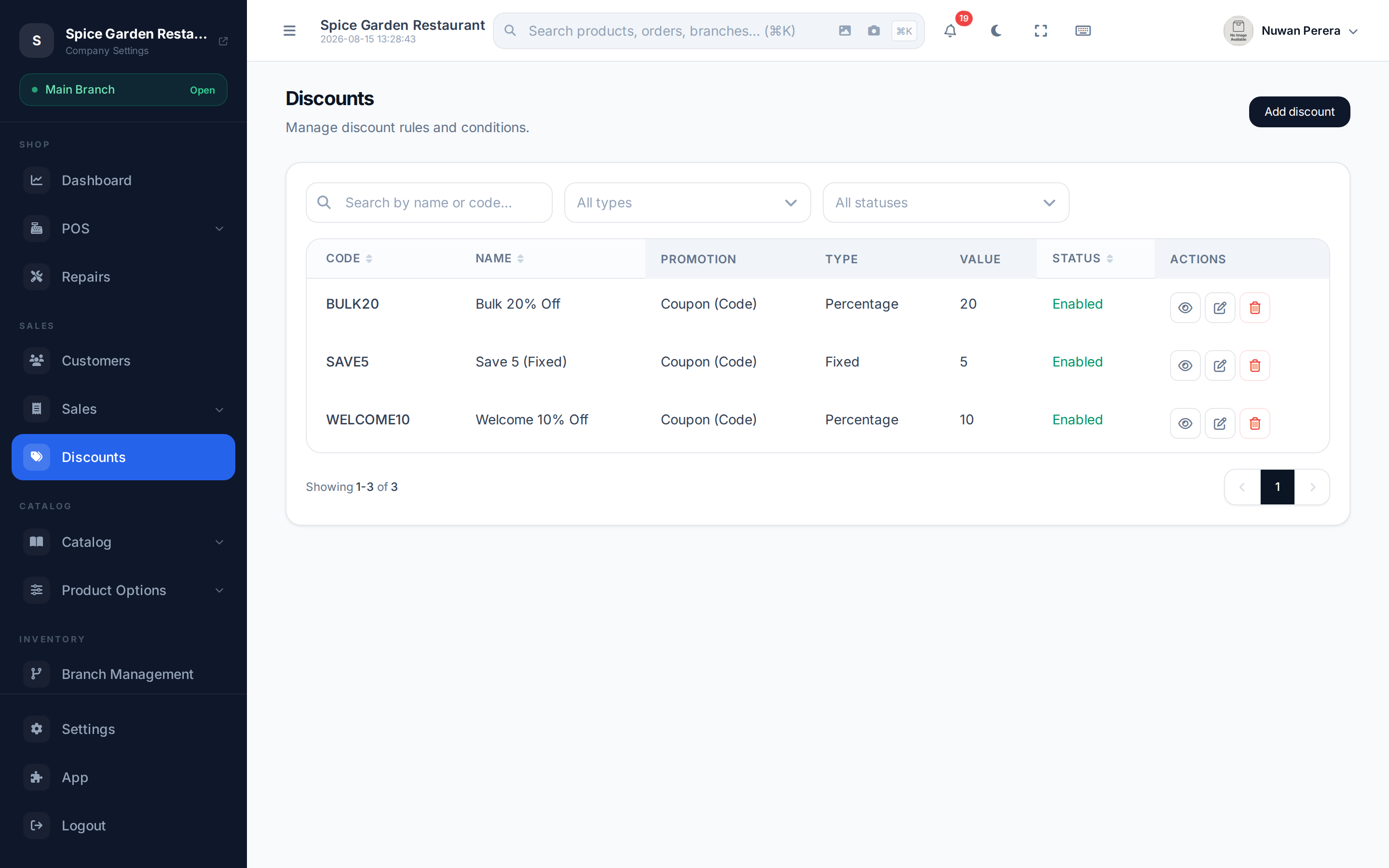
Screenshot pendingRoute /discounts, retail LK demo
Discount, coupon or BOGO?
They're all the same kind of record — what changes is how they apply:
| Kind | How it works |
|---|---|
| Discount (auto) | Applies automatically to a qualifying basket — no code needed. |
| Coupon (code) | The customer or cashier must enter a code for it to apply. |
| BOGO | Buy-one-get-one style deals (buy X, get Y free or discounted). Always automatic. |
In short: a coupon is just a discount with a code. Flip the Application setting to "Code required" and give it a code, and the same promotion becomes a coupon.
Creating a discount
- Go to Discounts and select Create.
- Pick the Type — Percentage, Fixed amount, or BOGO.
- Set the Application — Auto apply (a plain discount) or Code required (a coupon). For a coupon, enter the code customers will type.
- Give it a name and a value (the percent or amount off).
- For BOGO, set how many to buy, how many the customer gets, and whether those are free or discounted.
- Add limits if you need them: minimum purchase, maximum discount, usage limit, and a start / end date for validity.
- Restrict scope with conditions — limit the discount to certain categories, products, services or variants. No conditions means it applies to everything.
- Choose whether it's cumulative (can stack with other discounts) and leave it enabled.
- Select Save.
Fields explained
| Field | Notes |
|---|---|
| Type | Percentage, Fixed amount, or BOGO. |
| Application | Auto apply (discount) or Code required (coupon). BOGO is always auto. |
| Code | The coupon code — only for "Code required" promotions. |
| Value | Percent (capped at 100) or fixed amount off. |
| BOGO buy / get | Quantities for buy-one-get-one, and whether the "get" items are free, percentage-off or fixed-off. |
| Min purchase / Max discount | Only apply above a basket size; cap the total amount given away. |
| Usage limit | How many times the promotion can be redeemed. |
| Start / End date | Validity window. The end date can't be before the start. |
| Conditions | Scope to specific categories, products, services or variants. |
| Cumulative | Whether it can combine with other discounts. |
Using them at the till
Once defined and enabled, auto discounts apply themselves and coupon codes can be entered during a sale. See Discounts at the register.
Coupon codes are checked when the sale is saved: a code that's unknown or doesn't apply to the order is refused, a coupon never gives more than it's worth for that cart, and each use counts toward its usage limit. Separately, the Maximum manual discount (%) POS setting caps discounts typed in by hand (coupons don't count toward it).
How an order discount shows on the receipt
An order discount comes off the amount the customer pays, VAT included. When your taxes are added on top of the price, part of that discount is VAT, so the receipt, the order totals and the e-invoice show the discount net of its VAT share and the VAT on the discounted value. For example, 100 + 15 VAT with 10 off is charged 105, shown as Discount 8.70, VAT 13.70. The amount the customer pays doesn't change.