
Appearance
Branch POS configuration
A branch doesn't hold stock — it deducts from a warehouse every time you sell. The branch's POS configuration is where you choose that warehouse and set a few rules about how the register behaves at that branch.
A new store starts ready to sell: its Main Branch is already set to deduct from the Default Warehouse, which is where the product form puts opening stock. Come back here when you add warehouses or branches, or want different rules.
🔷 For managers & admins
Opening this screen needs
catalog.branches.read; the Configure POS action and saving changes are gated by settings.pos.read / settings.pos.update. Until a warehouse is chosen here, sales at the branch can't deduct stock. Where to find it
Open Branches, then on the branch's row choose Configure POS (the cash-register action). You land on the branch's POS Configuration screen.
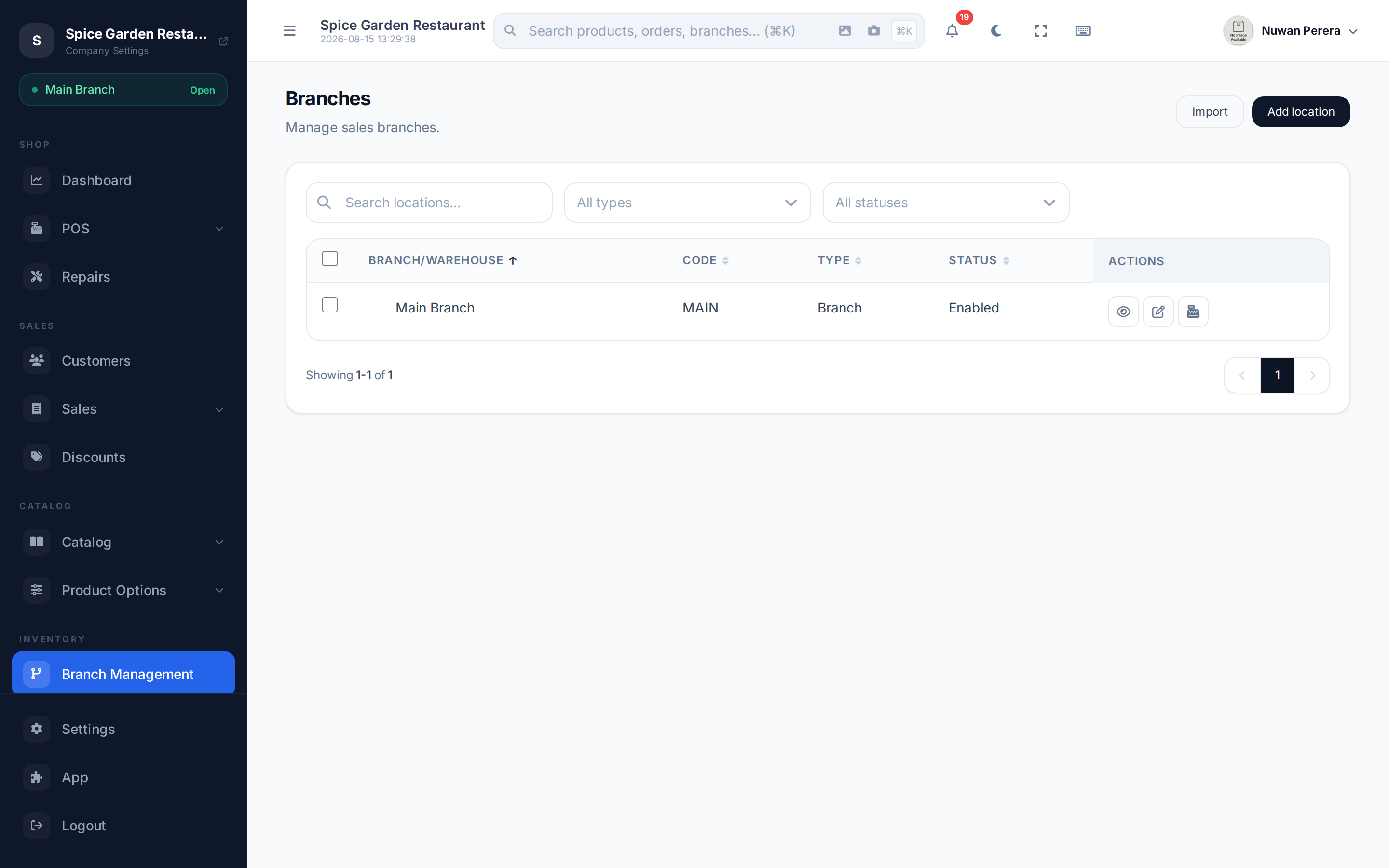
Screenshot pendingRoute /branches, open the row action menu on a branch
Step by step
- Choose the Stock Warehouse — the warehouse this branch's sales deduct from. This is the one required setting.
- Pick a Deduction Strategy (see below).
- If you chose Priority, add Fallback Warehouses in the order they should be drained.
- Set the shift and stock toggles to match how you run the counter.
- Select Save Configuration.
Once saved, the screen confirms: "Sales at this branch deduct from {warehouse}."
Deduction strategy
When a sale needs stock, this decides where it comes from:
| Strategy | Behaviour |
|---|---|
| FIFO — First In, First Out | Consume the oldest stock first. |
| FEFO — First Expired, First Out | Consume the soonest-to-expire stock first. Best for perishables and pharmacy — pairs with lots & expiry. |
| Priority — Drain warehouses in order | Take from the primary warehouse first, then each fallback warehouse in the order you list. |
Shift & stock rules
| Toggle | Default | What it does |
|---|---|---|
| Require open shift to sell | On | Blocks sales at this branch unless a shift is open ("Open a shift before selling at this branch."). People who manage the POS configuration can still sell, and offline sales sync normally. |
| Allow multiple simultaneous shifts | Off | Lets more than one cashier keep an open shift at the same branch. |
| Allow negative stock | Off | Lets a sale go through even when warehouse stock hits zero. For sales at this branch it overrides the company-wide setting in Settings → Inventory. |
| Filter products by shift warehouse | On | Shows only products that have stock at the shift's assigned warehouse. |
Negative stock
Turning Allow negative stock on lets you keep selling when counts say zero — handy for fast-moving counters, but your stock figures can drift below reality until you correct them with a cycle count.
When stock runs out, the branch first takes what's left from each warehouse in its order, then puts the rest on the primary warehouse, whose on-hand figure goes below zero by exactly the amount sold. The stock-level report and the stock movement history always agree.
Which "Allow negative stock" applies?
| Where the stock moves | Setting that decides |
|---|---|
| A sale at a branch that has a POS configuration | This page's Allow negative stock |
| Anything else (branches without a POS configuration, transfers, adjustments) | Settings → Inventory → Allow negative stock |