
Appearance
Discounts at the register
You can take money off an order at the till — either by entering a promo code or by keying in a manual discount. Discounts at the register apply to the whole order.
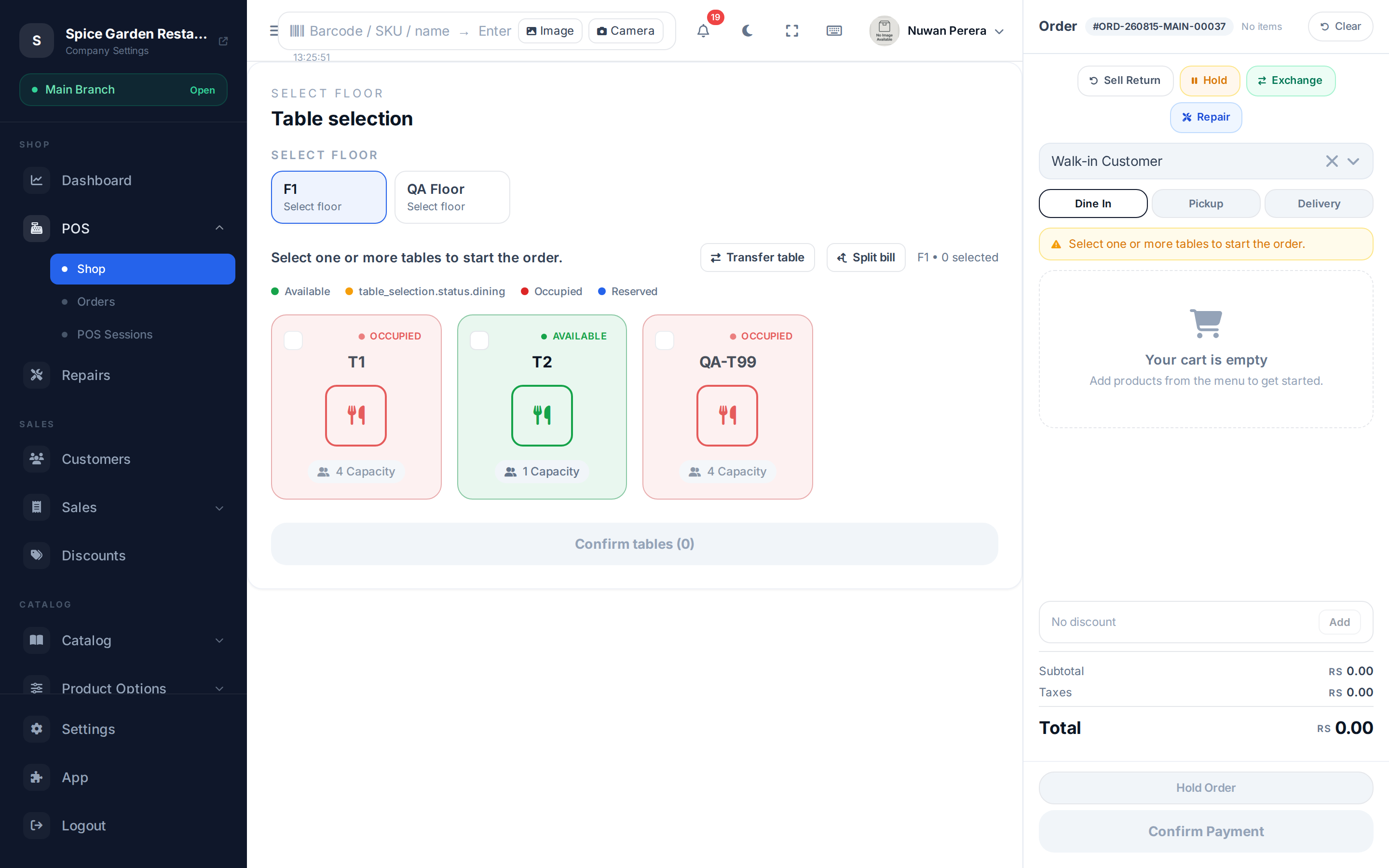
Screenshot pendingRoute / with items in the cart, discount drawer open
Step by step
- Build the order as usual.
- In the order panel, select Add discount.
- Choose a tab:
- Promo — type the customer's coupon code and select Apply. The register validates it and shows how much it took off.
- Manual — pick Percentage or Fixed amount, then enter the value (or tap a preset like 10%).
- The total updates with a green discount line. Take payment.
To remove a discount, select Remove on the discount row.
Limits on manual discounts
Your admin can set a Maximum manual discount (%) in the POS settings — the largest order discount a cashier can give by hand. If it's left blank there's no limit, and coupons don't count toward it.
If you go over the limit, the sale is refused with:
Manual discounts are limited to X% of the subtotal. Ask a manager to apply a larger discount.
Staff with the Override Discount Limit permission (admins and managers by default) can give a larger discount.
How coupon codes are checked
- An unknown code, or one that doesn't apply to this order, is refused with "The coupon code is invalid or does not apply to this order."
- A coupon can't take off more than it's worth for the current cart. Any extra discount on top counts as a manual discount (and so falls under the limit above).
- Every time a code is used, it counts toward the coupon's usage limit.
Coupons are checked live
Promo codes are validated by the server, so they only work while you're online. Some coupons apply automatically when the order qualifies — you'll see them marked as "Auto applied". Manual discounts work offline.
Discount vs price override
A discount reduces the order total. Changing the price of a single line is a different action — the per-line price override (the pencil on a cart line) — and it's only available to staff with the price-override permission.
🔷 For managers & admins
The discount drawer only appears when the discounts module is enabled. There is no separate "apply discount" permission at the register — the module toggle controls it — but manual discounts above the Maximum manual discount (%) POS setting need the Override Discount Limit permission (sales.orders.discount_override). The per-line price override is gated by sales.orders.price_override. Coupons and discount rules are managed under Discounts (sales.discounts.*).