
Appearance
Roles & the Authority Matrix
ZeylonPOS decides "can this person do this?" with a layered system called the Authority Matrix. Most of the time you only touch the top layer — roles — but the deeper layers let you fine-tune access when you need to.
🔷 For managers & admins
Viewing roles needs
settings.roles.read; editing them needs settings.roles.create / settings.roles.update. Per-user overrides need settings.users.update. 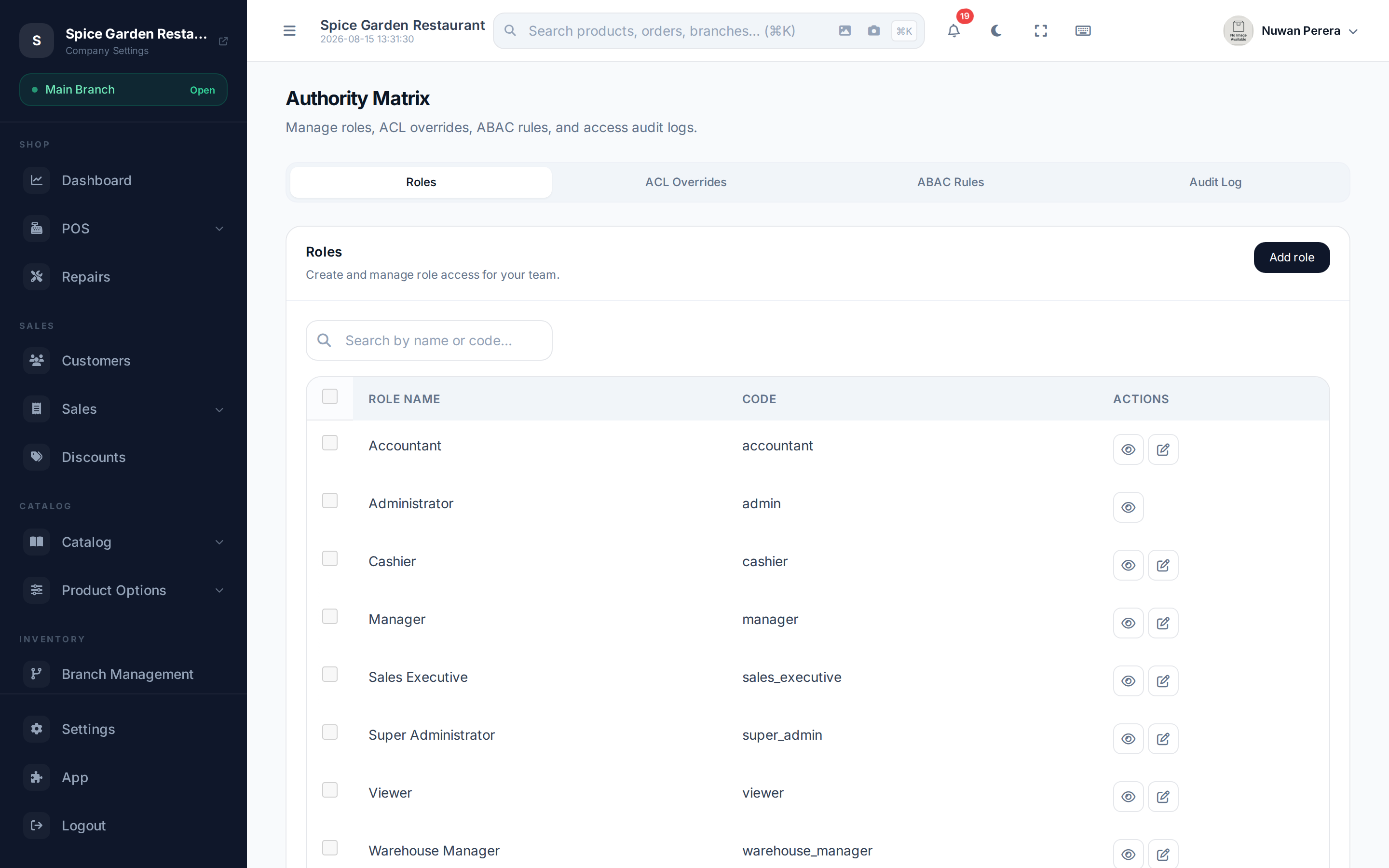
Screenshot pendingRoute /access-control/authority-matrix, logged in as an admin
The four layers, plainly
- Roles — a named bundle of permissions. Give a user a role and they get its permissions. This is what you'll use 95% of the time.
- Permissions — the individual "can do X" flags, named
module.resource.action(e.g.catalog.products.create). - ABAC rules — extra conditions checked at the moment of the action (e.g. only your own data, only during an open shift).
- Per-user overrides — grant or deny one permission for one person, on top of their roles.
The eight built-in roles
ZeylonPOS seeds eight roles. You can use them as-is, edit them, or create your own.
| Role | Can do | Key restriction |
|---|---|---|
| super_admin | Everything — no checks run | Tenant power user |
| admin | Full access to the whole company | Can't cross to another company |
| manager | All day-to-day operations; can't manage users, roles, company-wide settings or the subscription | Approval limits + must match their branch |
| accountant | Finance and reports only | — |
| warehouse_manager | Inventory only | Must match their warehouse |
| sales_executive | Their own sales only | Sees only their own data |
| cashier | POS only — sees products, taxes and payment methods but can't change them | Needs an open shift + an authorised device |
| viewer | Read-only, everywhere | Can't change anything |
super_admin is a powerful tenant user — it is not the ZeylonPOS platform administrator, who is a separate account entirely.
See Roles & what you can do for a staff-friendly version of this table.
Permissions worth knowing about
A few permissions control sensitive register and accounting actions:
| Permission | What it allows | Who has it by default |
|---|---|---|
Override Discount Limit (sales.orders.discount_override) | Give a manual discount above the POS Maximum manual discount (%) | Admins and managers |
Override Item Cost (sales.orders.cost_override) | Set a cost override on an order line — the cost override field is hidden without it | Admins and managers |
| Close Accounting Period | Close a fiscal period | Accountants, admins, managers |
| Reopen Accounting Period | Reopen a closed period | Accountants, admins, managers |
| Lock Accounting Period | Permanently lock a period | Admins and managers |
Closing, reopening and locking periods are recorded in the audit trail. See Fiscal periods.
Creating or editing a role
- Open Authority Matrix (
/access-control/authority-matrix) — the Roles tab is shown first. - Select Add, or edit an existing role.
- Give it a name, code and description.
- In Permissions, tick the permissions this role should have. Use the group checkboxes and search to move quickly, and the Select all / Clear buttons.
- Optionally attach ABAC rules and choose the resource types they apply to.
- Save.
WARNING
Built-in system roles (like admin) are locked so you can't accidentally break access. Create a new role if you need a custom permission set.
The Matrix Builder
For a faster, spreadsheet-style edit, open the Matrix Builder (/access-control/matrix-builder): roles are rows, permissions are columns, and you click cells to grant or revoke. Unsaved changes are highlighted; save all at once. It also has an Inspect User Matrix panel to see exactly which permissions a given user ends up with and why.
Role limits
Two optional limits are set on the role form:
| Field | What it does |
|---|---|
| Max manual discount (%) | The largest manual discount, as a percentage of the subtotal, that people with this role can give at the till. Leave it empty to use Maximum manual discount (%) in the POS settings. If someone has several roles, the most generous limit applies. People with Override Discount Limit (sales.orders.discount_override) are never capped. |
| Max approval amount | The ceiling for the amount within approval limit rule below. Leave it empty for no limit. |
Coupon discounts are checked against the coupon itself, not these limits.
ABAC rules — conditional access
Attribute-Based Access Control rules add a condition on top of a permission. ZeylonPOS ships ten:
| Rule | It checks |
|---|---|
own_data_only | The record belongs to the user |
branch_match_required | The record is in the user's branch |
warehouse_match_required | The record is in the user's warehouse |
shift_active_required | The user has an open shift |
device_bound_required | The request is from an authorised POS device |
draft_status_only | The record is still a draft |
amount_within_approval_limit | The amount is within the role's approval limit |
no_cross_tenant | The record belongs to this company |
pos_document_types_only | The document is a sale, refund or exchange |
business_hours_only | The action is within 08:00–20:00 |
The ABAC Rules tab lets you browse each rule, its type and what it checks. You attach rules to roles when editing a role.
Per-user overrides (ACL)
Sometimes one person needs an exception. The ACL Overrides tab lets you grant or deny a single permission to a single user, optionally with an expiry date and a reason — without changing their role.
- Open the ACL Overrides tab.
- Select Add Override.
- Pick the user and permission, set the effect (grant or deny), an optional expiry and a reason.
- Save. Remove it any time to revert to the role's default.
You can only grant what you hold
A grant override can hand out only a permission you yourself have — you can't grant someone an ability you don't hold. (A deny override has no such limit; taking access away is always allowed.) The user must also belong to your company. Owners and super-admins, who hold everything, can grant anything.
Audit log
Every access decision can be recorded. The Audit Log tab shows who tried to do what, whether it was granted or denied, which layer decided, and any ABAC rule involved — filterable by decision, permission and date range. Use it to investigate "why couldn't I do X?" questions.
On the mobile app
More → Settings → Authority matrix shows the ABAC rules, the per-user overrides, the decision audit log, and User access — pick a person and see every permission they hold, whether it is granted, and where it came from (a role, an override, or nothing). That is the fastest answer to "it won't let me".
The same screen can clear a user's cached permissions. The matrix is cached for an hour, so a role change can look as though it did nothing; clearing the cache rebuilds it on their next request.
Editing which permissions a role holds stays in the web app, where the full matrix grid fits on screen.
Next steps
- Users
- Roles & what you can do
- The Authority Matrix engine