
Appearance
Setting up ZATCA e-invoicing
Saudi Arabia requires every VAT invoice to be signed and sent to ZATCA (the tax authority) through its Fatoora platform. ZeylonPOS does this for you: once your device is onboarded, each sale is stamped, submitted and returned with a QR code — no manual filing.
This article is for KSA businesses and covers turning the module on, onboarding your device, and reading the submission log. For the XML/signing internals, see ZATCA e-invoicing (technical).
🔷 For managers & admins
ZATCA is an admin job. Enabling the module needs
settings.apps.update. Changing the device configuration needs zatca.config.update; running onboarding (CSR, certificates, activation) needs zatca.onboarding.manage; viewing and retrying submissions need zatca.invoices.read / zatca.invoices.retry. Onboarding acts against the live Fatoora portal and can't be undone, so it's kept separate from day-to-day config. 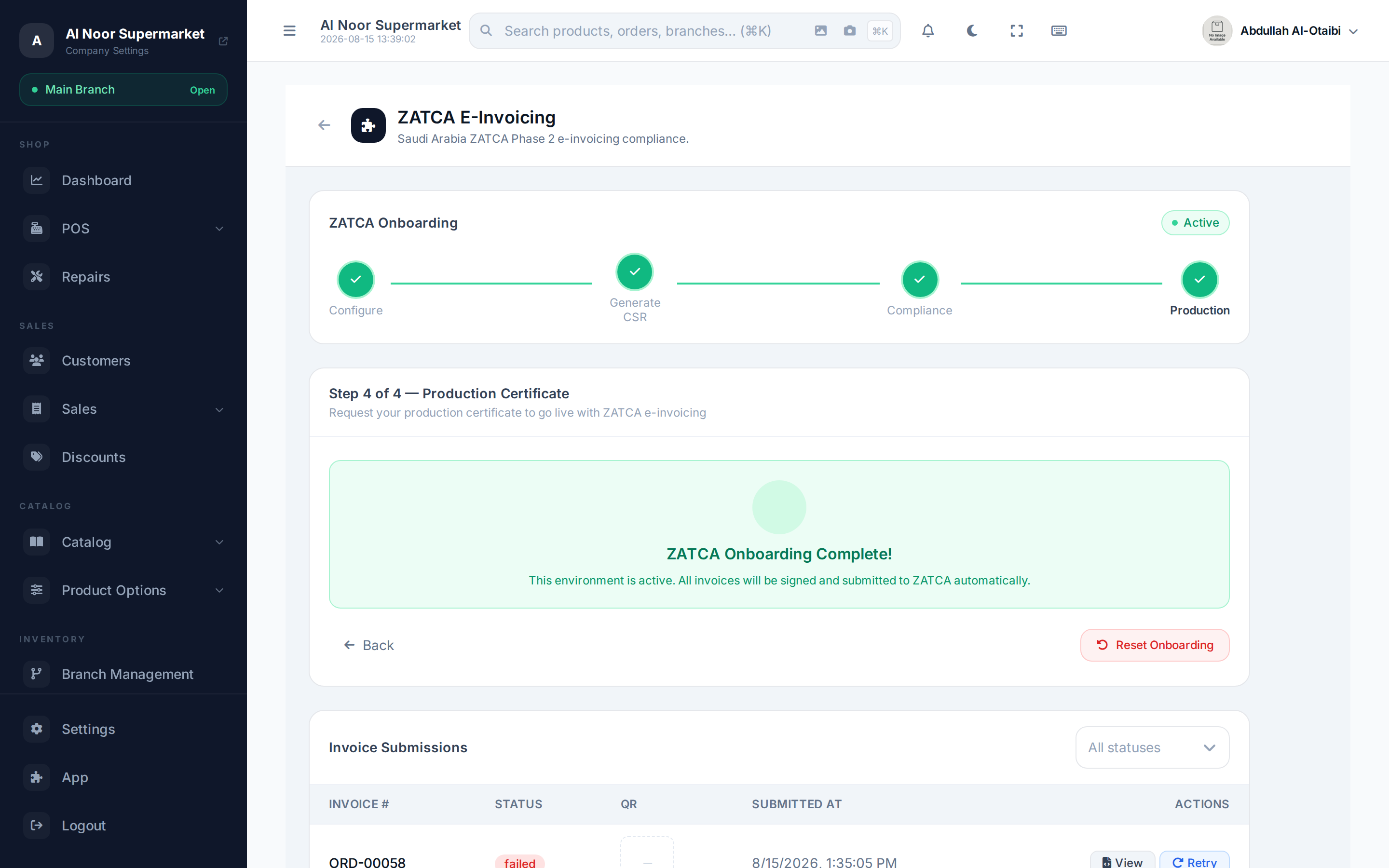
Screenshot pendingRoute /app/zatca/config, logged in as a KSA admin
Before you start
Your seller identity comes from Company Settings — VAT number, business name, CR number and address. ZATCA reads them from there, so fill those in first. The wizard flags anything still missing and won't let you onboard until the profile is complete.
Step 1 — Enable the ZATCA module
- Open the App marketplace at
/app. - Find ZATCA (module code
zatca) and flip its toggle on. Subscribe first if it shows Locked. - Select Configure to open the ZATCA Onboarding wizard.
Enabling the module also unlocks two ZATCA-only document types in the sidebar: Debit notes and Advance payments.
Step 2 — Onboard your device
Onboarding is a four-step wizard. You bounce once to the official Fatoora portal (in step 3) to get an OTP, then come back.
- Configure. Pick the Environment, the Invoice type you're allowed to issue, an optional Branch / Department name, and your CR scheme. Save & Next.
- Generate CSR. Generate the Certificate Signing Request. Copy it — you'll paste it into the Fatoora portal.
- Compliance certificate. On the ZATCA Fatoora portal, submit the CSR and get an OTP. Paste the OTP here and submit to receive your compliance certificate.
- Production certificate. Exchange the compliance certificate for your production certificate. Once issued, the environment is permanently locked to production.
- Set as Active. Activate the environment so invoices actually route to it. Only the active environment receives live submissions.
The fields in step 1
| Field | Options | Notes |
|---|---|---|
| Environment | Sandbox · Simulation · Production | Test on sandbox/simulation first; production locks once onboarded |
| Invoice type | Both (1100) · Standard only (0100) · Simplified only (0200) | What your business is authorised to issue |
| Branch / Department name | Free text | e.g. Al Malaz Branch |
| CR scheme | CRN, Momra, MLSD, 700, Sagia, Other | How your commercial registration number is issued |
Production is one-way
Requesting the production certificate locks the environment to production for good — it can't be moved back to a test environment. Do your test runs on Sandbox or Simulation first.
Certificate drifted from Company Settings?
The certificate freezes your identity at the moment it was issued. If you later change your VAT number, name or address in Company Settings, the wizard warns you the certificate no longer matches — re-onboard the environment, or revert the change.
Watching invoices clear
Once you're onboarded, the config screen shows an Invoice Submissions log — every document that went to ZATCA, newest first, with its QR code and status. Filter by status at the top.
| Status | Meaning |
|---|---|
| Pending | Queued, not yet sent |
| Submitted | Sent to ZATCA, awaiting a response |
| Cleared | A standard invoice ZATCA accepted (cleared before the buyer gets it) |
| Reported | A simplified invoice ZATCA accepted (reported after the sale) |
| Rejected | ZATCA refused the invoice — see the reason, fix it, then retry |
| Failed | It couldn't reach ZATCA (network or service outage) — it's retried automatically |
Cleared and Reported both mean accepted and stamped — the difference is just the invoice type. Select View on any row to see the full submission record.
- A failed invoice is re-sent automatically, unchanged, until ZATCA answers; you can also select Retry to send it straight away.
- A rejected invoice stays rejected — it never blocks the invoices after it. Fix what the reason points to (the customer's details, a tax's exemption code, or the document itself — a rejected document can be edited, unlike an accepted one), then select Retry: it's submitted again as a fresh e-invoice.
- An invoice ZATCA already accepted is never sent twice.
Standard (B2B) invoices need full buyer details
A standard tax invoice is only submitted when the customer has a name and, for Saudi buyers, a full address — street, building number, district, city and postal code. Add their VAT number (or another ID such as a CR number) too: without one ZATCA accepts the invoice with a warning. Fill these in on the customer before invoicing.
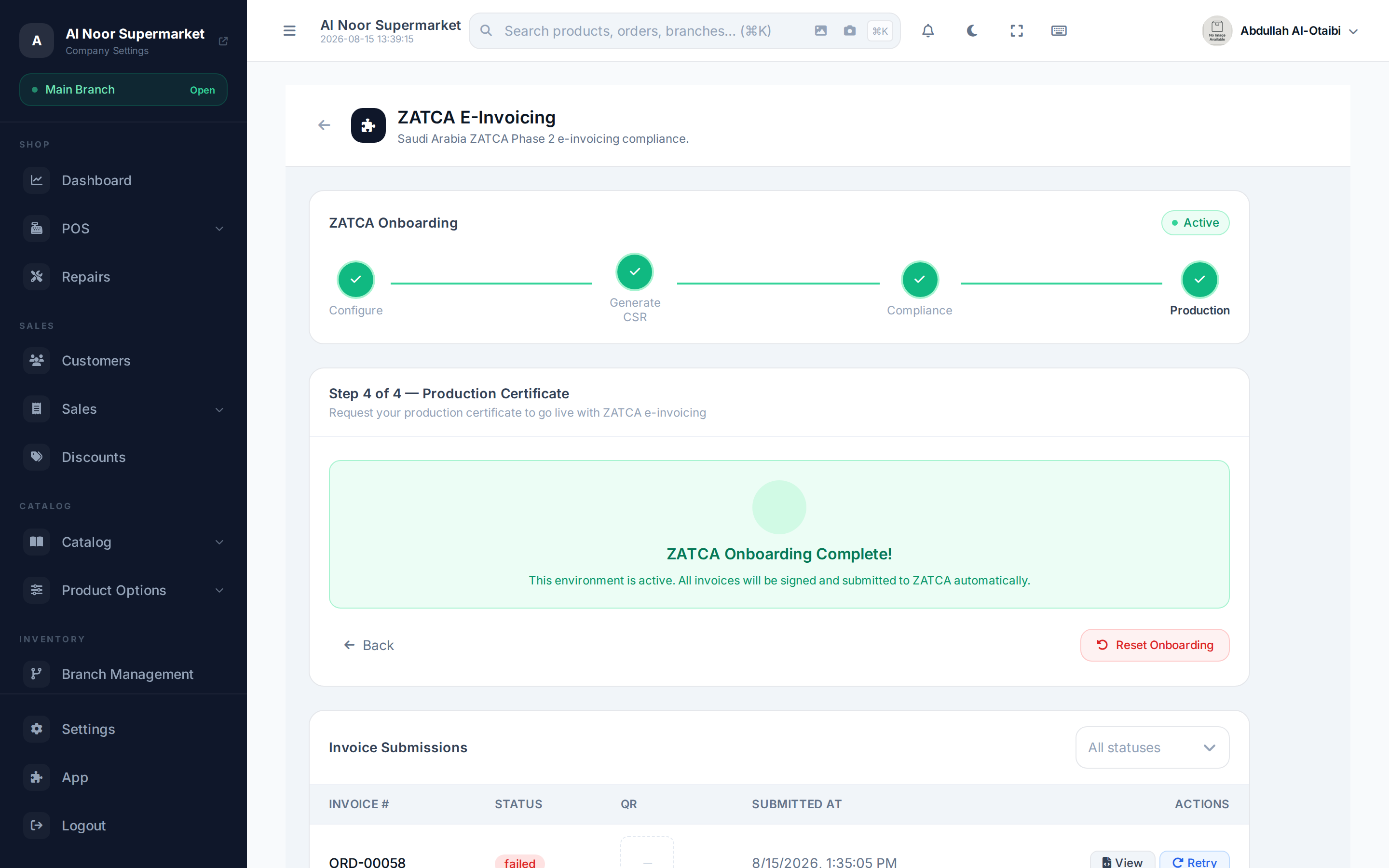
Screenshot pendingRoute /app/zatca/config, open a submission's View dialog
Credit, debit & advance-payment notes
- Credit notes (refunds) are always available and are submitted the same way.
- Debit notes and advance-payment invoices appear only with the ZATCA module on — they're KSA-specific document types. See Debit notes and Advance payments.
Next steps
- ZATCA e-invoicing (technical)
- Company settings
- Debit notes
- Advance payments
- Modules & the App marketplace