
Appearance
Categories
Categories group your products so the register menu stays tidy and your reports break down neatly — Beverages, Food, Electronics, and so on. Categories can nest, so a parent like Drinks can hold Hot and Cold subcategories.
🟢 For everyone
Managing categories needs catalog permission (
catalog.categories.create / update). Anyone can see them on the menu. 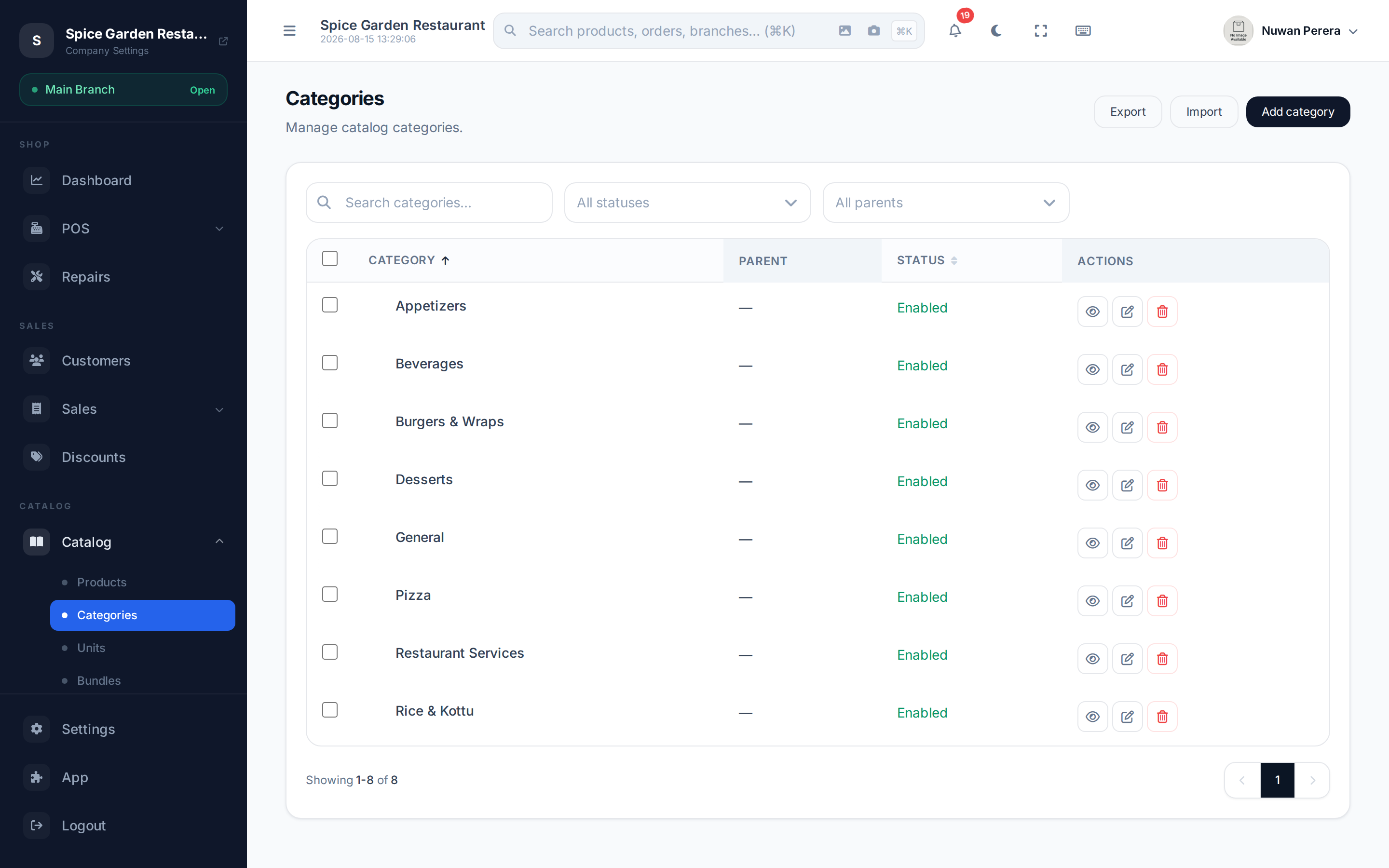
Screenshot pendingRoute /categories, with a parent expanded to show children
Step by step
- Go to Categories and select New category.
- Enter the Category name (with language tabs to translate it) and an optional Description.
- Set a Slug — a short URL-friendly key (e.g.
beverages). - To nest it, pick a Parent category. Leave it blank for a top-level category.
- Leave Enabled on to show the category in catalog lists.
- Select Save.
Nesting
A category becomes a child by choosing a Parent category. In the list, parents show an expand control to reveal their children. A category can't be its own parent, and you'll want to avoid deep loops — keep the tree a few levels deep at most for a usable menu.
Assigning products
You set a product's category on the product form under Product Details → Category, not from the category page.
Fields
| Field | Meaning |
|---|---|
| Category name | Shown on the menu and in reports (translatable) |
| Slug | Short key used in URLs/imports |
| Description | Optional notes |
| Parent category | The category this one nests under (optional) |
| Enabled | Whether it appears in catalog lists |