
Appearance
Barcode labels
Print sticky barcode labels for your products so they scan at the till. You can print a whole batch from the products list, or just one product's row, choose how many copies of each, and lay them out on a saved label template.
🟢 For everyone
You need the print-labels permission (
catalog.product-labels.print). Label templates are set up once by an admin under Settings → Label templates. 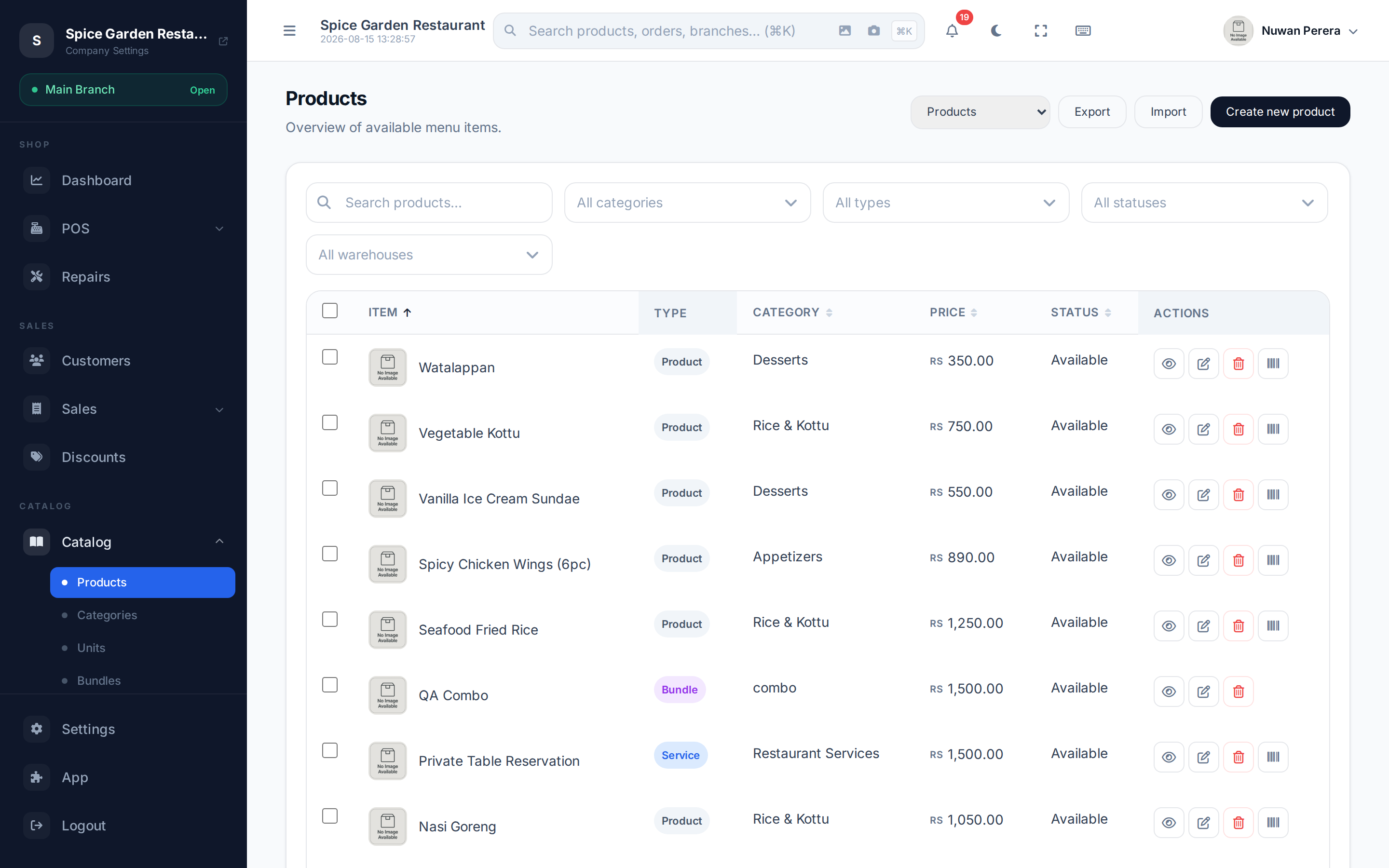
Screenshot pendingRoute /products, selection made, showing the Print labels action
Step by step
- Go to Products.
- Choose what to print. Tick several products and use the Print labels bulk action, or open a single product's row menu and choose Print labels.
- In the label dialog, pick a template — this sets the sticker size, the barcode type and which fields (name, price, SKU) appear.
- Set the number of copies for each item.
- Check the live preview, then print. The labels open in a print-ready sheet you send to your label printer.
What can go on a label
A template decides the layout; typical fields are the product name, price, SKU/barcode number and the barcode image itself. One product can produce more than one label row — for example a variant, or a different pack size from a unit conversion, each gets its own barcode.
Barcode types (symbologies)
| Type | Use it for |
|---|---|
| CODE 128 | General purpose — any letters/numbers |
| EAN-13 | Retail products with a 13-digit barcode |
| QR | A square code holding more data |
EAN-13 needs exactly 13 digits
If a value you print as EAN-13 isn't exactly 13 digits, it quietly falls back to CODE 128 so the label still scans. The print dialog flags this so you're not surprised.
Setting up templates
Templates are created and edited by an admin under Settings → Label templates. A template stores the sticker geometry, the barcode symbology and a set of field toggles. ZeylonPOS ships a few starter presets so you can print straight away.