
Appearance
Importing & exporting
Building a catalog by hand is slow. ZeylonPOS lets you import products, categories, units and more from an Excel workbook, and export any of those back out in the exact same layout — so you can export what you have, edit it in a spreadsheet, and re-import it.
🟢 For everyone
Importing changes your catalog in bulk. It needs create/update permission on the resource you're loading (for products,
catalog.products.create). Exporting needs the matching export permission (e.g. catalog.products.export). 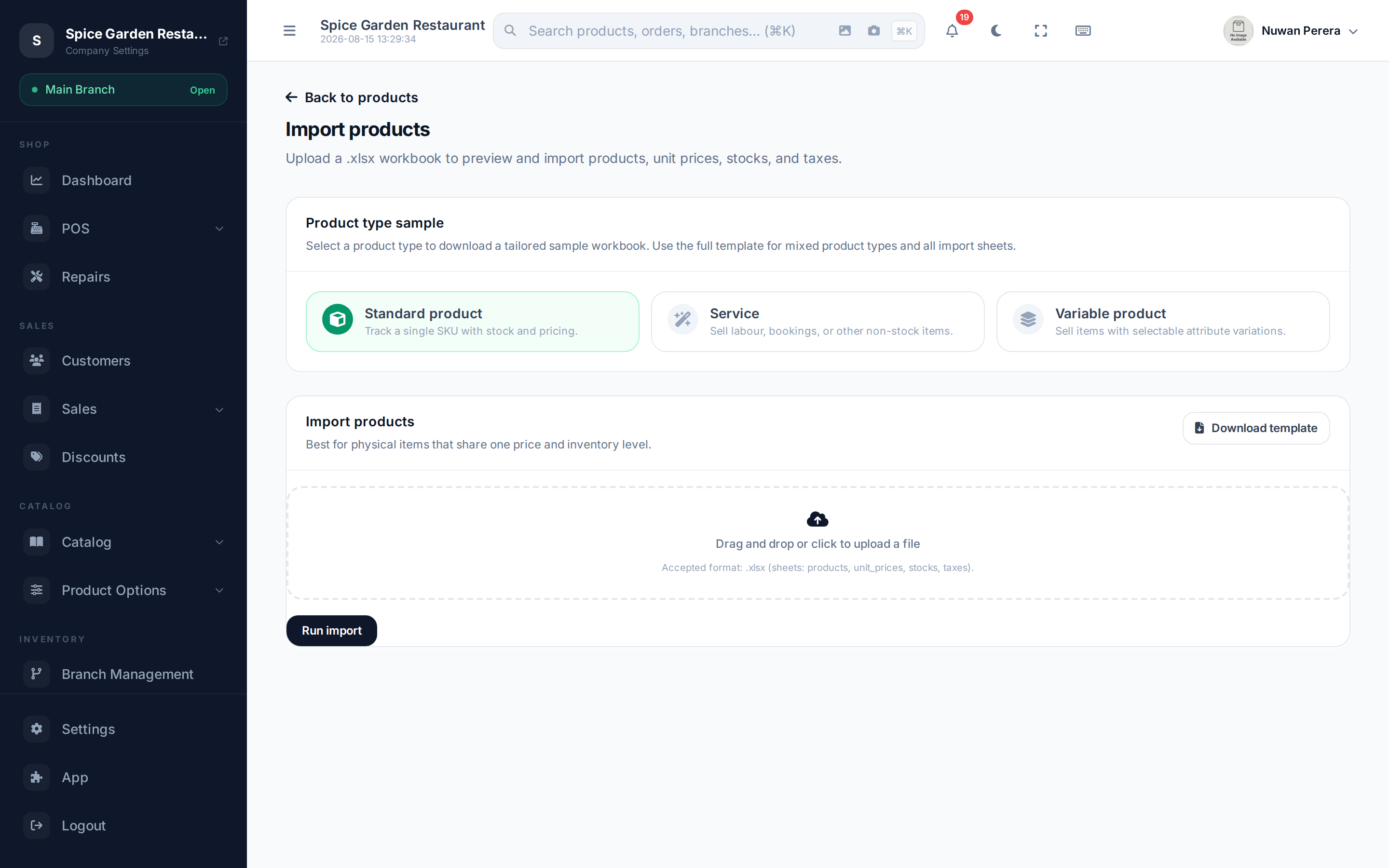
Screenshot pendingRoute /products/import, showing the upload panel and template download
The round-trip
An export produces a workbook in the same worksheet names and column layout that the import expects. That means the fastest way to make a bulk change is: export → edit in Excel → import. You can also start from a blank template if you're loading a brand-new catalog.
Importing
- Open the resource's list page (e.g. Products) and choose Import.
- Download the template for that resource — a workbook with a header row of column keys, one worksheet per data type.
- Fill it in. Each row is one item. References to other things (a product's category, a recipe ingredient, a unit) are matched by their name, SKU or barcode — you don't need internal IDs.
- Upload the file. ZeylonPOS validates it and reports any rows it couldn't read.
- Rows that match an existing item are updated; rows that don't are created.
One bad row does not stop the rest
A row the system cannot save — a duplicate barcode, an unknown warehouse — is reported against that row, and the other rows still import. Fix the listed rows and import the file again; the rows that already went in are simply updated.
Products carry extra worksheets
A product workbook can include dependent sheets — for example a recipes worksheet (Recipes & ingredients) with product_ref, variant_ref, component_ref, quantity, unit_id, wastage_percent. These dependent sheets only add or update rows; they never delete existing ones.
Opening stock
The Stocks worksheet sets how much of each item you hold, and where:
| Column | Meaning |
|---|---|
product_sku | the product the stock belongs to |
variant_sku | for a variable product, the variant — leave empty for a plain product |
warehouse | the warehouse's name, exactly as it appears under Warehouses |
quantity | the level you want to end at, not an amount to add |
note | shows up in the stock history; defaults to "Imported opening stock" |
Because quantity is a level rather than a top-up, importing the same sheet twice leaves the same stock — it does not double it. That's what makes export → edit → re-import safe for stock as well as prices.
An imported level goes through the same path as the Adjust stock screen, so it leaves the usual trail: a stock movement of type adjustment and a row in the item's stock history. Nothing is written behind the ledger's back.
Stock rows are strict
Unlike a missing picture, a stock row that cannot be matched fails that row and is listed in the import report: an unknown warehouse name, a variant that belongs to a different product, a missing quantity or a negative one. Stock is money, so it is never guessed at.
Product images
A spreadsheet cannot hold a photo, but it can hold a link to one. Put a web address in the image_url column and ZeylonPOS downloads that picture during the import and attaches it to the product — the same image the product form uploads, so afterwards there is no difference between the two.
The Variants sheet has the column too, so each variant can carry its own picture.
- Host the images somewhere reachable over
http://orhttps://— your website, a shared drive with public links, or a supplier's product feed. - Put one address per row in
image_url. Leave the cell empty for rows you have no picture for. - Import as usual. The preview reports the rows; pictures are fetched on commit.
An existing picture is never replaced
If a product already has an image, image_url is ignored for that row. This is deliberate: re-importing a workbook is the normal way to update prices, and it must not overwrite photography somebody uploaded by hand. To change a picture, use the product form.
A picture that cannot be fetched does not fail the row
A broken link, a slow server, or a file that turns out not to be an image is skipped — the product itself still imports, and shows the default image. So a missing photo will not show up as an import error; check the products afterwards, or re-import with a corrected address.
Limits: an image must be under 5 MB, must be a JPEG, PNG, GIF, WebP or AVIF, and must answer within 15 seconds. file:// and other non-web addresses are refused.
How references are matched
A spreadsheet never carries internal IDs, so every reference to something else is matched by a name or code you can see in the app:
| In the sheet | Matched against |
|---|---|
category_slug | the category's slug |
base_unit, unit | the unit's name, spelled exactly as it appears under Units of measure |
product_sku, component_sku | the product's SKU |
options (group:value) | variant option group and value codes |
definition_code | the specification definition's code |
image_url | not a reference — a web address the picture is downloaded from |
A name that doesn't match is left blank, not reported
If a unit or category reference doesn't match anything, that row still imports — the field is simply left empty. So a product whose base_unit says Litre when your units list says Liter arrives with no base unit at all. Check the preview, and keep the spelling identical to what the app shows.
Your starter units use their built-in names (for example Liter, Milliliter, Metric Ton). If you need a unit that doesn't exist yet, import or create it before the products that reference it.
Exporting
From a catalog list page, choose Export to download the current data as an XLSX workbook. For products the image_url column comes back filled with each item's current picture address, so an exported file re-imports without touching any images. For products you can narrow the export by type (product, service or variable). The file matches the import template exactly, so it's ready to edit and send back.
What you can import and export
Catalog resources support the template round-trip — products (and their variants, specs and recipes), categories, units, and other catalog lists. Each one exports in its own template layout.