
Appearance
Stock transfers
A stock transfer moves goods from one location to another — warehouse to branch, branch to branch, depot to shop. Instead of quietly editing counts, a transfer deducts from the source and adds to the destination as two tracked movements, so nothing goes missing and both sides balance.
🔷 For managers & admins
Needs the Stock Transfers module (
stock_transfers) enabled. Viewing needs inventory.stock_transfers.read; creating and sending/receiving need inventory.stock_transfers.create / .update. Usually a warehouse manager or manager task. 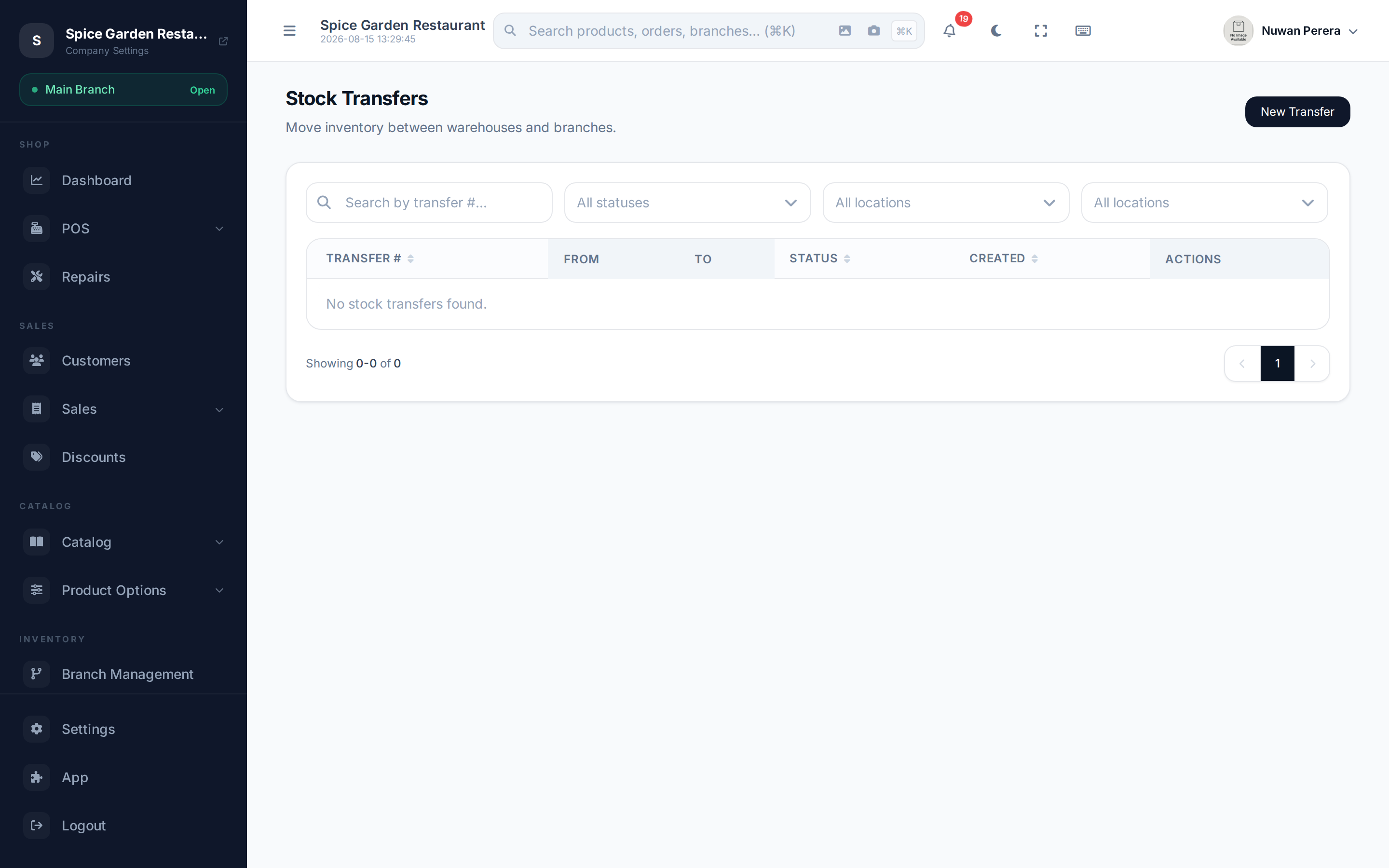
Screenshot pendingRoute /stock-transfers
The lifecycle
A transfer moves through three stages (plus cancel):
| Status | What it means |
|---|---|
| Draft | Written up, but no stock has moved yet |
| In Transit | Stock deducted from the source, on its way |
| Received | Arrived and added to the destination — complete |
| Cancelled | Called off; stock is restored if it had already been sent |
Step by step
- On Stock Transfers, select New Transfer.
- Choose the From Location (source) and To Location (destination).
- Add Items: pick each product, its Unit, the Qty and the Unit Cost. Add as many lines as you need.
- Add Notes if useful, then select Create Transfer. It's saved as a Draft — no stock has moved.
- Open the transfer and select Send (Deduct Stock). Stock leaves the source immediately and the transfer becomes In Transit.
- When the goods arrive, select Receive. Enter the actual quantities received (they default to what was sent) and confirm. Stock is added to the destination and the transfer is Received.
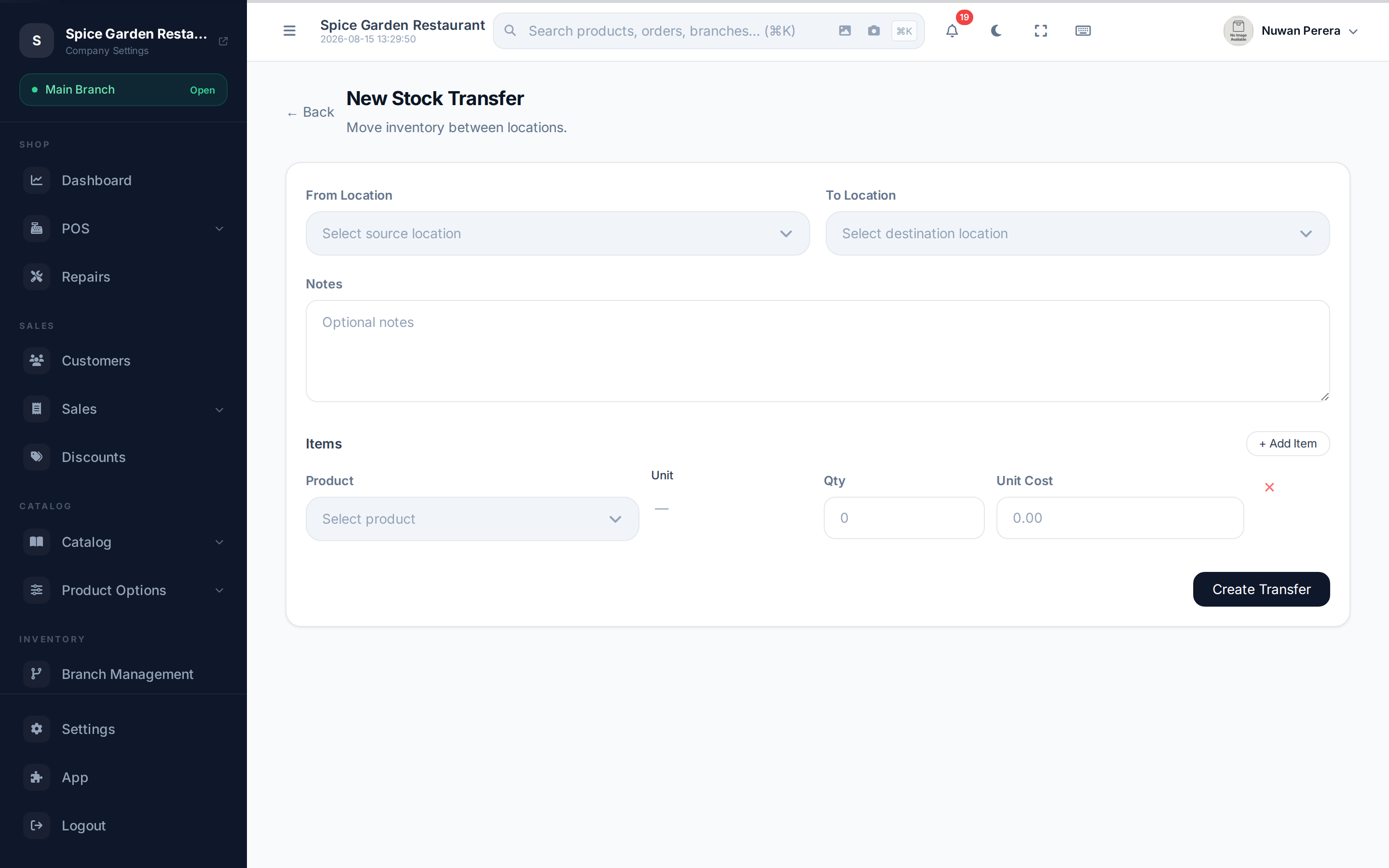
Screenshot pendingRoute /stock-transfers/create with two item lines added
Count what actually arrived
On receipt you can enter a received quantity lower than what was sent — handy when something is damaged or short in transit. The difference stays visible on the transfer so you can chase it up. Every line needs a received quantity — enter 0 for a line where nothing arrived; a blank box is refused so nothing is returned to the source by accident.
Sending, receiving and cancelling
- Send deducts the requested quantities from the source. You can't undo the paper trail, but you can Cancel an in-transit transfer to restore the source stock.
- Receive adds the received quantities to the destination. Partial receipts are allowed, and any shortfall goes back to the source. You can't receive more than was sent.
- Cancel from Draft simply voids it; from In Transit it restores the stock that was already deducted.
Both sides show up on the stock movement report as Transfer Out (source) and Transfer In (destination).