
Appearance
Branches
A branch is a place where you sell — a shop, an outlet, a kiosk, a restaurant floor. Every sale, shift and receipt belongs to a branch, so your reports can tell you how each location is doing.
Branches and warehouses are the two kinds of location in ZeylonPOS. They share the same screens; a branch is the customer-facing side (where you ring up sales), a warehouse is where stock physically lives.
🔷 For managers & admins
Managing branches needs the
catalog.branches.read permission to view and catalog.branches.create / .update / .delete to change them. This is normally an owner, admin or manager task. Users assigned to specific branches
If a user is assigned to particular branches, they can only view and edit those branches (and the warehouses those branches use) — other branches are hidden from them, on every screen and through the API. Leave a user with no branch assignment (as owners and admins usually are) to let them manage every location.
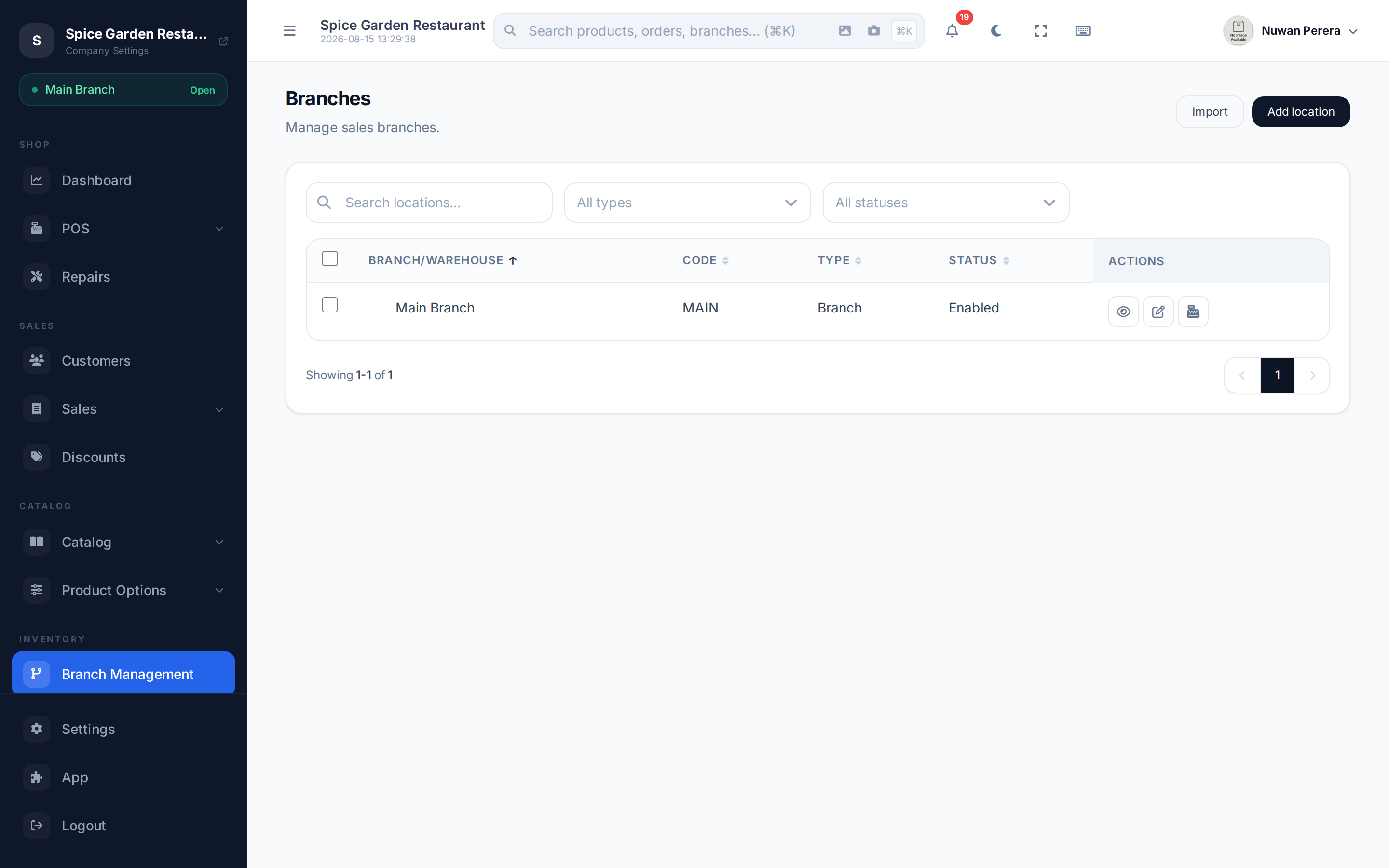
Screenshot pendingRoute /branches, logged in as an admin
Adding a branch
- Go to Branches and select Add (or the create button).
- Enter the Location name — this can be translated into each language you sell in (use the language tabs).
- Optionally set a short Code to identify the branch on documents.
- Choose a Parent location if this branch sits under another one (for example a floor under a main store). Leave blank for a top-level branch.
- Fill in the address — building number, street, city, postal code and country. You can drop a pin on the map to auto-fill most of these.
- Add a phone and email if you want them on receipts and documents.
- Leave Enabled on so the branch appears in selection lists.
- Select Save.
Branch-only settings
Two settings appear only on branches (not warehouses):
| Setting | What it does |
|---|---|
| Restaurant mode | Turns on table/floor dine-in mode for this branch. Only shown when the restaurant module is enabled. |
| Max shift duration (hours) | The longest a shift may stay open before it must be closed. Leave empty or 0 for no limit. |
The branches list
The list shows each branch's name, Code, Type (Branch or Warehouse), and Status (Enabled / Disabled). Branches nested under a parent can be expanded and collapsed.
- Select rows to Enable, Disable or Delete several at once.
- The row menu has View, Edit and Delete, plus a Configure POS action that opens the branch's POS configuration — which warehouse this branch draws stock from.
Don't delete a branch with history
Disable a branch you've stopped using instead of deleting it, so its past sales, shifts and reports stay intact.
Linking a branch to its stock
A branch doesn't hold stock itself — it deducts from a warehouse when you sell. Set that link in Branch POS configuration: pick the warehouse this branch sells from, and optionally fallback warehouses to draw from when the first runs out.