
Appearance
Warehouses
A warehouse is where your stock physically lives — a stockroom, a back store, a central depot. Stock counts, valuation and movements are all tracked per warehouse, and each branch draws from a warehouse when it sells.
Warehouses and branches are the two kinds of location in ZeylonPOS. They share the same screens; a warehouse is the stock-holding side.
🔷 For managers & admins
Managing warehouses needs the
catalog.warehouses.read permission to view and catalog.warehouses.create / .update / .delete to change them. Users assigned to specific branches
A user assigned to particular branches only sees and can edit the warehouses those branches draw from — other warehouses are hidden. Owners and admins (with no branch assignment) manage every warehouse.
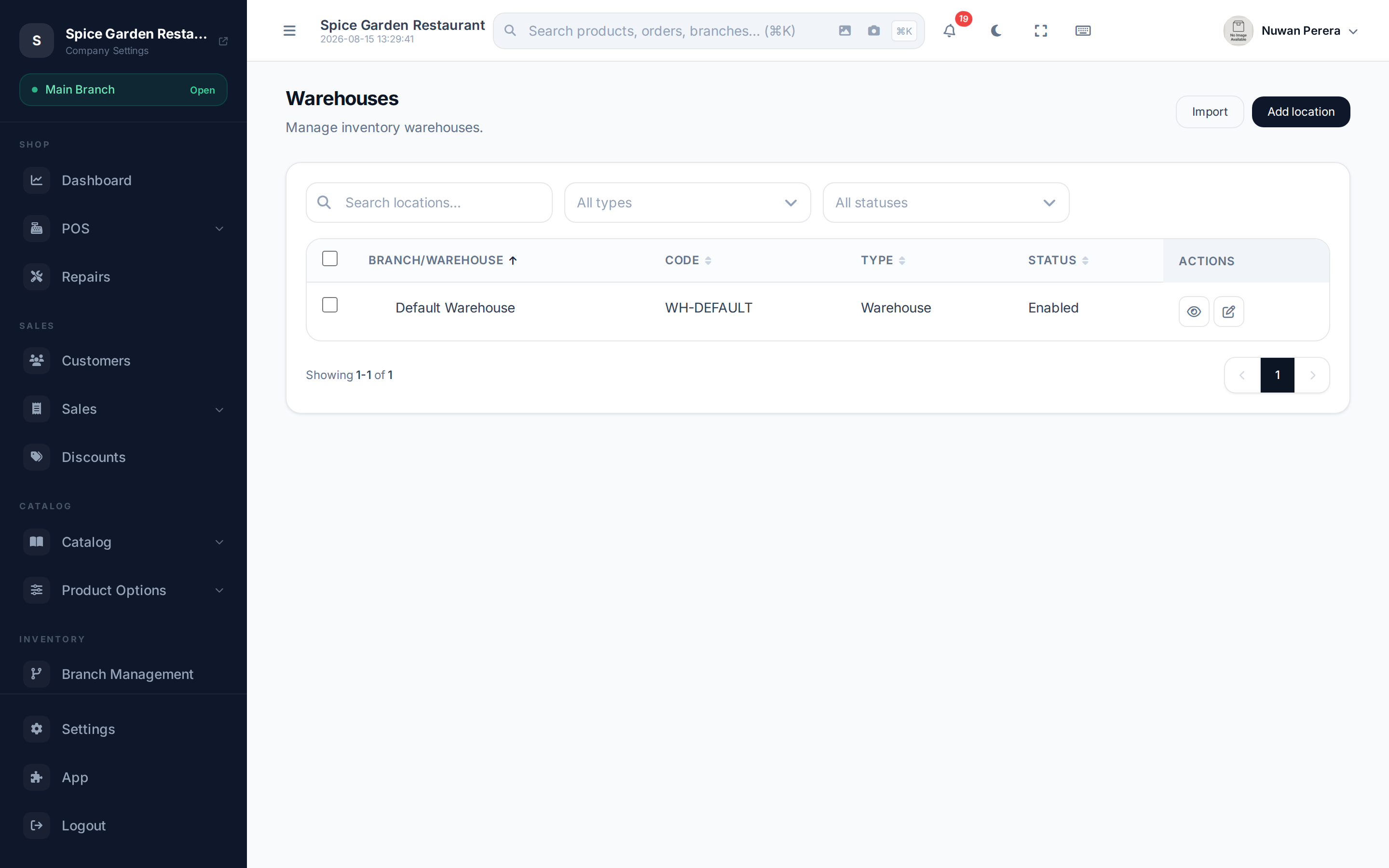
Screenshot pendingRoute /warehouses, logged in as an admin
Adding a warehouse
- Go to Warehouses and select Add.
- Enter the Location name (translatable) and an optional Code.
- Choose a Parent location to nest this warehouse under another location — for example a shelf zone under a main depot, or a store's back room under the branch. Leave blank for a top-level warehouse.
- Fill in the address (or drop a map pin to auto-fill it) and any contact details.
- Leave Enabled on so the warehouse appears in stock and selection lists.
- Select Save.
A warehouse has the same fields as a branch minus the branch-only settings (restaurant mode and max shift duration).
How warehouses link to branches
There's no separate "branch" field on a warehouse. A branch is linked to the warehouse it sells from in the branch's POS configuration, not the other way round:
- Each branch names one primary warehouse it deducts stock from.
- It can also name fallback warehouses to draw from when the primary runs out (see Branch POS configuration).
Use the Parent location field only for physical nesting (a zone inside a larger site), not for the branch↔warehouse selling relationship.
The warehouses list
The list shows each warehouse's name, Code, Type and Status, with the same nested expand/collapse, bulk Enable / Disable / Delete, and per-row View / Edit / Delete as branches. The warehouse detail page shows an Inventory Overview with its current stock.
Moving stock between warehouses
To shift stock from one warehouse (or branch) to another, use a stock transfer — it deducts from the source and adds to the destination with a full paper trail.