
Appearance
Lots & FEFO
A lot (or batch) is a group of the same product received together, usually with a shared expiry date. If you sell perishables, medicines, cosmetics or anything date-sensitive, lot tracking lets you know exactly which batch you're holding, warns you before it expires, and sells the soonest-to-expire stock first — that's FEFO (First Expired, First Out).
Expired stock can't be sold
By default, a lot whose expiry date has passed is skipped at the point of sale — FEFO won't hand it out. If the only remaining stock is expired, the sale is refused with an "insufficient stock (expired lots are excluded)" message, so you can't accidentally sell out-of-date goods. Clear or adjust the expired lot, or receive fresh stock, to continue selling.
🔷 For managers & admins
Part of the Inventory Pro module (
inventory_pro). Viewing needs inventory_pro.lots.read; adding a lot needs inventory_pro.lots.create. 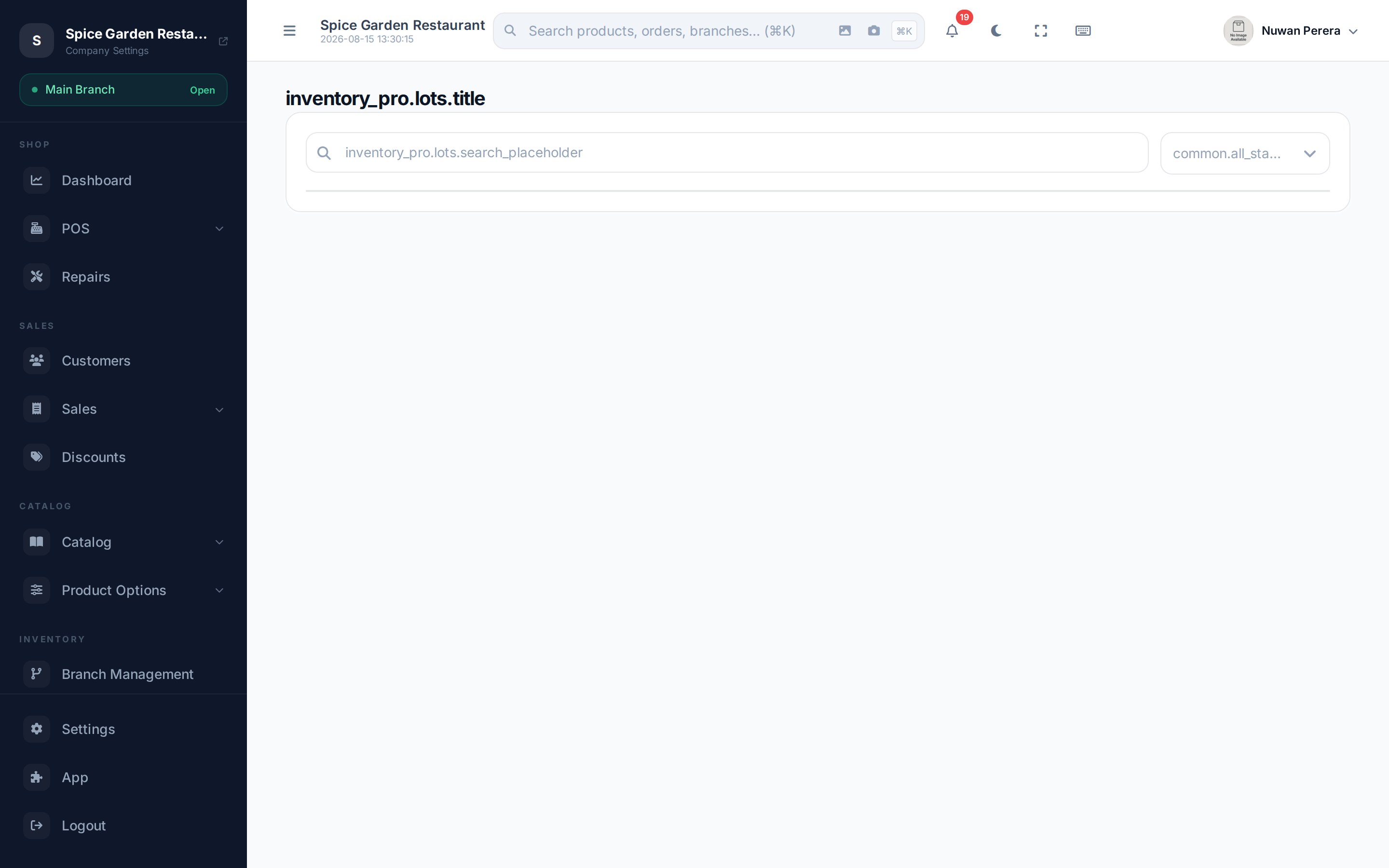
Screenshot pendingRoute /inventory-pro/lots
Adding a lot
Lots are usually created for you when you receive stock, but you can also record one directly:
- Go to Lots and select Create.
- Choose the Product and the Location (warehouse) it's stored at.
- Enter the Lot number (the batch identifier from the supplier).
- Enter the Quantity and the Cost per unit.
- Set the Manufacture date and Expiry date if you have them.
- Select Save.
Recording a lot adds its stock
A lot you record here with a location and a quantity adds that quantity to the product's stock at that warehouse. The addition appears as a purchase in the stock movement history, at the lot's cost per unit. Lots created from a purchase receipt don't add stock a second time, because the receipt already did.
The lots list
Search by lot number or filter by status. Each row shows the lot number, product, location, remaining quantity, expiry date and status:
| Status | Meaning |
|---|---|
| Active | Has stock and is available to sell |
| Depleted | Fully sold down to zero |
| Expired | Past its expiry date |
Expiry dates are colour-coded: red once past, amber within 30 days — so the shelf you need to move is easy to spot.
How FEFO works when you sell
When a product with lots is sold, ZeylonPOS automatically draws from the lot with the earliest expiry date first, then the next, and so on. You don't pick the batch — it just happens, keeping the freshest stock for later and pushing the oldest out the door. Set a branch's deduction strategy to FEFO to use this at the register.
Batches are always used from the warehouse (or warehouses) the sold stock actually came from.
Returns add stock back to the newest (latest-expiry) lot.
Watch what's about to expire
The lots list flags soon-to-expire batches in amber. Review it regularly and discount or move that stock before it becomes a write-off.
Mobile workflow
The mobile More → Inventory Pro workspace lets authorized staff search lot numbers, check remaining quantities and locations, and review expiry dates while working in the stockroom. Lot registration remains on the web workflow.