
Appearance
Stock level report
On the mobile app, open More → Inventory reports and select Stock level. Only reports you have permission to view are shown. The same screen also provides stock movement and valuation tabs when your role allows them.
The stock level report is a live snapshot of what you have on hand right now — per product, per location. It's the report you open to answer "do we have any left?" and "what's running low?".
🔷 For managers & admins
Needs the
inventory.reports.stock-level.read permission. Managers, warehouse managers and accountants typically have it. 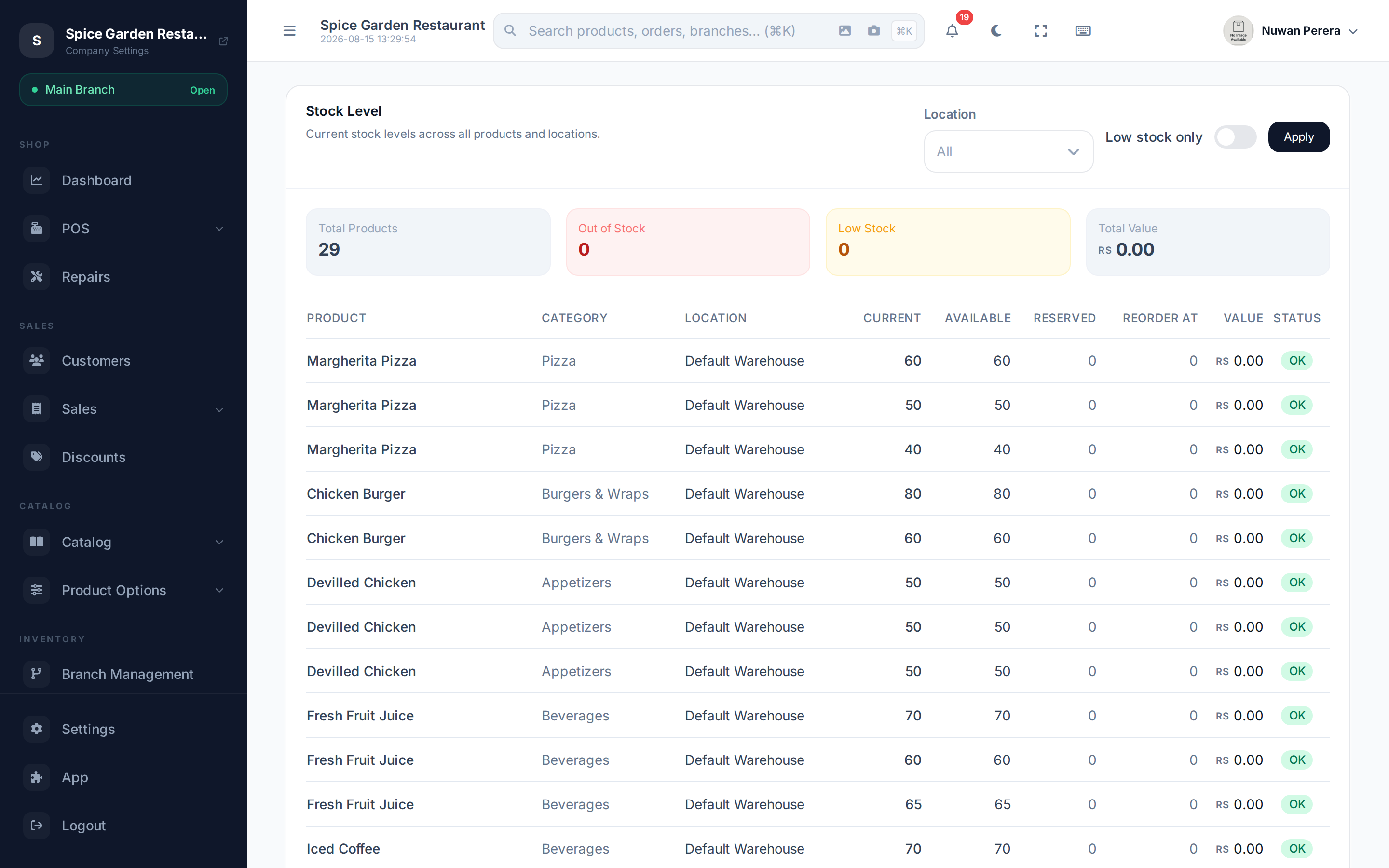
Screenshot pendingRoute /inventory/reports/stock-level
Reading it
Set the filters and select Apply:
- Location — a single warehouse/branch, or leave as All.
- Low stock only — show just the items at or below their reorder point.
Four summary cards sit at the top: Total Products, Out of Stock, Low Stock, and Total Value.
Each row of the table shows:
| Column | Meaning |
|---|---|
| Product | Name and product code |
| Category | Which category it's in |
| Location | The warehouse/branch this count is for |
| Current | Physical stock on hand |
| Available | What you can still sell — current minus reserved |
| Reserved | Held for open orders not yet completed |
| Reorder At | The reorder point set for the item |
| Value | Stock value at cost |
| Status | OK, Low, or Out of Stock |
Available vs reserved
Current is everything physically there. Reserved is stock already committed to orders that are placed but not finished (an open restaurant table, a held order). Available is what's left to sell. If available looks lower than you expect, check for open orders holding stock. See Inventory overview for how reservations work.
Spot shortfalls before they bite
Turn on Low stock only to get a quick reorder shortlist, then raise a purchase order. For automatic alerts, use Reorder alerts.