
Appearance
Barcode label templates
A label template describes the physical layout ZeylonPOS uses when it prints barcode labels — the page size, the size of each label, how many fit across and down, and which barcode symbology to use. You pick a template when you print labels for your products.
🔷 For managers & admins
Managing templates needs
settings.label_templates.read to view and settings.label_templates.create / settings.label_templates.update to add or edit. The tab only appears when the barcode labels module is switched on in the App marketplace. 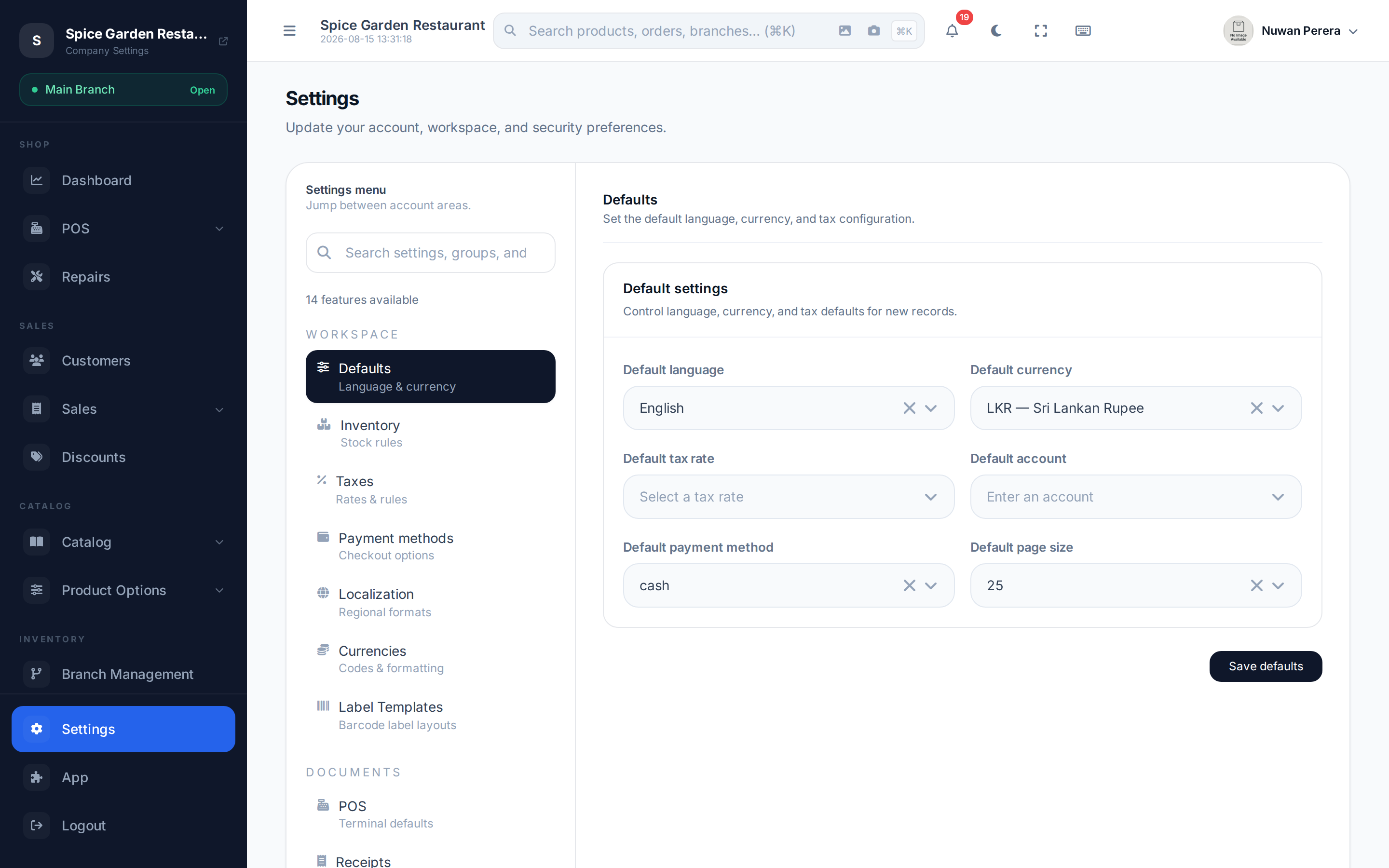
Screenshot pendingRoute /settings, Label Templates tab selected
Adding a template
- Open Settings → Label Templates.
- Select + Add Template.
- Choose the page type — a sheet grid (e.g. A4) or a continuous roll.
- Set the page size, the label size, and the grid (columns × rows).
- Pick the symbology — CODE 128, EAN-13 or QR.
- Choose which fields print on the label and set it enabled.
- Save. Mark one template as the default to pre-select it when printing.
What each column means
| Column | Meaning |
|---|---|
| Name | Template name (a Default badge marks the default) |
| Page | Page type and page width × height in mm |
| Label | Each label's width × height in mm |
| Grid | Columns × rows per page |
| Symbology | Barcode type: CODE 128, EAN-13 or QR |
| Status | Enabled/disabled toggle |
WARNING
If you choose EAN-13, the barcode value must be exactly 13 digits. Any other value silently falls back to CODE 128 — the label modal flags this when it happens.
Templates are used from the products list — see Barcode labels for how to actually print them.