
Appearance
General settings
The Settings hub is the control panel for how ZeylonPOS behaves. It's laid out as a searchable list of tabs down the left, with the selected tab's form on the right. Only the tabs you have permission for — and whose module is switched on — appear.
🔷 For managers & admins
Each tab has its own permission (for example
settings.pos.read to view POS settings, settings.pos.update to change them). A cashier or viewer will see few or no tabs. 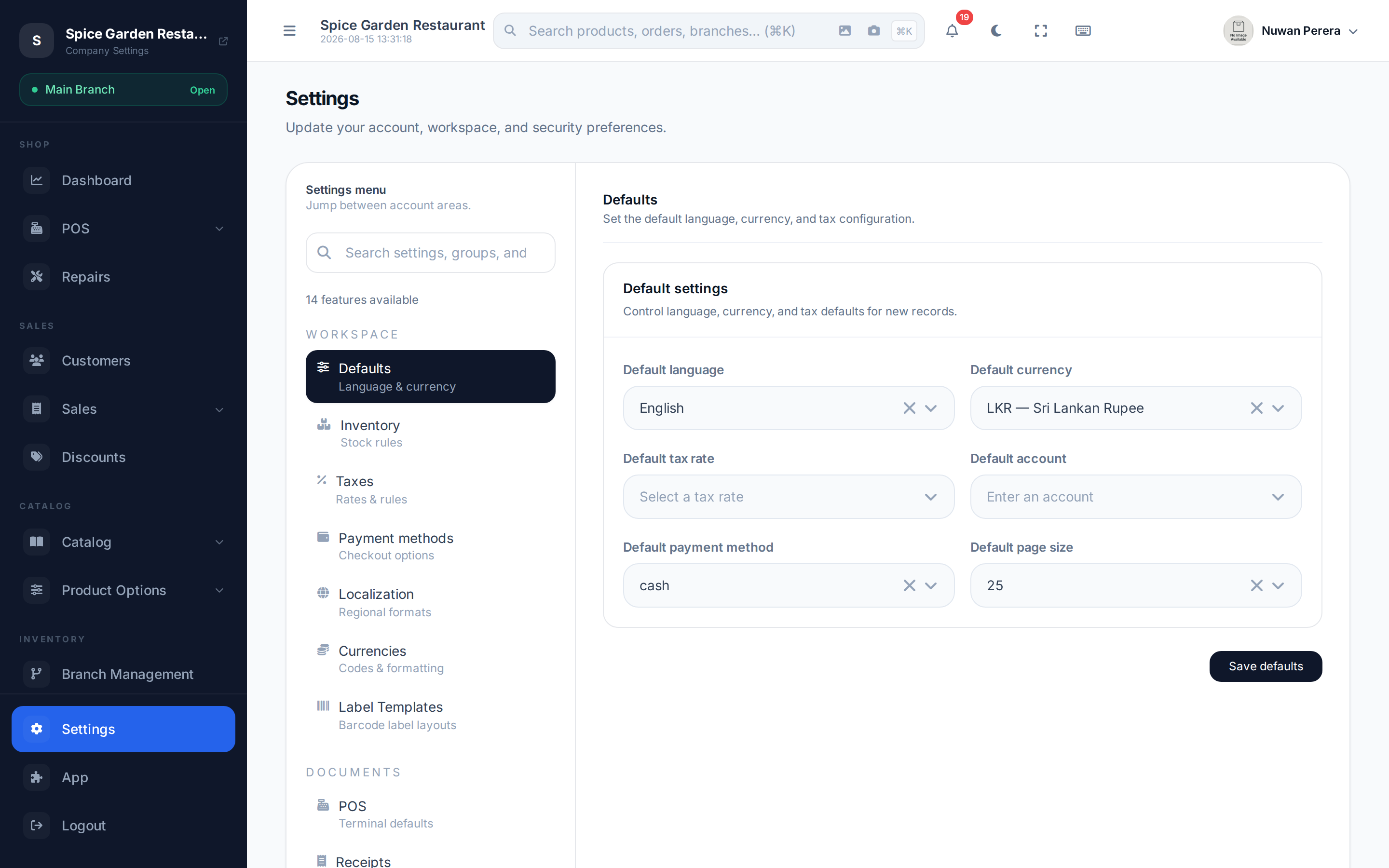
Screenshot pendingRoute /settings, logged in as an admin
The tabs
Tabs are grouped into Workspace (day-to-day behaviour) and Documents (numbering formats). Each has its own article:
| Tab | What it controls | Article |
|---|---|---|
| Defaults | Default language, currency, tax, account, payment method, page size | (below) |
| Inventory | Auto SKU & barcode formats, stock tracking, negative stock | (below) |
| POS | Receipt/order numbering, POS behaviour (incl. maximum manual discount), payment account mapping | Document numbering |
| Receipts | Receipt notes, footer, logo, QR toggle + live preview | Receipts & printers |
| Sales invoices / Debit notes / Credit notes / Exchanges / Purchases | Numbering per document type | Document numbering |
| Taxes | Tax rates and behaviour | Taxes |
| Payment methods | Cash, card, bank, split tenders | Payment methods |
| Localisation | Financial year, date format, timezone | Localisation |
| Currencies | Currencies, rates, rounding | Currencies |
| Label templates | Barcode label layouts (needs the labels module) | Label templates |
Defaults
The Defaults tab sets the fallback choices used across the app:
| Setting | Effect |
|---|---|
| Default language | The language new documents and the receipt default to |
| Default currency | The currency shown on new sales |
| Default VAT | The tax applied to new products/lines unless overridden |
| Default account | The accounting account used by default |
| Default payment method | Pre-selected method at checkout |
| Rows per page | How many rows tables show before paging |
Select Save to apply.
Inventory
The Inventory tab controls how product codes are generated and how stock is tracked:
- SKU format — prefix, suffix, number of digits and the next number, so new products get an auto SKU like
PRD-00001. - Barcode format — the same, for auto-generated barcodes.
- Track inventory — turn stock tracking on or off globally.
- Allow negative stock — let items sell past zero on hand. A branch with a POS configuration uses its own switch for sales at that branch; this setting covers everything else.