
Appearance
Taxes
Define the tax rates your business charges — VAT, GST or any local sales tax — so they can be applied automatically to products and sales.
🔷 For managers & admins
Managing taxes needs
settings.taxes.read to view and settings.taxes.create / settings.taxes.update to add or edit. 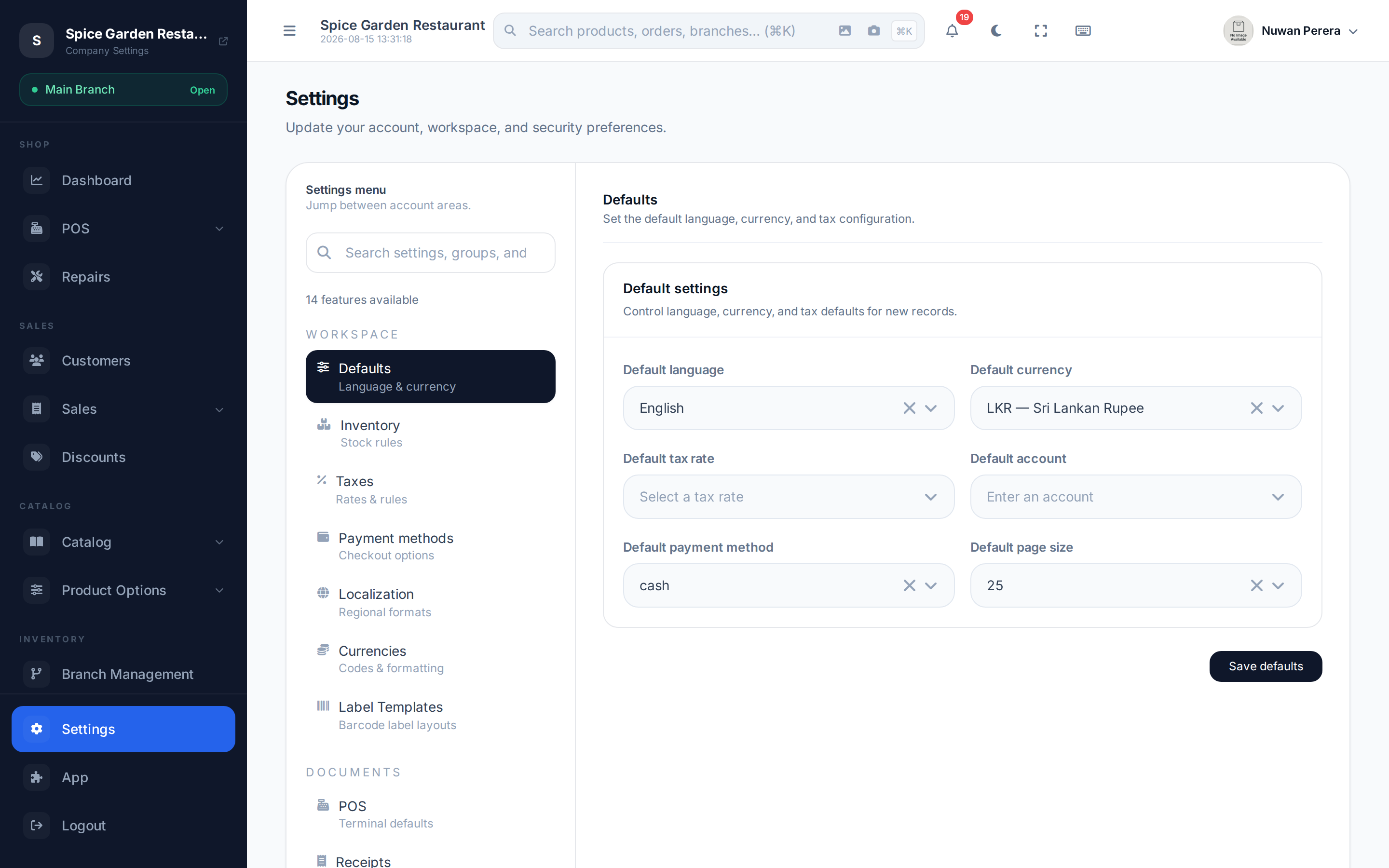
Screenshot pendingRoute /settings, Taxes tab selected
Adding a tax
- Open Settings → Taxes.
- Select Add and give the tax a name (e.g. "VAT 15%") and code.
- Choose the type and enter the rate as a percentage.
- If the rate is 0%, pick an exemption reason (see below).
- Set it enabled and select Save.
Fields
| Field | What it does |
|---|---|
| Name | Display name shown on documents |
| Code | Short code for the tax |
| Type | The tax category (e.g. standard-rated) |
| Rate | Percentage rate — 15 means 15% |
| Exemption reason | Shown only for a 0% rate — the reason the supply is zero-rated or exempt |
| Enabled | Whether the tax can be selected |
Inclusive vs exclusive prices
Whether a tax is included in the price shown or added on top is decided by your product pricing, not the tax record itself:
- Tax-inclusive — the shelf price already contains the tax; ZeylonPOS works out the tax portion inside it.
- Tax-exclusive — the tax is added to the price at the till.
With a tax-inclusive price the customer pays the shelf price, and the tax inside it is still counted as tax. For example, a 115.00 item with 15% VAT included shows on the till's order summary and on the receipt as Subtotal 100.00, VAT 15.00 (the breakdown line is marked incl.), Total 115.00. Sales reports, the tax summary and VAT payable count that 15.00 as VAT, not as sales revenue.
Pick the default tax applied to new lines in General settings → Defaults.
INFO
A 0% (zero-rated or exempt) tax must carry an exemption reason code. A rated supply must not — ZeylonPOS clears the reason automatically when you raise the rate above zero. This keeps tax invoices valid for ZATCA e-invoicing in Saudi Arabia.
Next steps
- Currencies
- General settings
- ZATCA e-invoicing