
Appearance
Taking payment & checkout
Checkout is where you collect the money and finish the sale. You can take one payment method or split across several, and the screen always shows the change due.
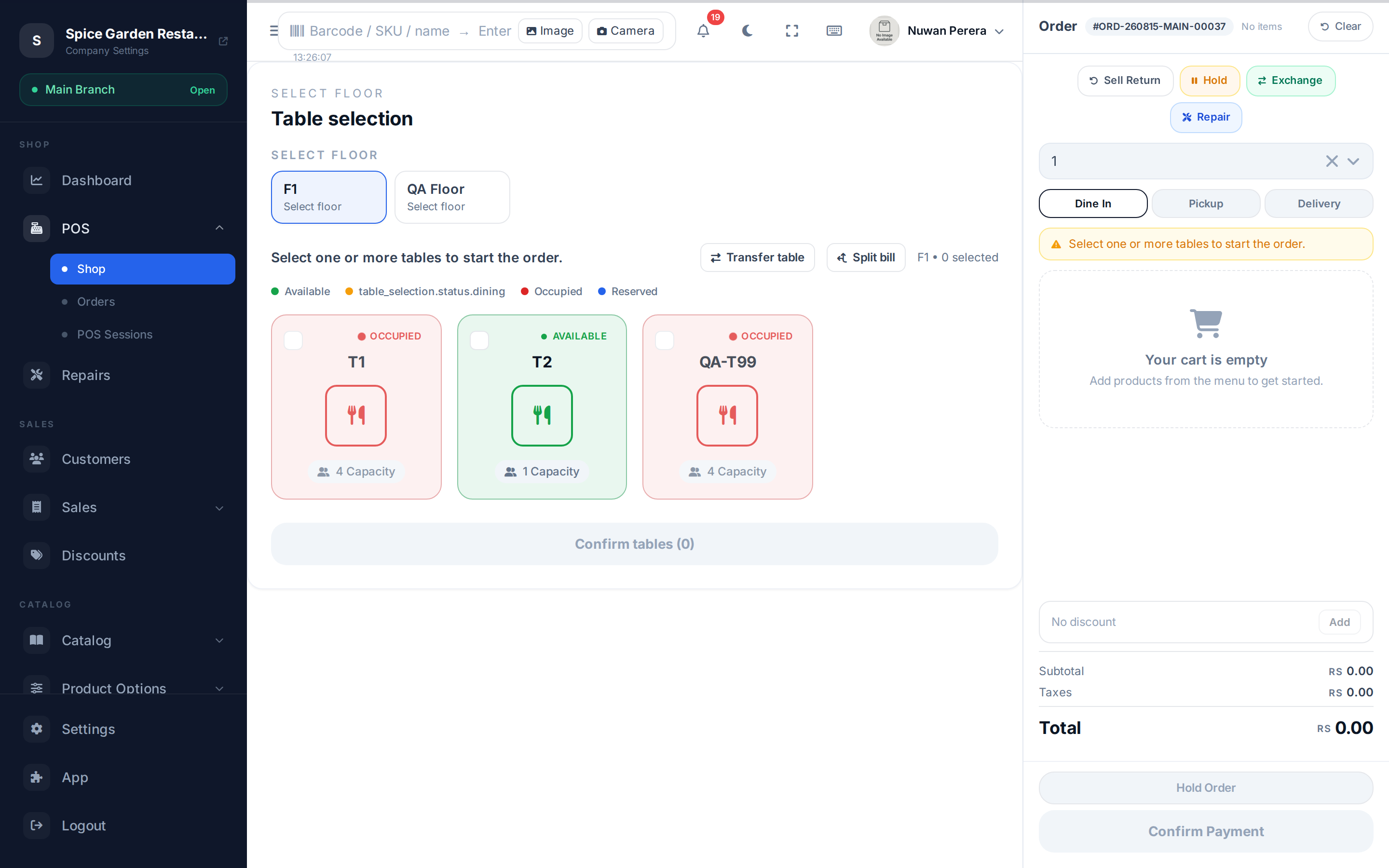
Screenshot pendingRoute / with items in the cart, Confirm payment panel open
Step by step
- Select Pay / Confirm payment once the order is ready.
- Pick a payment method — the available methods (cash, card, etc.) come from your branch setup.
- Enter the amount:
- Cash — type the cash received; the screen shows the change due.
- Card — enter the charge amount and an optional card reference.
- Select Complete. The sale saves and the receipt opens.
Totals are checked when you pay
ZeylonPOS recalculates the subtotal, tax and total from the items when the sale is saved, using the prices and taxes in your catalogue. A sale can only be completed when the payments cover the total, and a discount can't be larger than the subtotal. If the total on screen no longer matches (for example, a tax was changed in settings while the till was open), the sale is refused with a "total mismatch" message — refresh the register and try again.
Split payments
If a customer pays part cash and part card, use a split payment method. You get an amount box per sub-method — enter how much goes on each. The panel tracks the remaining balance and warns if it's short or flags anything collected over.
Cash rounding
Where your currency rounds cash to the nearest 5, 10, 25 or whole unit, the register rounds only the final cash total and shows it as its own Cash rounding line. It applies only to cash payments, never to returns or exchanges, and only when rounding is turned on for your currency.
| The screen shows | Meaning |
|---|---|
| Total due / Balance due | What's left to collect |
| Cash rounding | The rounding adjustment on cash |
| Change due | Cash back to the customer |
| Remaining balance | Still owed if underpaid |