
Appearance
Recent orders
The register keeps your recent sales close by, so you can look one up, reprint its receipt, or open it in full. You can also hold an order — park it and come back to it — which is handy when a customer steps away.
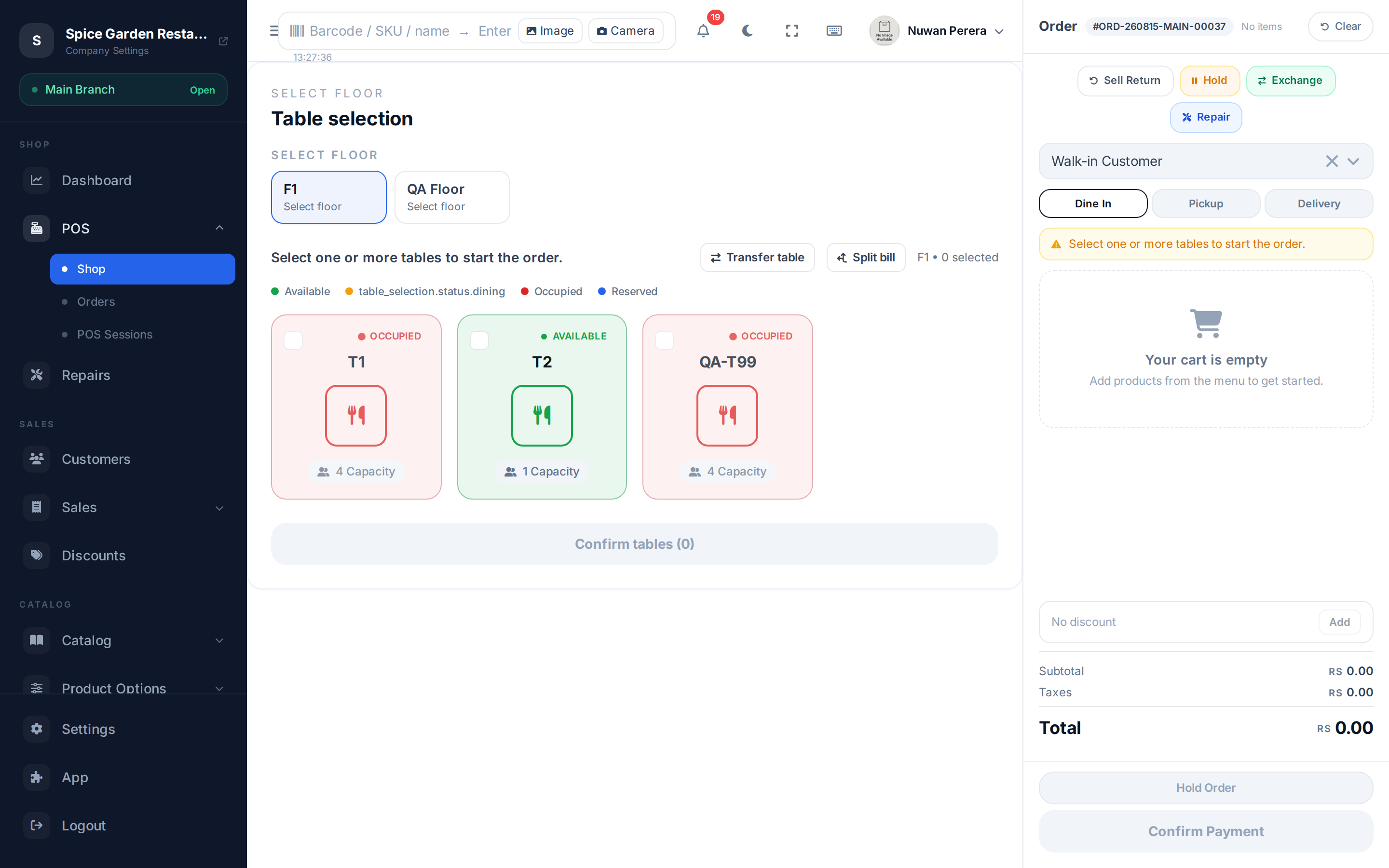
Screenshot pendingRoute / → Recent orders panel open
Looking up a recent sale
- Open Recent orders.
- Search or scroll the list — each row shows the order, customer, total and a status pill (completed, processing, hold, cancelled).
- Select an order to see its receipt preview on the right. Print it again from there, or choose Open full to view the whole order.
Browsing recent orders doesn't touch the cart you're working on.
Holding and resuming an order
Holding lets you set an order aside without losing it:
- Hold the current order from the checkout panel — it's saved with a hold status and the hold counter goes up.
- Resume it later from the hold list. It loads back into the cart exactly as you left it.
- Completing a resumed hold updates that same order rather than creating a new one.
Recent orders vs holds
Recent orders is a read-only viewer for sales that already happened. Holds are unfinished orders parked for later — they're a separate list, with a live count so you don't forget them.