
Appearance
Refunds & returns
When a customer brings something back, you return it against the original sale. The register finds the sale, you pick the items and quantities coming back, and it refunds them.
🟢 For everyone
Returns need the Return permission (
sales.orders.return). 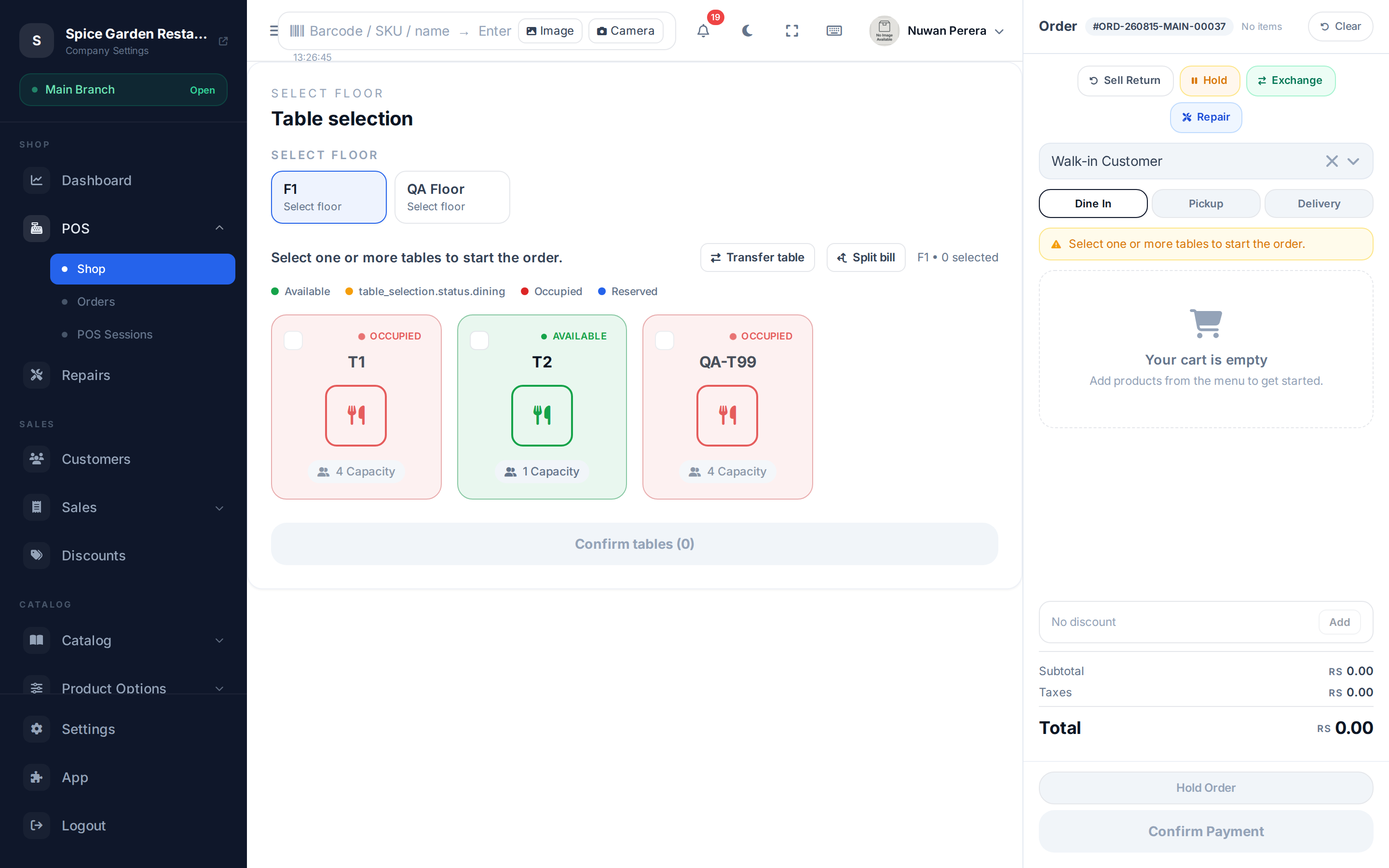
Screenshot pendingRoute / → Sell return → pick an order → item selection step
Step by step
- From the register, open Sell return.
- Find the original sale — search the recent orders list. Orders that have already been partly returned are flagged.
- Choose the items. Tick each item coming back and set the return quantity. You can't return more than was originally sold.
- Confirm. The cart switches to Return mode (a rose "Return" badge shows).
- Pick the refund method and complete. The refund is recorded and stock for the returned items goes back in.
Returns put stock back
Returned items are restocked automatically, and the return posts as a credit note against the original sale — so your inventory and books stay correct. In return mode there's no cash rounding or change calculation.
Limits on returns
- Every return is checked against the original sale: you can't return more of an item than was sold, or refund more than the sale was worth, counting earlier returns and credit notes for the same sale.
- A return without the original receipt needs the Return Without a Receipt permission (admins and managers have it by default; cashiers don't).
Full refund / void
Returning selected items is the everyday flow above. Reversing an entire filed invoice is a separate action (void with a credit note) handled from the sales records, not the return picker.
A sale that already has returns or credit notes can't be voided — return the remaining items instead. Only one void can run at a time for the same sale.
🟢 For everyone
Voiding a filed invoice needs the Create credit note permission (
sales.credit-notes.create). As a cashier you can void your own orders while you have an open shift on the register you signed in on. 🔷 For managers & admins
The void action is guarded by the authority matrix, so who can void — and which orders — depends on the role:
- Cashiers can void only orders they created, and only while they have an open shift on a registered POS device (the device is recognised when the register app signs in).
- Managers can void any order in a branch they're assigned to, up to their approval limit — a void above that limit is refused.
- Admins can void without those restrictions.
Every void is written to the central audit trail (who, when, which order, from which device and shift), on top of the credit note it posts.