
Appearance
Restaurant tables
In restaurant mode the register adds a floor plan. You seat guests at a table, their order stays attached to it, and you can split the bill or move it to another table.
🔷 For managers & admins
Tables appear only when the restaurant module is on and your branch has restaurant mode enabled.
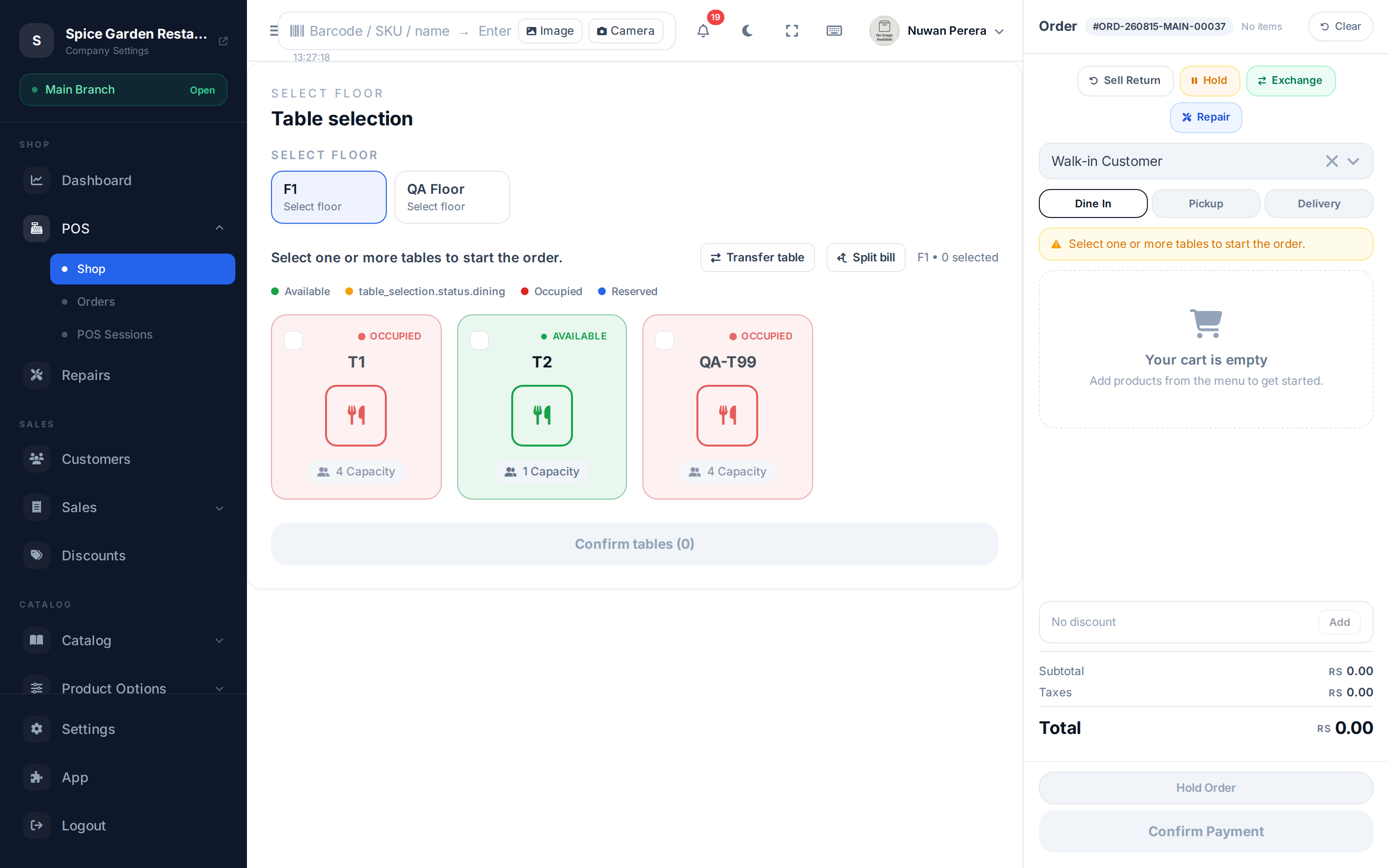
Screenshot pendingRoute / with restaurant mode on, table selection open
Seating a table
- Open the table view and pick a floor from the tabs.
- Tap an available table (you can select more than one for a group).
- Confirm. Your order is now attached to that table — ring up items and take payment as normal.
Table colours tell you the state at a glance:
| Colour | State |
|---|---|
| Green | Available |
| Amber | Dining |
| Red | Occupied |
| Blue | Reserved |
Occupied tables can't be re-selected.
Split a bill
Use Split to move some items to another table — for example when a group wants to pay separately.
- Select Split and choose the occupied source table to load its open bill.
- Tick the items to move to a new table. You must leave at least one item behind and move at least one.
- Choose an available target table and confirm. The moved items become a new bill on that table.
Only bills that haven't been issued yet can be split. If the order has an order-level discount, it's shared between the two bills in proportion to their items.
Transfer a table
Use Transfer to move a whole order to a different table (guests changed seats). Pick the source table and an available target, then confirm — the entire open order moves across.
🔷 For managers & admins
Split and transfer each need their own permission: settings.tables.split and settings.tables.transfer. Floors and tables are managed under settings (settings.floors.*, settings.tables.*). Cashiers can still view tables, transfer and split without the create/edit/delete permissions.