
Appearance
Repair jobs
If your shop repairs devices, Repair Jobs tracks each one from the moment it comes in to the moment it's handed back — the device, the customer, the fault, the price and where it is in the workflow.
🔷 For managers & admins
Repairs need the repairs module enabled, plus the relevant
repairs.jobs.* permissions. 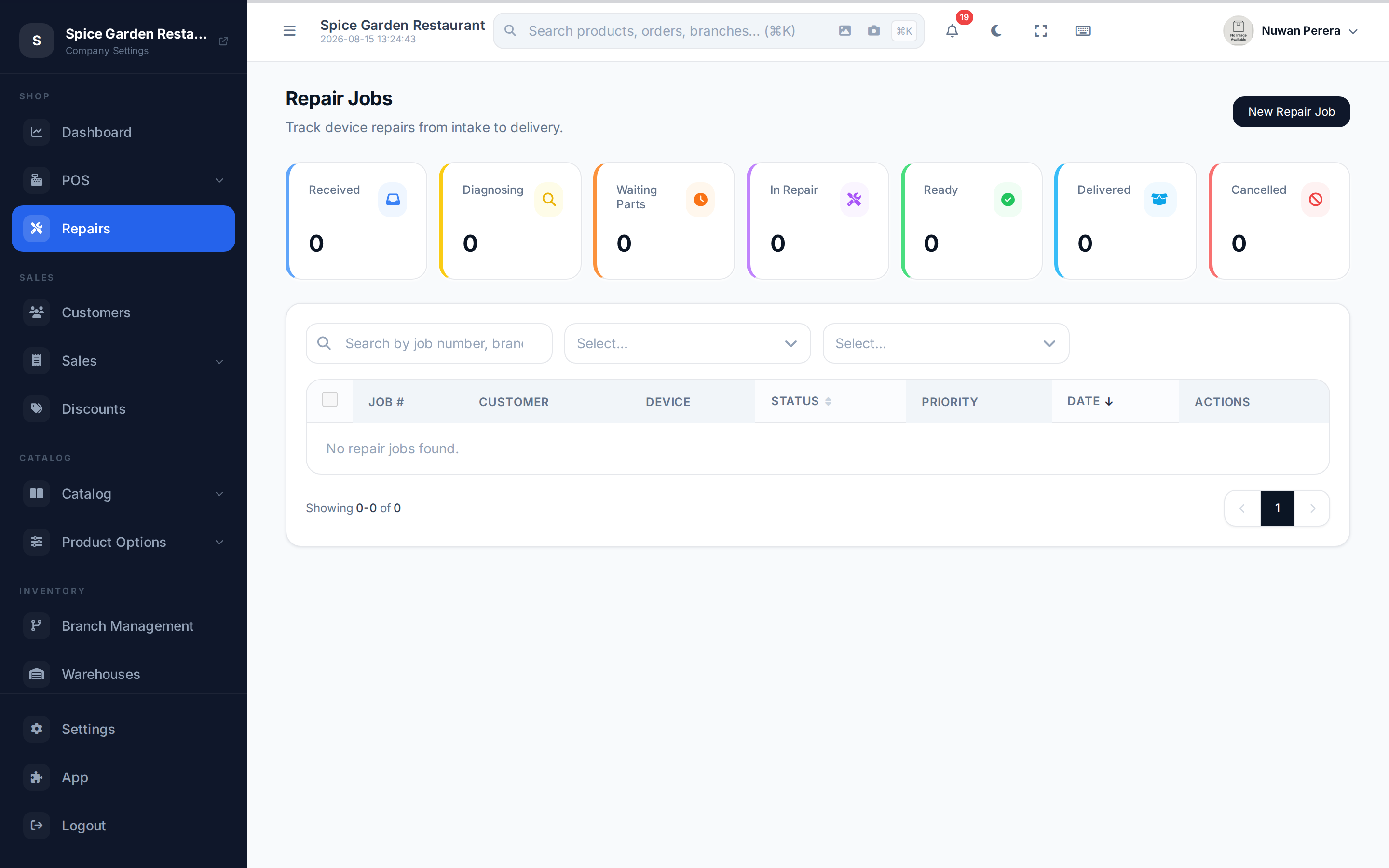
Screenshot pendingRoute /repairs with a few jobs
Creating a repair job
- Go to Repair Jobs and select New Repair Job.
- Customer & branch — choose the customer and the branch taking the device in.
- Device — set the device type (mobile/tablet/laptop/other), priority (low/normal/urgent), brand, model, serial/IMEI and the device passcode.
- Repair details — record the reported issue, any internal technician notes, an estimated cost and an estimated ready date.
- Parts & labour — add line items for parts and work.
- Save. The job gets a job number and starts at Received.
The mobile POS app provides the same repair intake fields and parts-and-labour lines as the web POS, including editing an existing job from its repair detail.
Tracking through the workflow
Each job moves through a set status flow:
Any stage can also be Cancelled. The list shows a card per status with live counts, and each row shows the job number, customer, device, status, priority and date. Update a job's status as the work progresses; the allowed next steps are enforced for you.
Handing it back / billing
When the repair is done and collected, you can convert the job into an invoice so the customer pays for parts and labour — the invoice links back to the repair job.