
Appearance
Selling bundles
A bundle (a combo or meal deal) groups several products and sells them for one price — a burger, fries and a drink, say. At the register it rings up as a single line.
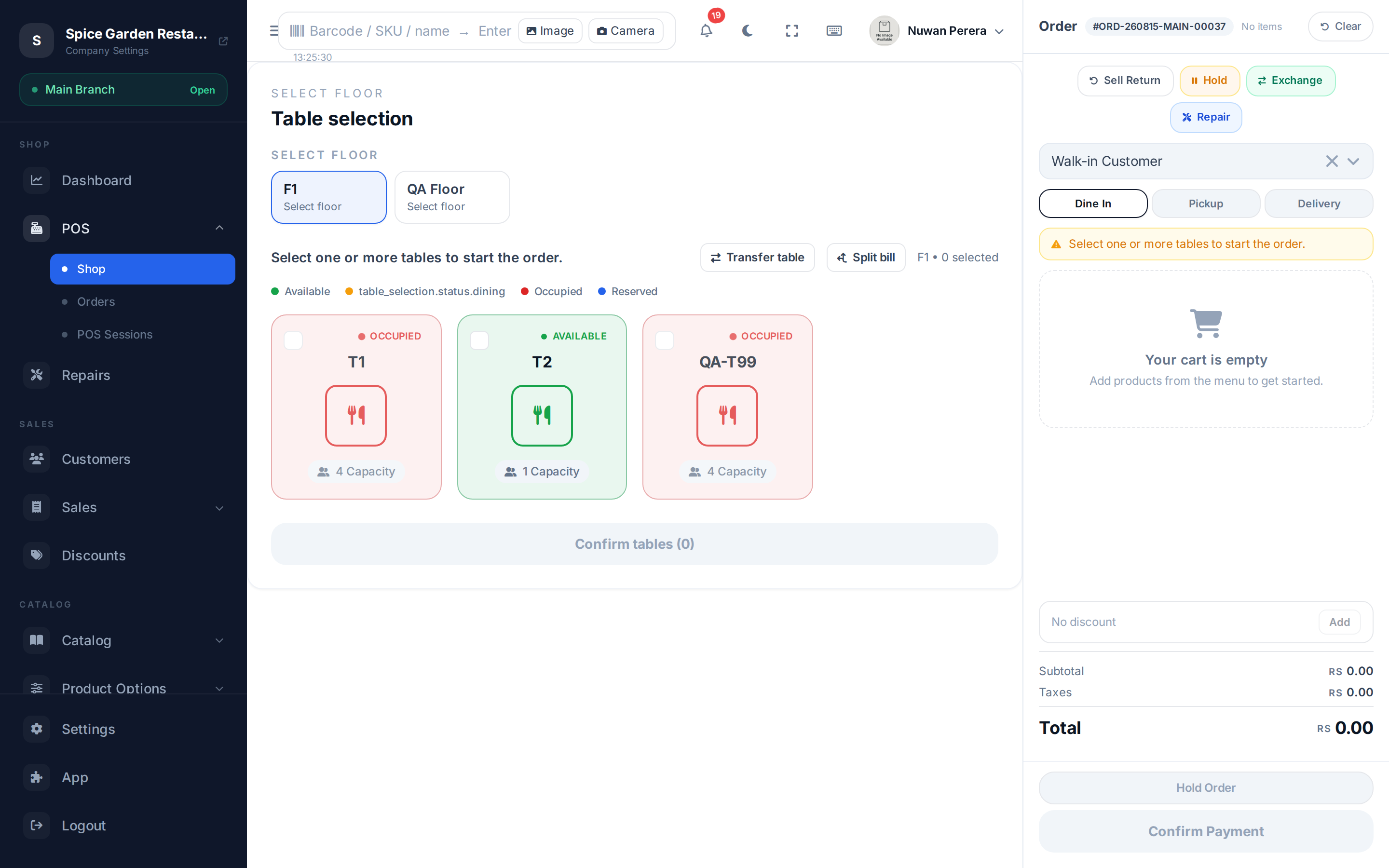
Screenshot pendingRoute / and tap a product with the Bundle badge
Step by step
- Find the bundle in the product grid — it carries a Bundle badge.
- Tap it. A window lists everything the bundle includes, with each item's quantity (for example "Fries ×1").
- If you need more than one, set the quantity with the − 1 + stepper in the action bar — it counts complete bundles, and the button shows the total.
- Select Add to cart. The whole bundle goes in as one line at the bundle price.
- Take payment as usual.
The contents are fixed
The bundle window is informational — you can't swap or choose alternative items for a component. If you need customer choice, that's set up on the product itself, not at the register. To change what's in a bundle, edit it in the catalog.
What happens to stock
Even though the bundle is one line, stock moves for each component product, not the bundle. Selling one burger combo deducts a bun, a patty and a drink from inventory.